


 Generate Points
 Creates a pattern of XY points on the selected sample. Used with quantitative/statistical methods to detect objects in a large number of “randomly” scanned frames. | Requires: Task: Well Plates > Module: |
 Define Slide
 Define Stage Area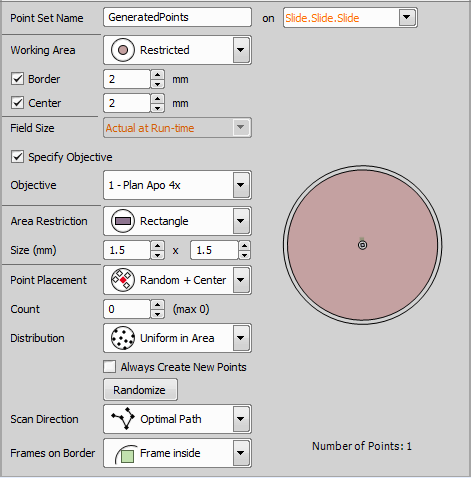
Figure 1225.
Main settings of this task are described below, however some settings allow for advanced adjustments (e.g. size, distance, count, ...). These functions are self-explanatory and are clearly depicted in the preview area.
Actual at Run-time uses the field of the currently used objective. Points are generated using the objective set right before the job run. Custom can be used to select a specific objective from the combo box which is then always used for the point generation. If a Acquisition >  Triggered Experiment task is defined, its field size can be selected here.
If checked, an objective can be selected from the drop-down menu defining the used field size.
Choose one of the point placement methods listed. Manual method enables the user to add points by clicking into the preview area. Created points can be moved using the primary mouse button. Right-clicking deletes the point below the cursor.
If Point Placement is set to Random, Random + Center or Manual, Random scan direction scans in the randomized order whereas Optimal Path scans points in the most effective order.
If Covering or Regular Pattern point placement is selected, Meander scans in a winding manner and Left to Right scans row by row from left to right.
If Point Placement is set to Spiral, options in the Scan Direction combo box specify the direction of rotation - clockwise (CW) / counterclockwise (CCW) and heading from/to the center (Outwards / Inwards).
Specify whether the frames on the border of the restriction area are touching the border, completely inside or having a center inside.
In Covering mode you can select the frame Overlap amount in percent.
For well plate loops, check the Auto option to set the optimal overlap to cover the rectangle inside the well automatically. To maximize the coverage to the edge of the well, combine the Auto option with the Frame inside option.
Set the number of points you want to generate. The maximum number is indicated in the bracket.
 Predefined Points
 Specifies a list of XY points on the selected sample manually in a tabular way. Used for fixed samples. Find interesting scenes with a joystick and add them to the table one-by-one. | Requires: Task: Well Plates > Module: |
Please see Multi-point Acquisition for details about points predefining. There are some additional options available within the JOBs module:
Displays the Z-Stack definition column with the  Z-stack definition button enabling to define a Z-Stack for the currently selected point.
Displays the Camera column with the  Redefine Camera Setting button enabling to adjust the camera settings (please see: Optical Configurations >
  Adjust Camera Settings Manually in OC).
Displays the ROIs column with the  button. Click this button and draw ROI(s) for the selected multi-point.
Labels defined in Well Plates >  Label Well Plate task can be assigned to each multi-point. Select a label from the pull-down menu in the Label column.
Note
The maximum number of generated points is limited to 30 000. For random points this limit is set to 1500. If you need to change this limit, run a job with the Stage XY Points > Predefined Points task, then open the Windows Registry Editor, search (Ctrl + F) one of the following functions: GeneratePoints_MaxPointCount
GeneratePoints_MaxRandomPointCount
and modify the “esrData” decimal value to a new value. Then click .
 New Point Set
 Creates an empty point set. Points shall be added to it later either by Stage XY Points > While looping an existing generated point set, only interesting scenes are added to the empty point set for later use. | Requires: Module: |

Figure 1226.
Name your point set.
 Loop over Points
 Runs the contained tasks on each XY point of the selected point set. Used for capturing XY(Z) nd2 files. | Requires: Task: Stage XY Points > Module: |
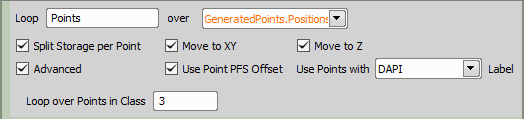
Figure 1227.
Select one of your active point tasks to be looped (Stage XY Points > Generate Points, Stage XY Points > Predefined Points, Stage XY Points > New Point Set).
This option influences how the system stores the captured data on the disk. If checked, separate ND2 file will be created for each point.
If checked, the Z-drive moves to the Z position assigned to the current well (e.g. Z value found by Autofocus + Focus Surface >  Autofocus during the first Well Plates >
  Loop over Wells).
Each point can be assigned to a class (by an expression). If you select this option, the Loop over wells in class field appears. Type the class number to which the current loop will be applied.
These options tells the system to set Z drive to a position previously assigned to the current point.
If you select a label defined by the System >  Create Labels task, the tasks inside Loop over Points will be executed only on points marked with this label.
 Move to Point
 This task can be used inside a point loop to move to a XY/Z position of a point. If a condition is met, move the motorized stage to a specific point. | Requires: Module: |
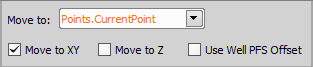
Figure 1228.
 Move to Previous/Next Point
 Moves the XY stage to the previous/next well. When placed in runtime, the user can move to the previous/next point to check the procedure. | Requires: Module: |

Figure 1229.
 Offset Point Set
 This task can correct the XY offset between objectives. Used to offset all XYZ coordinates of the current stage position or of the selected point set. | Requires: Module: |
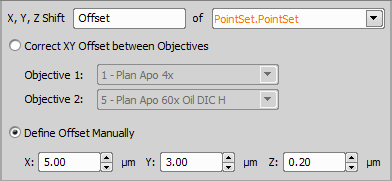
Figure 1230.
Is used to select a point set (Stage XY Points > Generate Points, Stage XY Points > Predefined Points, Stage XY Points > New Point Set) or the Actual Stage Position to be shifted.
If checked, XY correction between objectives is performed using the two objectives specified below. Please see Devices > Objectives XY Offset Setup for more information.
 Add Point to Point Set
 Adds a named XY point to the selected point set. Current XY position is used. Pause the job to manually find an interesting XY position using the joystick and include this point in the analysis. | Requires: Module: |

Figure 1231.
 Remove Point from Point Set
 Removes the current XY point from the selected point set which is used in a point loop. Use this task in an XY point loop to remove points which are not useful for further analysis (e.g. do not produce any image signal). | Requires: Module: |

Figure 1232.
 Add/Edit Points Manually
 Waits for the user to add or edit points to the selected point set manually during the runtime. May be used to check focus and offset the point set if needed. | Requires: Module: |

Figure 1233.
 Append Point Set to Point Set
 Appends points from a selected point list into another selected point list. Append interesting points to a list on which a high magnification capture will be made. | Requires: Module: |

Figure 1234.
 Clear Point Set
 Removes all points from the selected point list. If the user decides to clear the point list e.g. because of an incorrect sample. | Requires: Module: |
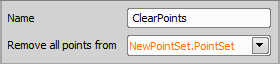
Figure 1235.
 Export Point Set to ND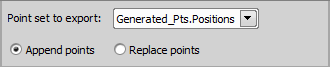
 Reorder Point Set
 Reorders the input point set to minimize the distance between the points. Use this task to optimize the point trajectory. | Requires: Task: Stage XY Points > Module: |
 Import Point Set from ND
 Requires: Module: |

Figure 1237.
 Get Current XY Position
Retrieves the current XY position of the stage device. Use the retrieved XY value to move the stage to this position later on in the job. | Requires: Module: |
 Move to XY Position
Moves the stage to the previously remembered position. Use the retrieved XY value to move the stage to this position later on in the job. | Requires: Module: |
 Set XY Speed/Accuracy
Sets the stage speed so that different speeds can be used throughout the job. Use a slower stage speed to prevent the sample shift and get stability for the PFS during acquisition. Then use faster speed when changing samples to reduce the total acquisition time. | Requires: Module: |
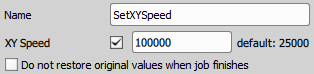
Figure 1238.
 Import Area From Sample Navigation
 Imports “Area” data set in the View > Acquisition Controls > Sample Navigation |

 Move to Loading Position
 Move to Acquisition Position
 (requires: JOBS) (requires: Local Option)
Moves the XY stage to the acquisition position. |
 Filter Point Set within Area
 (requires: JOBS) (requires: Local Option)
Filters points in the point set based on the wells. Pass on information about the current well to the General Analysis 3 task inside the point loop. | Requires: Module: |