

Place it inside the Well Plates >
 Loop over Wells task and than use the Optical Configurations >
  Aggregate Autosignal.ai Results to set acquisition parameters for the whole well plate.
Place it inside the Acquisition >
 Loop over Components to set acquisition parameters for each channel of a Acquisition >
  Capture Definition task.
 Select Channels
Switches the system to the selected optical configuration. Use this task to make arbitrary changes on automated devices such as changing the camera settings, switching objectives, etc. |
Choose one of your optical configurations to be activated.
When the light path is switched, the current settings before the switch are stored and are set again when the user returns to the original light path. The Last Used option for Multichannel experiments means that it will use these saved light path settings. So, if you use this option for the EPI light path, it will use the current settings if the system is now on the EPI light path. If you use this option for the EPI light path but the system is, for example, on the DIA light path, then it will use the saved EPI light path settings from before the switch.
 Auto Brightness
Automatically adjusts the brightness settings (exposure time, gain, ... ) based on the parameters of the captured image. Benefit from the captured image and use it to automatically adjust the brightness settings for the rest of the job. |
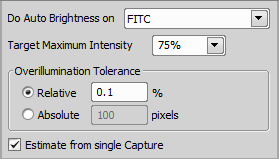
Figure 1291.
Determines intensity of the lightest pixel in the resulting image. It is computed as a percentage of the camera bit-depth. For 8-bit cameras, the Target Maximum Intensity of 75% would be 255 x 0.75 ~ 191.
Specifies number of pixels which will be ignored when computing the Target Maximum Intensity. For example, if your camera has one or more defective pixels which gives constantly the maximum value (white), these pixels shall be excluded from the calculation. Define the tolerance either as percentage of all pixels (Relative) or Absolute by specifying their number.
 Autosignal.ai
Uses AI (artificial intelligence) to find an ideal camera exposure time and illumination power on the captured image and stores the brightness settings into a Well Selection or Point Set.
|
Select the capture definition to which the exposure time and illumination power will be set. <current settings> just runs the task and does not save the result anywhere.
Select whether where to assign the result (e.g.: to the current well within the Well Plates > Loop over Wells task). <current position> just runs the task and does not save the result anywhere.
Aggregate Autosignal.ai Results Aggregates results of the Optical Configurations > Is used in combination with Optical Configurations > | Requires: |
Number of wells where over-illumination is acceptable. A well is over-illuminated if the Over-illuminated pixels limit [%] setting of the Optical Configurations > Autosignal.ai is exceeded.
 Set Exposure to Optical Configuration
This task assigns the desired camera exposure to an optical configuration selected from the drop-down menu. Use this task in a job to quickly switch between different camera exposures on the same optical configuration. |
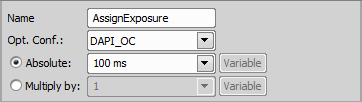
Figure 1292.
 Adjust Camera Settings Manually in OC
This task is useful for changing camera settings during a job run. Use this task in a job sequence to pop-up a maximized live window on your second monitor to comfortably adjust the camera settings. |
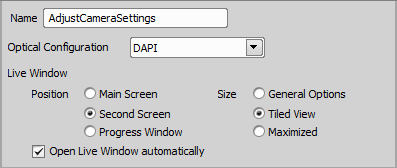
Figure 1293.
Choose where the Live window will be placed. Three options are available: Main Screen (main monitor), Second Screen (second monitor) and Progress Window (embeds into the Progress window).
Select the size of the Live window. General Options is the default size set in NIS-Elements options. Tiled View rearranges your opened windows together with the Live window to form a tiled layout. Maximized fully maximizes the Live window.
Check this option if you want to launch the Live window automatically. If you want to turn this window on manually, leave this check box empty and click the  Live button inside the Job Execution Progress window after running the job.
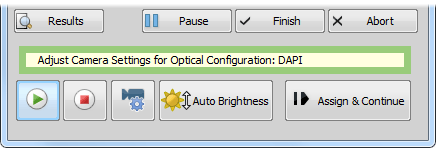
Figure 1294. Bottom part of the Job Execution Progress window
When you execute the Job, more options appear at the bottom of the Job Execution Progress window:
Live Turns on the Live window as defined in the Optical Configurations > Adjust Camera Settings Manually in OC task inside Job Definition.
 Freeze
 Camera settings
 Assign & Continue
 Assign Camera Settings to Point/Well
Takes camera settings from a selected optical configuration and applies it to a selected row, column, well or point. Let an analysis mark which wells are interesting to be inspected in detail and assign a prepared camera settings to them. | Requires: |
 Loop over Points

Figure 1295.
 Interpolate Exposure between Wells
This task interpolates/copies exposure values from wells with known values (e.g. assigned by Optical Configurations > When capturing fluorescence images on a well plate using dilute solutions or suspensions, fluorescence intensity may decrease linearly. Exposure time and other parameters can be adjusted only on the first and last well of the dilution range - manually using Optical Configurations > | Requires: |
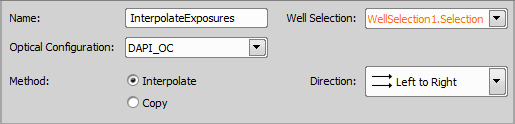
Figure 1297.
Select the desired Well Plates >  Select Wells task.
 Close Shutter
Closes the shutter specified within the task. Select one of the shutters available in the system. Use this task in the job whenever a selected shutter needs to be closed. | Requires: Device: Shutter |
 Open Shutter
Opens the shutter specified within the task. Select one of the shutters available in the system. Use this task in the job whenever a selected shutter needs to be opened. | Requires: Device: Shutter |
 Set Brightfield Acquisition
Sets acquisition settings to the hardware according to the settings defined in the Devices > Service Settings Use this task in the job before the Well Plates > |
 Continuous Scan of Well Centers
There are different values defined for each use case in the Devices > Service Settings  window. Select which one will be used.
On multi-camera systems, one of the cameras is selected to be used for overview scanning at the top of the Devices > Service Settings window.
Use the camera selected at the time the job is run.
Use the camera selected for overview scanning.
 Set Brightfield Acquisition 4x
Sets acquisition settings to the hardware according to the settings defined in the Devices > Service Settings Use this task in the job before the Well Plates > |
On multi-camera systems, one of the cameras is selected to be used for overview scanning at the top of the Devices > Service Settings window.
Use the camera selected at the time the job is run.
Use the camera selected for overview scanning.
 Select Objective
Sets the nosepiece to the position of the selected objective. Place this task before the Optical Configurations > |
 Select Channels from Capture Definition
Selects an optical configuration assigned to a single channel within the Acquisition > Place it inside the Acquisition > |
Select “CurrentLambda” of the ancestral Acquisition > Loop over Components loop to select the OC for capturing the current channel.