
Create a custom slide (using Sample Holder >
 Define Slide) with Alignment Crosses and use these crosses to target corners of the coverslip, visible corners of the slide or any other reference points.
Use Sample Holder >
 Define Stage Area with a rectangular shape and find corners of the coverslip, visible corners of the slide or any other visible reference points.
Click
 Initialize and follow the instructions to initialize your slide loader.
To change the slide model used in the slide loader, click
Select slide....Select or deselect the found slides and hotels to be used in your job.
Optionally add the name and barcode to each of your slides and add Notes for the hotel.
Define Slide Specifies the dimensions of a slide including its working area. Used whenever slide is used as a sample holder. | Requires: Module: |
If you use a standardized slide, click and search for your slide in the slide database.
For non-standard slides, click and define its properties (width, height). If you use slides with alignment crosses, it is recommended to check Alignment Crosses and set their X and Y Offset for later precise alignment.
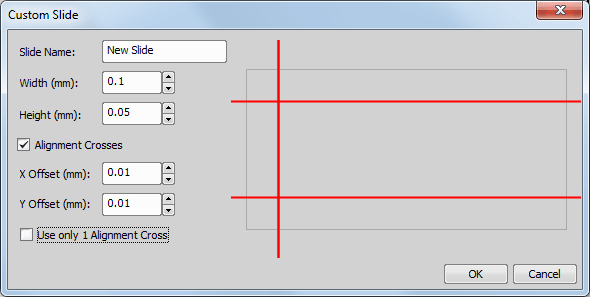
Figure 1214.
Once you have selected/defined your slide, you have to specify its orientation on the stage. The orientation can be defined by Label Area Position, Smear Direction or Crosses Position. Select the real Orientation of the slide from the combo box.
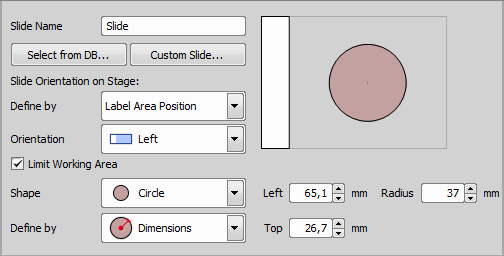
Figure 1215.
At last it is possible to limit working area of the slide. This area can be a Rectangle or a Circle defined by Dimensions or using the Interactive feature which requires to Add XY points lying on the border of the selected shape (3 corner points for the rectangle or 3 edge points for the circle).
After defining the slide it is ready for alignment. Please see: Sample Holder >  Align Slide Holder.
Define Stage Area In this task you can specify the area of interest on your stage holder. Used to define a non-standard sample holder. | Requires: Module: |
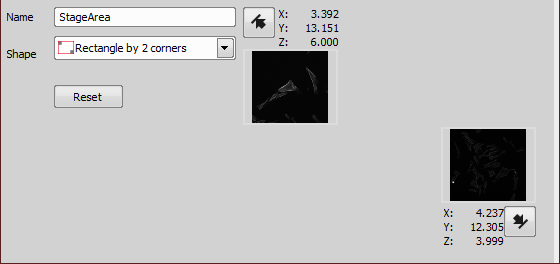
Figure 1216.
Choose a stage area shape for its definition. Then click the arrows on the right side one after another while moving the stage to define the edge points. A small preview image is assigned to each defined point. Define without Capturing sets the scanned area shape without capturing images of the definition points, therefore no preview images are shown. can be used to remove all defined points and start all over again.
Some shapes do not use edge buttons but a definition table - in such case use to enter the definition points.
Circle by radius shape requires to enter a Radius value and to Set Center Position.
Align Slide Holder
Determines exact position of the selected slide on the XY stage. Used each time the slide is changed on the stage. | Requires: Module: |
Select a slide from the combo box, move your stage to one corner of your slide and click . Move the stage to the Opposite Corner and click . Alignment is now finished. Changes to the alignment can be done by removing the XY coordinates clicking Remove or Remove All.
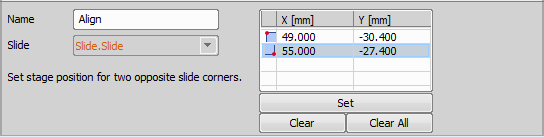
Figure 1217.
Note
Slides can also be aligned globally using HCA/JOBS > Slide Holder > Align Slide Holder. This alignment is saved into the database and applied on new slides automatically.
Slides with covered corners
If your slide is mounted to the stage in a manner that its corner(s) are not visible in the Live View, it is impossible to align it using the predefined slides from the database. In this scenario there are two options:
Slide Loader Communicates with the slide loader connected to your system. Put this task to wizard to initialize the slide loader and scan hotels for slides just before the experiment begins. | Requires: Device: Slide loader Module: |
 Scan Hotels
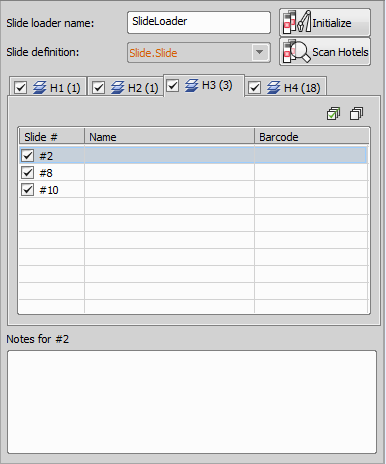
Figure 1218.
Dialog Window Options
 Refresh
 Select All
 Clear Selection
 Manual Slide List
 Specifies the list of slides to be used in a loop over slides. These slides have to be changed manually. Assign names and barcodes to slides in an ordered list. This information will be included in the experiment results. | Requires: Module: |
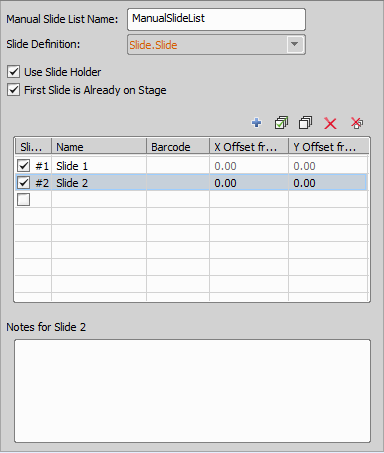
Figure 1219.
Select the slide definition (Sample Holder > Define Slide).
 Add New Slide
 Remove
 Remove All
 Loop over Slides
 Runs the contained tasks on each slide of the specified slide list. Analyze all slides in the list and perform high-magnification capture on the ones meeting the defined condition. | Requires: Module: |
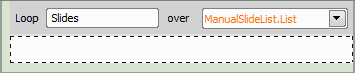
Figure 1220.
 Advanced Loop over Slides
 This task can be used to fully control the procedure when working with a slide loader. Objective clearance (escape Autofocus + Focus Surface > Typically the job runs through all slides in the loader and assigns some information to them. For example, an analysis (Analysis > | Requires: Module: |
 Escape Z
 Refocus Z
 General Analysis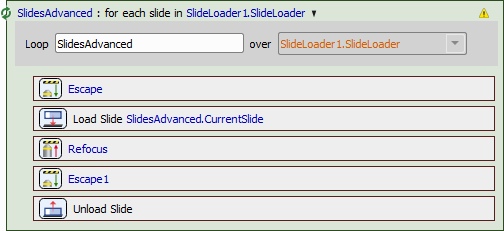
Figure 1221. Manual slide loop procedure respecting the objective clearance, similar to what the Sample Holder > Loop over Slides task does automatically.
 Load Slide to Stage
 This task loads the current slide from a slide loop onto the stage. See Sample Holder > | Requires: Device: Slide Loader Module: |
 Unload Slide from Stage
 This task unloads the current slide from a slide loop from the stage. See Sample Holder > | Requires: Device: Slide Loader Module: |
Name of the task.