
Having NIS-Elements installed and all hardware accessories set up within the  Devices > Device Manager
  window, you can start capturing images. Let's begin with the simplest case.
Turn the connected camera and other devices ON and start NIS-Elements.
Select a suitable hardware configuration on startup.
Make sure the
 Compact tab is selected with the
  Acquisition
  panel displayed on the right.
Select a lightpath which includes a camera (1).
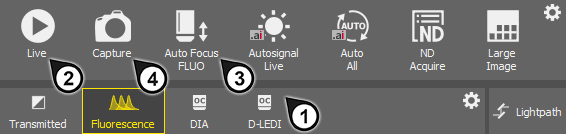
Figure 153.
Display the camera image by the
 Live tool (2).
Adjust Exposure on the camera pad to get a nice image of the scene.
Focus on the scene by the
 Auto Focus tool (3).
Capture the image by the
Capture tool (4).A new image is opened automatically and named “Captured ...”.

Figure 154. Light path tool bar for a configuration with two different cameras
Buttons for switching between lightpaths available for the current hardware configuration are displayed below the tool bar of the Acquisition panel. An icon is displayed on each button to indicate the type of lightpath:
 Brightfield
 , DIA, EPI
 General acquisition based on optical configurations. Different optical configurations can be created within such a lightpath.
 Fluorescence
 Multichannel acquisition based on “experiment settings”. With this concept, the user specifies a set of fluorescence dyes to be used within an experiment. The program calculates the hardware settings automatically.
See Multi-channel image acquisition via experiment settings.
 , DIA, EPI
 General observation lightpath. Different optical configurations can be created within such a lightpath.
 Lightpath
 Click this button to open the Lightpath Scheme  panel which visualizes the current lightpath and may indicate possible errors in the setup.
In case there are some lightpaths you will not use, you can hide them from the tool bar. Click  Configure... or using the
  right mouse button anywhere in the tool bar and select to open the User Visible Buttons window.
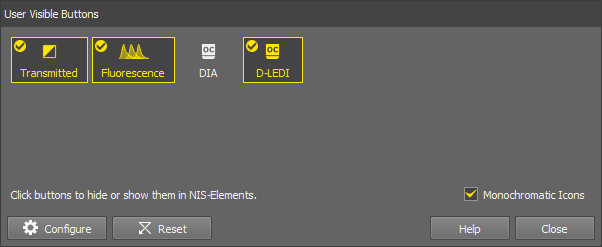
Figure 155.
(De)select any lightpaths you do not want to display. The ones with the tick icon will be displayed in the tool bar.
Optionally change the icon color (color or monochromatic icons).
If you are a user with the privilege Modify devices and light paths, you can even hide some light paths entirely. To do this, use the
Configure button in the same dialog window to open the Button Order and Visibility System Defaults window.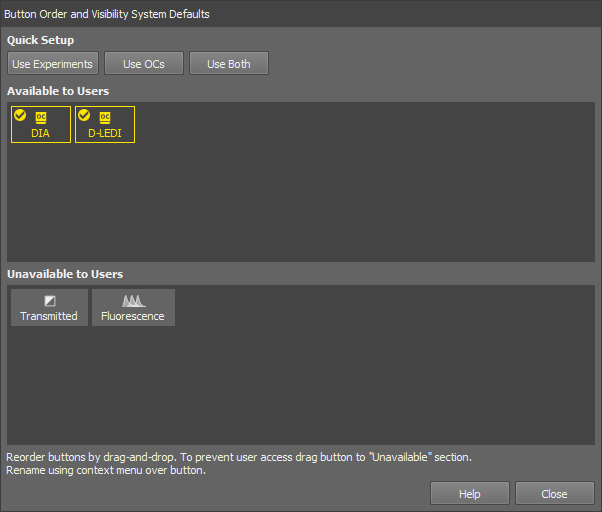
Figure 156.
Drag the buttons to the bottom area to hide them to the users. Change the order of the available buttons by moving the buttons in the Available to Users area. Quick single-click button setups are available in the Quick Setup section in the top of the window. Rename the button in the context menu over the button.
Click to confirm the selection.
Select a lightpath button with the icon . A tool bar with optical configurations appears below the lightpath buttons. The usage of optical configurations (OCs) within the Acquisition panel is the same as in the previous versions of the software where optical configurations were global. The difference is that only OCs created within the currently selected lightpath are displayed here and in the main tool bar of NIS-Elements. Other optical configurations are available only after switching the lightpath.
Note
To change the described default behavior, click right mouse button in the OC tool bar and select Show OCs from all Lightpaths. Moreover, particular OCs can be hidden from the tool bar by the Select Visible Configurations command from the same context menu.

Figure 157.
 Add
Add Click this button to call the Calibration > New Optical Configuration  command.
Select the Fluorescence lightpath to display the Experiment panel. Here you can define different presets for multi-channel acquisition.
Let's suppose you are creating a simple experiment consisting of channels DAPI, FITC, TRITC.
Select a lightpath
Make sure the
Fluorescence light path is selected in the Acquisition panel.Add a new experiment preset
Click on the
 Add button in the Experiment panel.
Specify channels
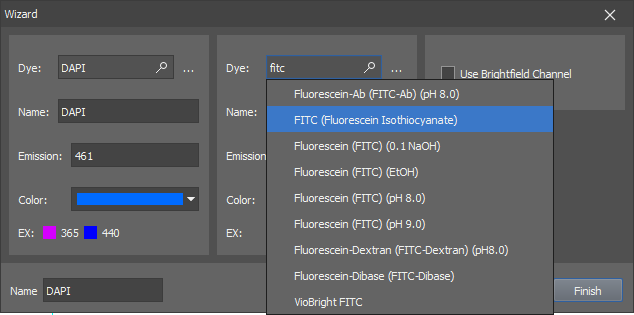
Figure 158. Experiment wizard.
Type “DAPI” in the first search field, select the actual dye you will be using and confirm it by Enter. Another search field appears. Add the FITC and TRITC dyes as well. Optionally, select the Use Brightfield Channel box to capture the brightfield channel too.
Confirm the experiment settings
Click to close the window. The newly created experiment will be activated and a button for each channel will appear below the selection box.

Figure 159. Experiment panel
Single Channels and All Channels options are present by default.
All Channels - automatically calculates the possible dyes for acquisition based on the experiment excitation wavelength and filter settings. All channels are acquired during the capture.
Single Channels - all possible dyes are calculated, however just the single (selected) channel is acquired during the capture.
Adjust light power and exposure for each channel
Below the
Experiment panel, the experiment pad (Experiment pad) appears instead of the usual camera pad. It consists of a simple control panel for each channel where illumination power and exposure time can be adjusted. Only one channel can be active at a time.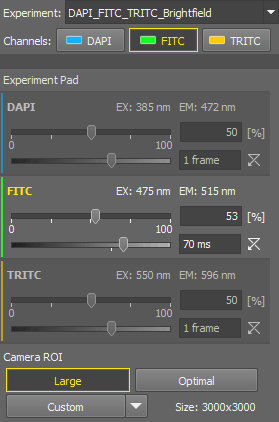
Figure 160. Experiment Pad
You can:
Run the live image by the
Live tool.Activate the split view by the
View > Image > ND View > Switch to Split Component View tool in the image tool bar.Switch between the channels within the experiment pad and adjust the exposure and illumination power so that the live image is as you need. If you need to make any changes in the preset, use the
Exp. Settings button, to edit it. See Adjusting and managing experiments.Use the
Capture tool to capture a single multi-channel image.
The Experiment pad is different for different microscopes. For Nikon Ji, it looks as follows:
See Microscopes.
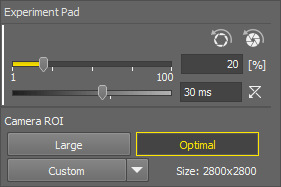
Figure 161. Experiment pad
The first slider sets the exposure of the connected camera. Move the slider or enter a specific value into the edit box.
The second slider sets the illumination power of the connected illumination device.  resets the illumination power value to default.
 Apply Opened Aperture Brightfield Service Settings ,
  Apply Closed Aperture Brightfield Service Settings
 Preset values of exposure, light power and condenser selection can be defined for each objective in the Devices > Service Settings  window. This button applies the preset of the current objective. If the experiment settings are different than the service settings, an exclamation mark is shown on the experiment button.
Note
The Show Closed Aperture button for 4x objective on ACQ pad option must be selected in the Devices > Service Settings window to display the latter button.
Camera ROI
The system offers the users three pre-defined ROIs and a custom one. All of the ROIs are available only if they are different from each other.
The experiment is characterized solely by dyes, and the system automatically identifies the appropriate light path configuration for each dye. The light path settings can be adjusted manually by opening the  Edit window:
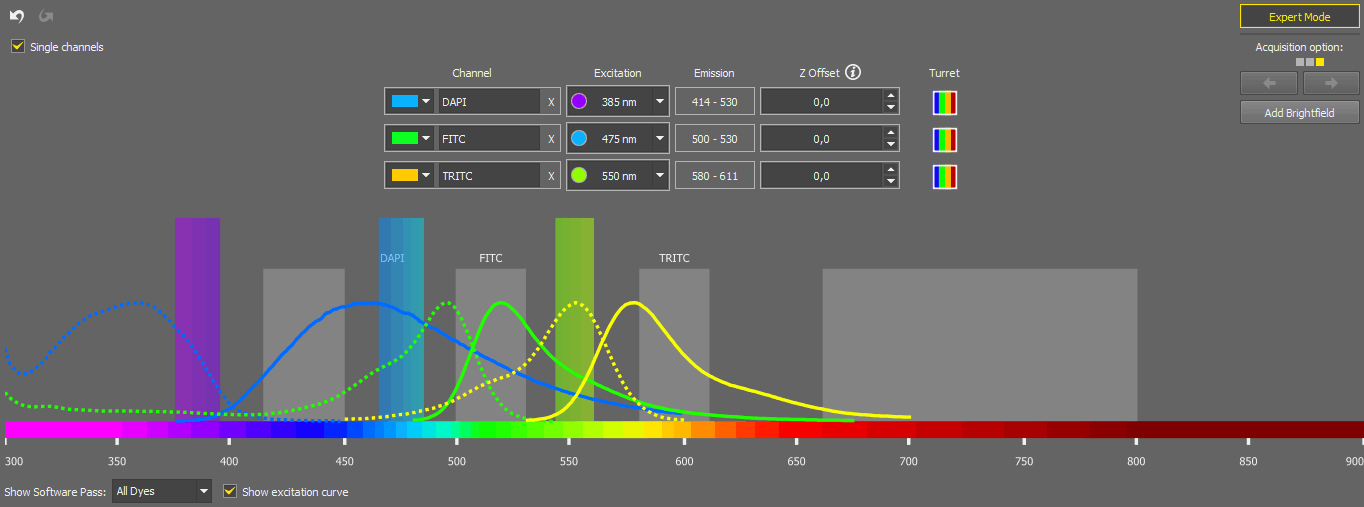
Figure 162.
Here you can change the color of a channel, rename it, delete it (), change its excitation wavelength (when switched to ), change the Z offset, or add a Brightfield channel ().
The Single Channels experiment is created to efficiently examine an unknown sample by enabling the selection of any light source wavelength and viewing the results in a live window with a single channel. While the setup is similar to the corresponding channel in the "All Channels" experiment, operating it is simpler due to having a LUTs graph and a single channel tab in the live window. Checking the Single channels option means that even in a multi-channel experiment, only one channel is captured at a time. When you create a new setup (in the Device Manager) for the first time and have already created a reasonable All Channels experiment, the system automatically generates a corresponding Single Channels experiment.
The behavior of the “Single Channels” experiment mirrors that of turning off all channels except the current one in the “All Channels” experiment, which can be done through the context menu over the channel buttons. To disable a channel use the right mouse button over the channel button and select Off. If you check the option Channel Selection via Left Mouse Button (found in the General tab of the Configure dialog), a simple  left mouse button can be used to turn the channels on and off.
Figure 163.
Tip
From the context menu over each channel, you can disable and hide any undesired channel from the Experiment pad. To re-enable a channel, open the context menu on the channel button and switch it to On. Copy to All Users copies the current experiment to all user profiles.
The Acquisition option on the right means that for a given experiment (given dye) a number of possible configurations (each one shown as a square) have been found and can be used for acquisition. Move between the configurations using the arrows.
Figure 164.
The spectrum preview below shows the software pass for the channel selected in the drop-down menu. Excitation curve can be shown in the preview by checking Show excitation curve. Once you are done with the adjustments, click to confirm the settings.
The experiments can be managed through Exp. Settings:
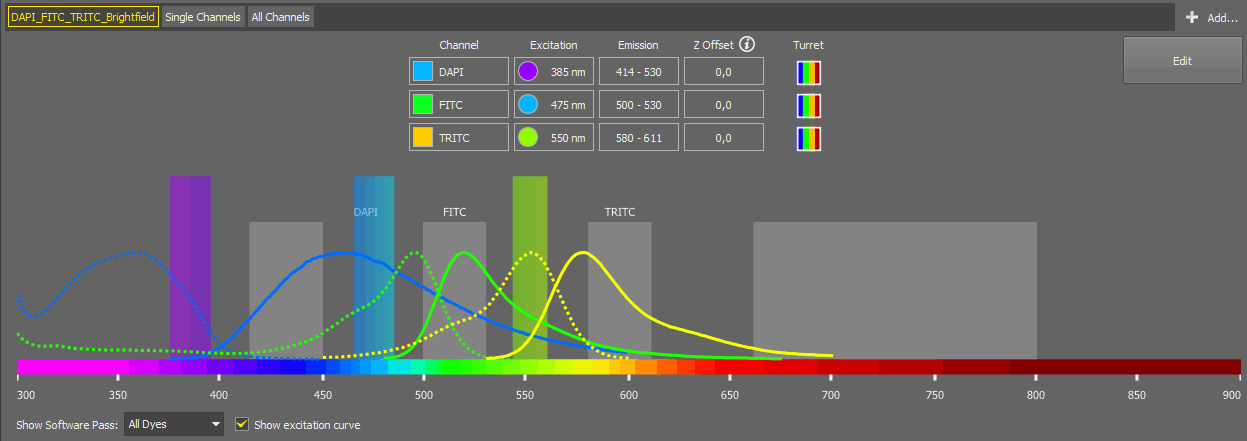
Figure 165.
Here you can check all the channel information for each channel selected in the first drop-down menu. More channels can be added using Add (see Multi-channel image acquisition via experiment settings). By clicking , you are redirected to the editing window described above.
Parfocality ensures seamless transitions between microscope objectives with minimal or no refocusing, allowing for consistent focus adjustments during magnification changes. Experiment parfocality can be set in three different ways:
Automatically - using the context menu command over the image area (Experiment Parfocality Correction > Find Automatically).
Manually - by setting the Z Offset values in the
Edit window.For experiments excluding brightfield - using the context menu command over the image area (Experiment Parfocality Correction > Save Channel Parfocality Offsets).
Sample navigation is integrated into the Compact layout to control mainly the Ji and Ti2 microscope systems. Relying on the geometry of the known Ji/Ti2 microscope holders, this improves the identification of sample location, with added functionality for automatically scanning of slides, wellplates, and dishes. The pad can be undocked (opened as a separate window) using the  button.
Note
To use the Sample Navigation panel with the Nikon Ti2 microscope, Z focus has to be calibrated first (see Service settings).
Note
Features vary among different software packages and used hardware.
Please refer to Feature dependency on hardware and packages for a detailed comparison of the available functions for each software package and hardware combination.
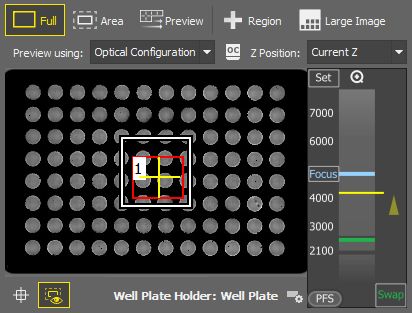
Figure 166. Stage tab
 Area
Area Zooms to the scan area of interest (typically a slide or a coverslip area usable for imaging). This area is highlighted with a yellow rectangle and can be directly adjusted.
 Clear
Clear Overview
 Scans the full sample overview using the settings selected in the drop-down menu. Click on the arrow next to the button and choose Preset or Current Settings. Preset corresponds to the Acquisition Presets defined in the Service Settings ( Devices > Service Settings ).
 ROIs
ROIs This button shows/hides a toolbar with tools used for drawing one or more regions in the preview area which are then scanned using the  button. Description of the specific tools can be found here: Drawing tools. If no region is defined, it is possible to scan just the Area. The newly improved Focus Surface generator is integrated into the built-in job used for the scanning.
 Points
 This button reveals a toolbar with tools used for adding points ( Add) and managing them. Each point is then captured using the Multi-Capture button.
Large Image, Multi-Capture Click the arrow on the right to choose one of the acquisition modes:
Once the button is clicked, further options can be fine-tuned before the Scan/Capture is executed, such as:
Save as
Stitches the large image together creating one large image file.
Does not stitch together, instead a multi-point file is created.
 Run
Run Scans the large image (ROIs or points) using the built-in method.
 Show FOV
 Shows/hides the camera field of view in the preview area.
 Show Area
 Shows/hides the scan area (e.g. a coverslip) in the preview area.
 Select Holder
 Option to choose the relevant holder from the database. Click to select a holder, then refine your selection using the radio button options in the top toolbar. The Holder Alignment Offset at the bottom of the window is used to specify the X and Y offset for the stage alignment. This is necessary when the selected holder is used with a stage requiring an adjustment due to its different range.
The holders on the Ji system are calibrated via the Ji Tools utility, while the calibration of the holders on the Ti2 system is done through the Service Settings (Service settings) dialog in NIS-Elements. The Z coordinates used in automatic functions (Detection, Scanning, etc.) for the selected holder are saved in the Service Settings (Service settings).
If the first holder (Unknown Holder) is selected, the Full Area of the stage is taken into account.
To create a custom holder, click New Custom... and use the drawing tools to draw your custom area. When finished, click Done, name the holder and click .
Context menu over the Preview (similar for all sample holders)
Starts scanning the large image.
Opens the Auto Scale Settings window where the Low and High fields determine how many of all pixels of the picture are left outside the LUTs sliders when Auto LUTs is applied (0-10%). See also Auto Scale Settings.
(requires: Local Option)
Opens the scanned overview or ROI as a new image document.
(requires: Local Option)
If this item is checked, the scanned overview or ROI is automatically opened as a new image document.
Context menu over a Region
Starts scanning the large image inside the selected ROI(s).
Renames/selects/deletes the ROI.
Selects/deselects/deletes all ROIs at once.
Starts scanning the area of interest (white rectangle).
Starts scanning the large image.
Opens the Auto Scale Settings window where the Low and High fields determine how many of all pixels of the picture are left outside the LUTs sliders when Auto LUTs is applied (0-10%). See also Auto Scale Settings.
(requires: Local Option)
Opens the scanned overview or ROI as a new image document.
Z Navigation
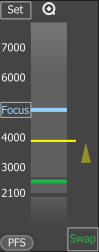
Figure 167. Z Navigation
The vertical column represents the entire Z dimension, with the yellow horizontal line representing the current position, the blue line indicating the Focus position, and the green line denoting the swap position. Place your mouse cursor over the vertical column, then scroll the mouse wheel to adjust the current (yellow) position or double-click a position to move to it.
Sets the current Z position as the “Focus” position. A tool tip over the button shows its Z value.

 Zoom in/out
This button appears only when working with slide samples and resets the focus value to default.
Moves the Z stage to the predefined focus position. A tool tip over the button shows its Z value.
(requires: Local Option)
Turns the perfect focus system (PFS) on and applies the current PFS offset.
Moves the stage to the swap position - a safe position for changing the samples. A tool tip over the button shows its Z value. This value is calculated automatically during the holder calibration and cannot be changed.
There are various combinations of hardware, microscopes, and NIS-Elements packages activating some Sample Navigation features. The following table outlines the different options. Each option is closely described below the table.
Table 3.
| Hardware | Ar package + 6D module + JOBs module | Ar package | Br package | D package |
|---|---|---|---|---|
| Ji/Ti2 microscope, Mono camera supporting fast scan | Option 1 | Option 2 | Option 2 | Option 5 |
| Ji/Ti2 microscope, RGB camera supporting fast scan | Option 3 | Option 5 | Option 5 | Option 5 |
| Ji/Ti2 microscope, Mono/RGB camera not supporting fast scan | Option 4 | Option 6 | Option 6 | Option 6 |
| Ni-E/other microscope + MZH+Aux, Mono/RGB camera supporting fast scan | Option 3 | Option 5 | Option 5 | Option 5 |
| Ni-E/other microscope + MZH+Aux, Mono/RGB camera not supporting fast scan | Option 4 | Option 6 | Option 6 | Option 6 |
| Ni-E/other microscope, Mono/RGB camera | Option 4 | Option 6 | Option 6 | Option 6 |
See Cameras supported for continuous movement.
Important
Service Settings dialog is available only:
in Ar and Br packages.
for Ji and Ti2 microscopes.
for Mono cameras from the fast scanning supported list (see Cameras supported for continuous movement).
Fast scanning is supported:
on selected cameras (Mono or RGB) only (see Cameras supported for continuous movement).
on selected XY Stages (Ji, Ti2, MZH+Aux).
Fast scan can always switch to the step-by-step mode if the application determines that it will be faster.
List of Options:
Built-in Job
Custom Job
Generate Focus Surface
Current Z-Level
Create Large Image
Store Single Images
Current Settings
Optical Configuration
Service Settings
Sample swap
Current Z
Current Settings
Optical Configuration
Service Settings
Generate Focus Surface
Current Z-Level
Create Large Image
Store Single Images
Current Settings
Optical Configuration
Service Settings
Sample swap
Current Z
Current Settings
Optical Configuration
Service Settings
Built-in Job
Custom Job
Generate Focus Surface
Current Z-Level
Create Large Image
Store Single Images
Current Settings
Optical Configuration
Sample swap
Current Z
Current Settings
Optical Configuration
Built-in Job
Custom Job
Generate Focus Surface
Current Z-Level
Create Large Image
Store Single Images
Current Settings
Optical Configuration
Current Z
Current Settings
Optical Configuration
Generate Focus Surface
Current Z-Level
Create Large Image
Store Single Images
Current Settings
Optical Configuration
Current Z
Current Settings
Optical Configuration
Generate Focus Surface
Current Z-Level
Create Large Image
Store Single Images
Current Settings
Optical Configuration
Current Z
Current Settings
Optical Configuration
Scanning is performed by the continuous movement (fast). “Large Image” can be scanned by a custom or a built-in job (scanning routine).
Available features for option1 :
 Full mode) Full mode) Area mode)
 Scanning is performed by the continuous movement (fast). “Large Image” can be scanned by the built-in job (scanning routine) only.
Available features for option 2:
Full mode) Full mode) Area mode) Scanning is performed by the continuous movement (fast). “Large Image” can be scanned by custom or build-in job (scanning routine). Service settings are not available for this configuration.
Available features for option 3:
Full mode) Full mode) Area mode) Scanning is performed by the step-by-step movement (slower). “Large Image” can be scanned by the custom or built-in job (scanning routine). Service settings are not available for this configuration.
Available features for option 4:
Full mode) Full mode) Area mode) Scanning is performed by the continuous movement (fast). “Large Image” can be scanned by the built-in job (scanning routine) only. Service settings are not available for this configuration.
Available features for option 5:
Full mode) Full mode) Area mode) Scanning is performed by the step-by-step movement (slower). “Large Image” can be scanned by the built-in job (scanning routine) only. Service settings are not available for this configuration.
Available features for option 6:
Full mode) Full mode) Area mode) This tab supports navigating in the ND2 documents having well plate metadata
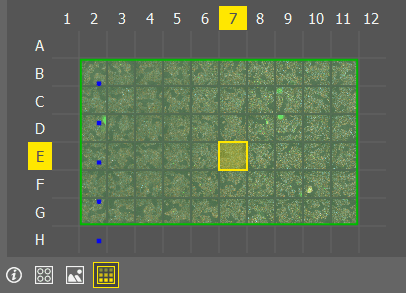
Figure 168. Document tab

 Scheme
 Images
 Overlay
The Devices > Service Settings window allows adjustments to the microscope and camera settings which are applied to the well plate overview scanning. Settings adjusted here also influence the acquisition controls in the Acquisition panel.
Note
Sufficient user rights are required for this function to be accessible.
Depending on the microscope model, some of the options could not be available.
Overview and Plate scanning in Sample Navigation (Nikon Ti2)

Figure 169. Overview and Plate scanning limits.
 How to setup Ti2
 Opens the GITHUB DOCUMENT describing how to set up the Nikon Ti2 microscope with software applications utilizing well plates, such as cell detection Ai tools, sample navigation, and custom jobs.
Sets the limits to the user controlling the Sample navigation panel.
All functions of the panel are available.
Limits the control to a basic overview and Overview or ROI scanning and re-scanning. Z-Reference Only
Leaves the user with just a simple stage observation and possibility to change the sample holder.
Select a camera used for scanning the overview in the Sample Navigation and Assay.
Click this button(s) to test the triggering cable connection(s).
Camera
Specifies the scanning settings for the particular camera.
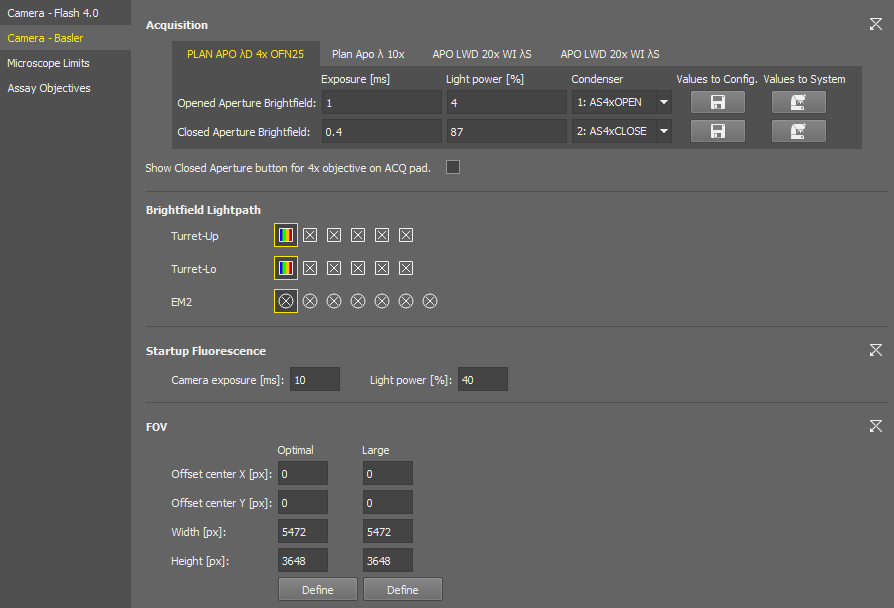
Figure 170. Service Settings for the Nikon Ti2.
Note
Exposure time for the 4x objective and the Closed Aperture exceeding 800 µs may result in blurred images in the well plate overview.
Prepare a suitable calibration sample with sufficient structural detail for distortion analysis. Please see Distortion Correction.ai showing suitable and unsuitable samples.
Configure the system so that the Ji camera can acquire a stable image:
Select the appropriate light source (D-LEDI or JiDia).
Adjust illumination and exposure.
Use AutoSignal.ai to optimize signal levels.
Light source:
JiDia lamp.
D-LEDI (all four color channels).
Objective:
MRD70040
MRD70170
MRD70270
MRH08250
Single experiment per objective:
Define an experiment that includes JiDia and all D-LEDI color channels, and perform calibration in one run.
Separate calibrations:
Perform calibration individually for each light source and color channel.
Calibration must be triggered using Service Settings > Calibrate Distortion Correction.ai.
Do not use the calibration controls available in standard user interfaces.
Calibration data is specific to each combination of:
Ji camera.
Light source (JiDia or D-LEDI channel).
Objective.
All required combinations must be calibrated to ensure correct system behavior.
If any component in the optical path is changed, the corresponding calibration becomes invalid and must be repeated.
The sample provides sufficient contrast in all illumination modes.
Structural features are clearly detectable under each D-LEDI channel.
You can set the exposure time, light power, and select a condenser or aperture individually for each objective of the current nosepiece configuration. Switch the tabs with the objective names to move between the objective settings.
The button activates the edit mode, allowing the user to save the complete camera settings in the same manner as they are stored in Optical Configurations. When the edit mode is enabled, two additional buttons become available:
 Values to Config.
 Loads the current brightfield acquisition settings from the system to the configuration window.
 Values to System
 Sets the brightfield acquisition settings defined in the configuration window to the system.
Shortcut buttons for applying the opened and closed aperture values ( ) are available in the Experiment pad for brightfield experiments.
Select the filter changer positions to be used in the experiment.
Camera exposure and light power values used for the start of the AutoSignal.ai algorithm.
These ROIs are integrated into the Experiment pad. Both ROIs can be adjusted here using .
Size of this FOV (camera ROI) is calculated automatically for each hardware configuration to prevent shading on image borders. When turned on in the camera pad, it is placed in the center by default. Here you can shift it by defining the offset.
A user-adjustable FOV (camera ROI) which is used with the continuous scanning procedure (e.g. well plate overiew).
This feature manages high-precision optical corrections that are created during system installation by a service technician. These corrections (distortion maps) are stored separately from the main software to prevent data loss during updates or system resets.
The calibration data is stored in a dedicated folder within the ProgramData directory, for example:
C:\ProgramData\Laboratory Imaging\ServiceSettings\Ji_JiCamera_1000_v3\DistortionMaps\
The folder name is derived from the camera serial number. These corrections are strictly tied to a specific combination of Ji Camera, D-LEDI or JiDia light source, and Ji Objective (MRD70040, MRD70170, MRD70270, MRH08250). Each combination requires its own calibration. Optical filters do not affect the distortion maps. Because these corrections are critical for system accuracy, they can only be created by a service technician (or system administrator) using Devices > Service Settings .
Distortion calibration must be performed by a qualified service technician using the Devices > Service Settings interface. Standard user calibration tools (e.g. those available on the Acquisition pad) must not be used for this purpose.
Preparation
A clear and well-exposed image is required before starting calibration.
Calibration Workflow
Calibration must be performed for each valid hardware combination of:
For each objective, the technician must ensure that all relevant light configurations are calibrated.
There are two possible approaches:
Both approaches are valid, provided that all combinations are covered.
Execution
Important Notes
Sample Usage Consideration
Using the same calibration sample for both brightfield (JiDia) and fluorescence (D-LEDI) is generally acceptable if:
If the sample does not produce adequate signal or contrast in fluorescence modes, a different sample should be used for those channels.
Microscope Limits (Nikon Ti2)
If the system is not calibrated yet, click .
Select a slide holder for calibration and click .
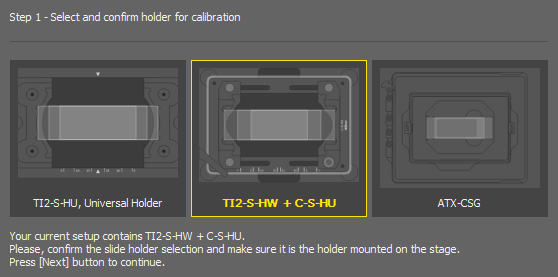
Figure 171.
Even if you plan to use a well plate, the proper Z calibration needs to be done on a slide.
Run
Live and focus on the slide sample either manually or using the Auto Focus. The  Z Scheme explains the focus position.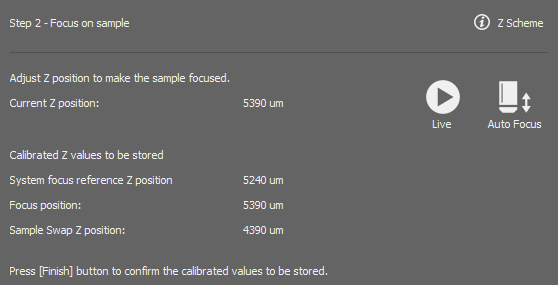
Figure 172.
Once in focus, click .
Sets the Z positions offsets between the current objectives.
Calibrates the Ti2 Z drive so that it can be used in the Sample navigation.
You can repeat the calibration by clicking or adjust the Focus Position in the edit box. The  button sets the value back to default.
Sets the global top limit position for the 4x objective.
(requires: Local Option)
Sets the stage X and Y coordinates of the Loading Position (position for loading the samples). To fill in the current position click .
Assay Objectives
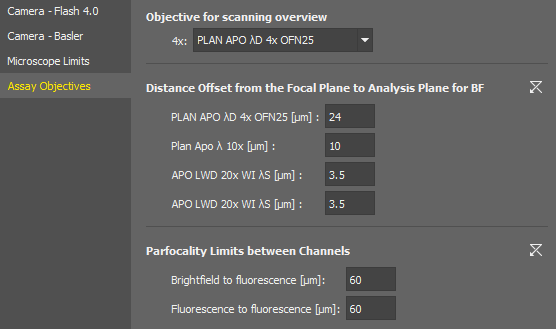
Figure 173. Assay Objectives Service Settings of the Nikon Ti2.
Here you shall assign actual objective models to be used with the assays.
The distance to be moved after automatic focusing to see the specimen. This value is set for each objective in the nosepiece.
Specifies the maximum allowed difference of focus when switching between different channels within one experiment.
Nikon Ni-E
Nikon Ni-E service settings are integrated into one dialog window.
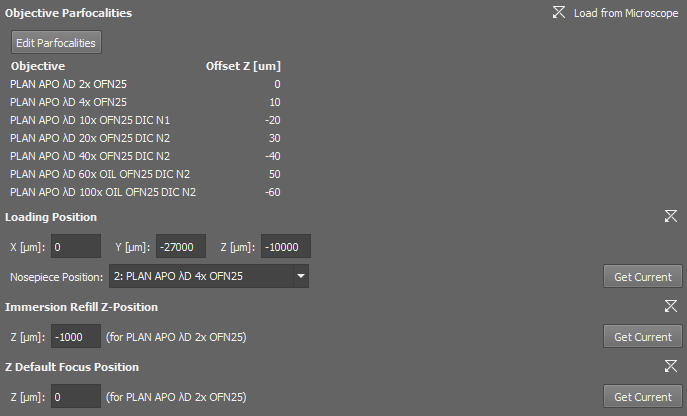
Figure 174. Service Settings for the Nikon Ni-E.
Select an objective on the microscope pad.
Precisely focus on the sample.
Click .
Repeat the previous steps for all mounted objectives.
Click to save the parfocalities.
Load From Microscope Resets all the values to default as they are set in the microscope.
Click to enter the edit mode used for setting the Z-position offsets between the objectives.
(requires: Local Option)
Sets the stage X, Y and Z coordinates of the Loading Position (position for loading the samples). Loading position can be linked with a selected objective (Nosepiece Position) or the current objective can be used (Keep Current Objective). To fill in the current position click . To reset the settings to default, click .
(requires: Local Option)
Defines the Z-coordinate position used when refilling the immersion medium. To fill in the current position click . To reset the settings to default, click .
(requires: Local Option)
Specifies the default focus position in the Z dimension. To fill in the current position click . To reset the settings to default, click .
Closes the dialog window.