


Selecting commands from the command history.
Removing redundant commands - decide whether to remove doubled commands or not.
Adding, removing, or editing chosen commands.
Finishing the Paste History wizard.
Click on the Configure / calibrate
 button to open the configuration dialog and click on the button.
Select the type of calibration slide you will use:
Toggle (Reflect laser)When you click in a quadrant, laser will be turned on until a right-click.
Manual (Bleach point)Click a point and hold the mouse. When released the laser turns off.
Add at least one calibration point in every quadrant, preferably in the outer corners. After adding a calibration point, move the point ROI in the live image to the laser spot and press the
 button to store the calibration.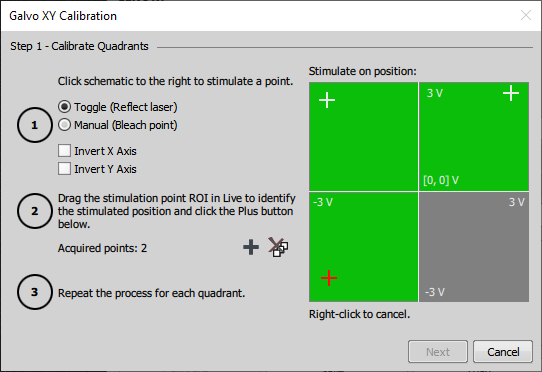
Figure 729.
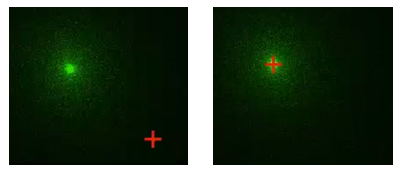
Figure 730.
Caution
If the FOV of your camera is smaller than the galvo XY range, the stimulation may not be visible in the live image. In such case, try placing the stimulation point closer to the center.
Click . Another dialog appears. Here you can use the button to test the calibration. Move the red cross around the live image and and activate the stimulation by this button. Click to finish the calibration.
Consider saving the current calibration to a XML file by the button.
Choose Ax IR Stimulation in the Galvo XY Configuration window.
In the Device Manager add the NIDAQ laser device with a single laser line that is configured to send signal to Ax (see image below).
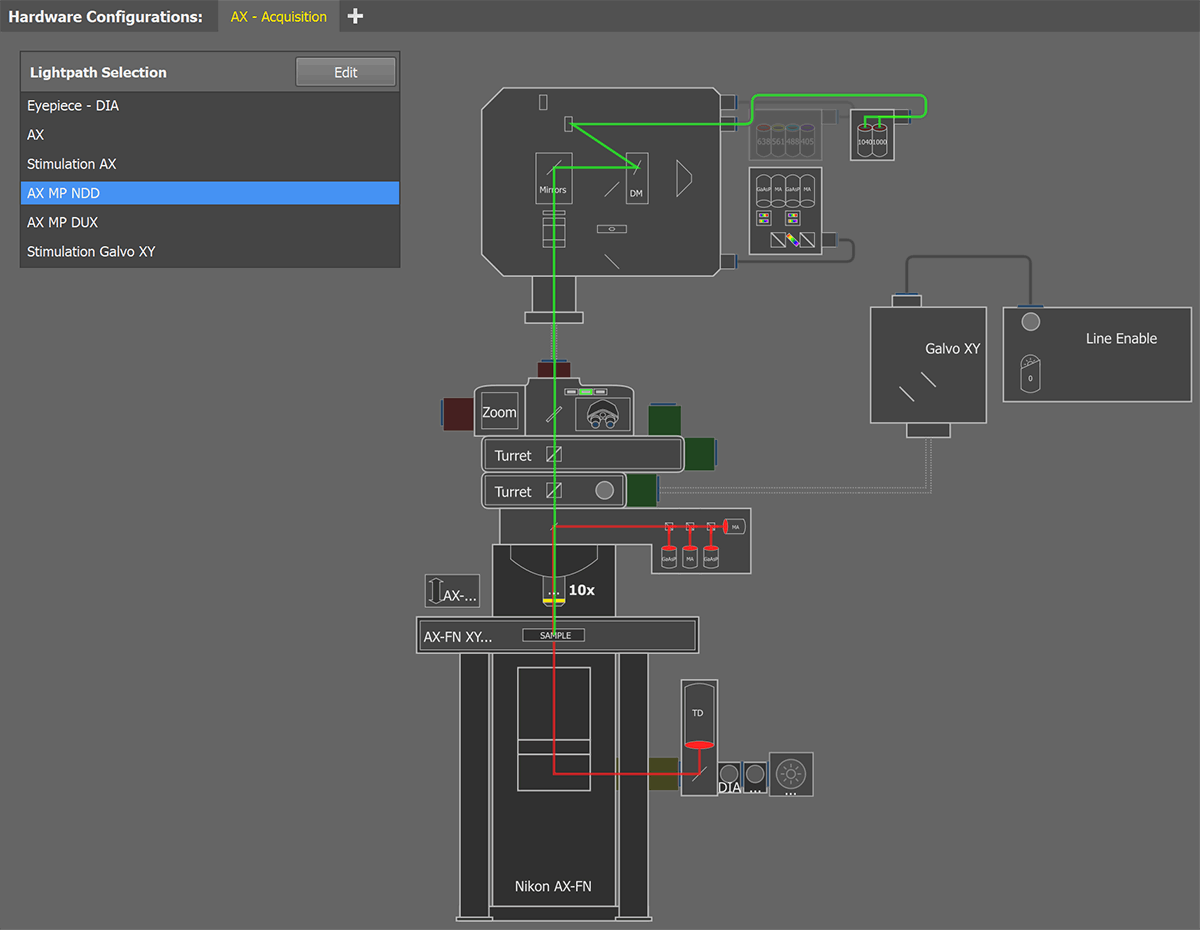
Figure 731. Device Manager configuration.
Ax uses this signal as a so-called “Line Enable” and controls with it the On/Off state of the laser line currently selected on the Galvo XY Pad.
The Galvo XY calibration procedure is the same as for other modes, but its first page is customized for zero calibration. This step is mainly used for alignment - you shine the laser into the center of the GalvoXY range, watch the Live view, and use the adjustment screws to fine-tune how the galvo is centered. Once you are satisfied with the alignment, mark the current laser position on the live view with a point ROI, click to register the point, and then click .
The rest of the calibration you simply click through the diagram showing the mirror movement range and try to mark, in the Live view, the positions where the laser shines (or leaves a burn mark after being turned off). This lets the software create a mapping between the ROI positions in the live view and the coordinates (voltages) the galvo uses to control the mirrors.
Click the
 View > Analysis Controls > EDF Z-Profile
  command to display the control window.
Open an ND2 file containing the Z dimension.
Use the
Applications > EDF > Create Focused Image  command.
The graph appears in the control window automatically.
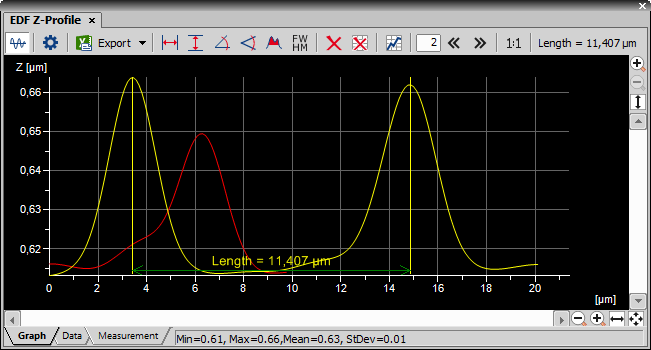
Figure 743. Z-Profile Graph using two profile lines
In the
View > Analysis Controls > Automated Measurement  panel, click the Update Measurement
  button to measure the current image. For a multi-dimensional image, use the Keep Updating Measurement
  button to make sure that data of the current frame are always displayed.
Right click to the restrictions field to select one or more of the measurement features.
Select the restriction feature you would like to define. Name of the selected feature appears above the table. The current interval of possible values is indicated next to the feature name.
The limit values are indicated next to the feature name in the table, and can be modified directly by double clicking the indicated value. The infinitude can be defined by entering “oo” or “inf”.
Use the histogram and its controls in the bottom part of the control window to directly change the restrictive values. The slider on the side changes proportional height of the histogram. The two independent sliders below the histogram set the lower and upper limit value of the selected measurement feature. The accepted values are marked green. The restricted values are red.
Decide whether the defined interval will be excluded or included from/in results. This is done by setting the Inside/Outside value next to the feature name.
The nearby check box indicates whether the restriction is applied or not. If applied, the histogram below is color, otherwise it is gray.
Display the cross by the Show Cross button. You can select to display a small or large cross. If the
 Add View to Synchronizer function is turned on in multiple slices views, the cross position is automatically synchronized among them.
Place the section lines anywhere in the image.
Choose different display mode from the menu which appears when you press the Mode button. Slices, maximum and minimum intensity projection view are available.
The YZ and XZ views are available on sides of the common XY view. Any of the view can be hidden/displayed. Deselect the proper button (XY, XZ, YZ) to hide the view.
The XZ/YZ views can be enlarged/reduced by selecting Z-zoom.
Binary, color, overlay layers and ROIs can be displayed using corresponding buttons.
A color scale can be displayed in channel, Ratio, FRET, or Calcium views by a command from the context menu. You can change color of the scale or convert it to a gradient (available for FRET and Ratio views). If 3D binary objects are defined, it is possible to colorize them on the context menu (Colorize Binary by 3D Objects).
Time is rescaled if there are 2 Time phases with different Time Intervals and Time Durations.
EDF Z-profile showing the Z profile line of the current slice can be shown/hidden using a context menu function (Show EDF Z-Profile / Hide EDF Z-Profile).
Manual length measurement in 3D inside the slices view can be performed using
 Length 3D from the menu View > Analysis Controls > Annotations and Measurements
  . See also 3D describing details about the 3D length measurement. (requires: Extended Depth of Focus)
View > Organizer Layout 
This command switches NIS-Elements application to Organizer Layout (See Organizer).
View > Thumbnails The Thumbnails command displays all working images (reference, current, images for undo...) at reduced size.
NIS-Elements can store temporarily a number of reference images to memory. They can be recalled later, or image arithmetic operations can be performed combining the current and the reference images. All the related commands can be found within the Reference menu.
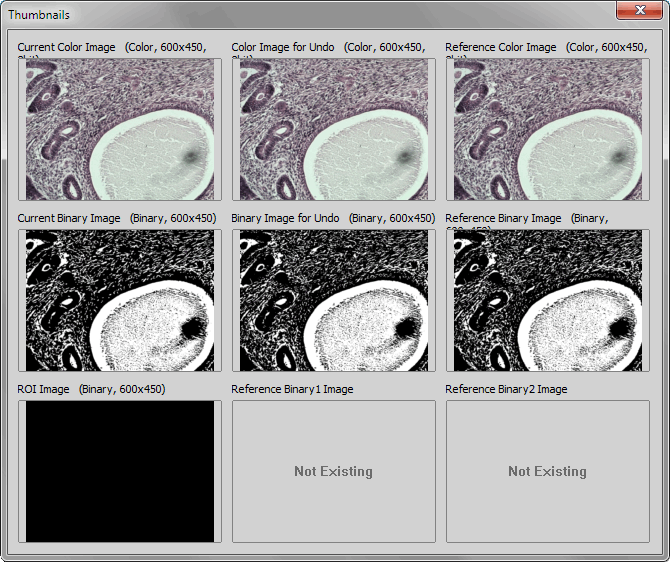
Figure 717.
Displayed Thumbnails
The reference image added by user via the the Reference menu. See Reference > Current Image -> Reference.
Commands from within the Reference menu were used to copy binary images to these positions. However, this functionality has been replaced by advanced commands which work with multiple binary layers. See Binary > Binary Operations, View > Analysis Controls > Binary Layers  .
.
The current color and binary image can be copied into the Reference and Measurement ROI positions using the commands from the Reference menu. The other images are obtained automatically.
View > Layout > Save Current Layout This command saves changes of the current layout.
See Also
Arranging User Interface
View > Layout > Save Current Layout As This command saves the current NIS-Elements layout under a different name. The following dialog box appears:
Figure 718.
Type the new name in or select one that is already in use and confirm it by .
See Also
Arranging User Interface
View > Layout > Save Current Layout As Default This command saves current layout and sets it as default.
View > Layout > Reload Current Layout This command reloads the current layout settings. It discards changes made from the time it was last saved.
See Also
Arranging User Interface
View > Layout > Layout Manager This command opens the Layout Manager - a NIS-Elements layout administration tool. Please see the User Interface chapter for more details.
View > Customize Toolbar > Setup Configures a toolbar.
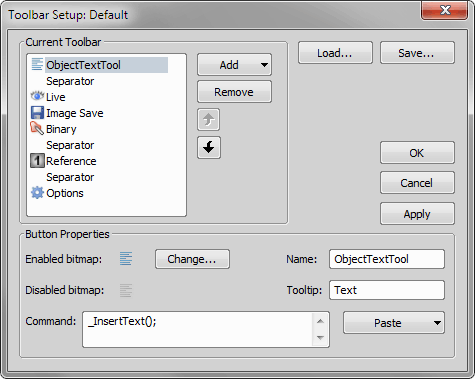
Figure 719.
Displays list of icons (command) in current toolbar.
Adds a new toolbar command or a separator.
Removes currently selected command.
Changes the order of icons on the toolbar.
Displays icons in enabled and disabled state together with associated command.
Press this button to change the image associated to command.
Write command name (or name of more command), that should be associated to current toolbar button.
This submenu helps to insert commands into the command edit box. Choose whether to:
Opens the list of all available commands. Choose the one you would like to insert.
Opens the Macro - Open dialog box in order to define a macro to be executed.
Pastes the sequence of recently used commands in four steps:
Displays name of current toolbar entry.
Displays tooltip, that will be displayed when you move over the toolbar button by mouse.
See Also
View > Customize Toolbar > Next , View > Customize Toolbar > Previous
 ,
,  ,
,  View > Acquisition Controls > Acquisition
This panel is described as a part of the Compact layout (Compact Layout).
View > Acquisition Controls > Auto Capture Folder 
This control window displays the content of the Auto Capture Folder. This folder is used by the File > Open/Save Next > Save Next  and Acquire > Auto Capture
  commands to store images.
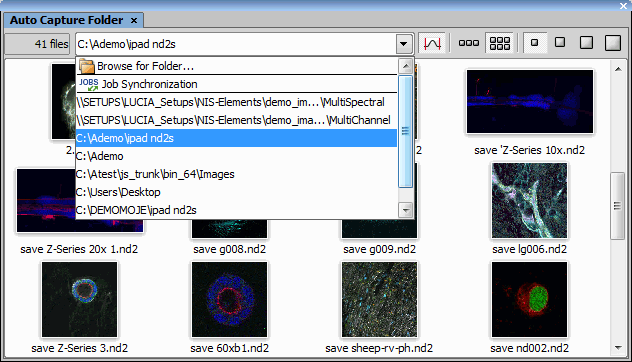
Figure 720. Auto Capture Folder dialog window
 Browse for Folder...
 The destination directory can be changed by clicking the Select Directory button in the combo box and search for a new folder. The setting is global for the File > Open/Save Next > Save Next and the Acquire > Auto Capture commands. List of recently used folders is displayed below the Browse for Folder... and  Job Synchronization items.
Job Synchronization This virtual folder automatically shows the images acquired by the last launched job.
 Display thumbnails in one row,
  Wrap icons to multiple rows,
  Show small images,
  Show medium images,
  Show big images,
  Show extra big images
 Image thumbnails can be lined up in a single row or in multiple rows using the wrapping buttons. Number of rows depends on the selected thumbnail size and on the size of the control window. Size of image thumbnails can be easily changed using the thumbnail size buttons.
 Apply autocontrast to thumbnails
 Press this button to apply LUTs autocontrast function to the displayed thumbnails.
Caution
Using this function, two almost-identical images may look different (brightness-wise). For example if the same scene is captured with and without a scale, the scale may cause the thumbnails to look differently.
View > Acquisition Controls > AVI/MP4 Acquisition 
This control window contains tools used for creating an AVI movie. Creating movies is an efficient way how to present your image data outside the NIS-Elements application.
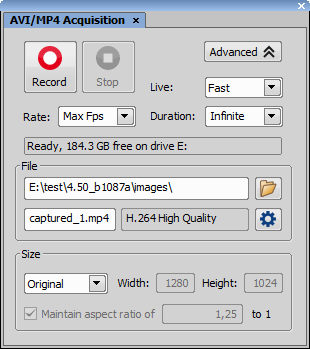
Figure 721.
See Capturing AVI Movie for more information.
View > Acquisition Controls > [Camera name] Settings 
This commands adjusts parameters of the currently used camera. The Camera Settings control window appears.
 View > Acquisition Controls > Capture and Store
 This control panel contains a single button which captures an image and saves it to a folder according to the settings:
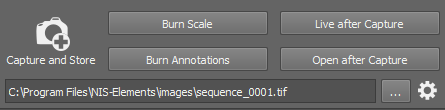
Figure 722.
Press the ... button and select the folder where images captured by the  Capture and Store button will be saved. The path and file name of the next image to be saved is displayed on the left.
Select which vector layers will be burned into the saved images. We recommend to use these options only if saving the captured images to a file format which is not capable of saving vector layers (bmp, png, ...). See also Supported File Formats. Note that mono images are automatically converted to RGB images after the scale/annotation is burned. Image data and quantitative information can be lost.
Displays live image after the Capture and Store button is clicked.
Capture and Store Click this option and a new image will be captured and saved to the directory specified above.
Settings Type the prefix and numbering style intended for the files being saved automatically. The Next File field informs you and enables you to change the number which will be used for the next image saved automatically.
Select the file format to save the images in. Some formats enable you to set the Compression parameter. It is recommended to use either “none” or “lossless” in order to preserve good image quality.
The images can be sorted to subdirectories automatically based on the time of acquisition. Select this option and use place-holders to specify format of the folder names (click  to display a list of available place-holders). E.g.: “$YYYY$MM$DD” would create a new subdirectory for each day named like this: “20170103”.
View > Acquisition Controls > ND Acquisition 
(requires: ND (4 dimensions))
The ND acquisition window enables you to set-up and run a multi-dimensional experiment. Please see Combined ND Acquisition.
View > Acquisition Controls > ND Custom Acquisition 
Equals the Acquire > Custom Acquisition command.
View > Acquisition Controls > Nosepiece 
Opens the Nosepiece pad of the manual microscope.
Please see Nikon MM 400/800 Microscopes.
View > Acquisition Controls > Filters, Shutters and Switchers 
This control window provides an overview of filters, shutters, and laser switchers within the system. The devices can be operated from this window.
Shutters
All available shutters are listed on the device toolbar (part of the top application toolbar).
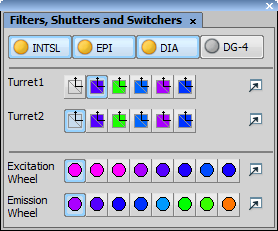
Figure 723.
You can open / close an operating shutter by clicking on its icon. When you right click the shutter button, a contextual menu containing the Shutter Parameters command appears. Click the command to display the following window:
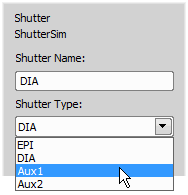
Figure 724.
Define a new name for the shutter and select the proper type of the shutter (EPI, DIA, Aux1, Aux2). You can display this window also from the Device Manager or Microscope Pad.
Filters
Press the button which corresponds to the filter you want to use. Filter settings can be changed after you press the  button on the right.
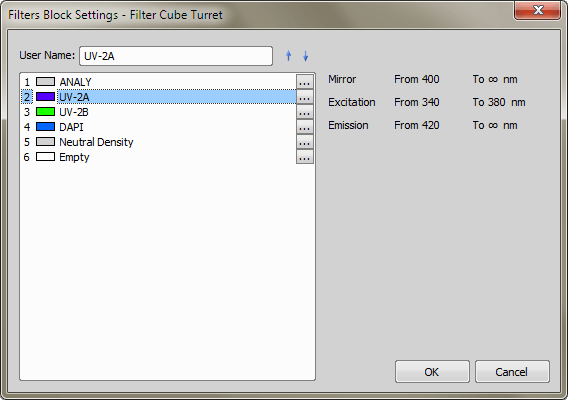
Figure 725.
All filters present in selected filter turret are listed in this window. Available filter information as Excitation, Mirror and Emission wavelengths are displayed in the right part of the window. You can select a different filter from a filter block database which appears when you press the ... button next to the filter name.
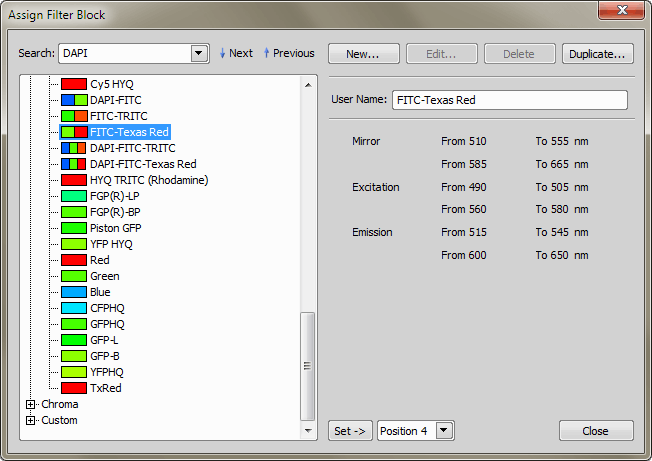
Figure 726.
Use commands in this window to manage filters. Filters in the Nikon and Chroma thread are predefined filters and can not be edited. Custom filters are defined by the user and are editable. Select a filter from the database. Enter the name to the Search box and press the  Next or
  Previous button. Information about currently selected filter are displayed on the right side of the window. You can also add a New custom filter, Edit existing custom filter, Delete it or Duplicate it. Press the Set button to assign selected filter to the selected turret position.
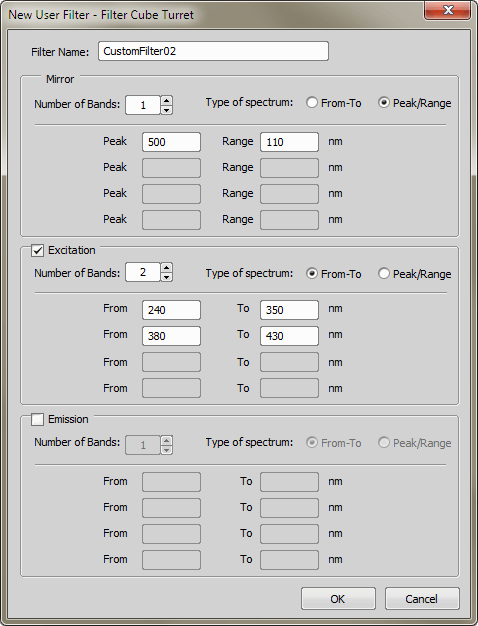
Figure 727. New/Edit custom filter
Displays editable filter name.
Check which settings is used for defined filter.
Specify number of used bands.
The spectrum can be defined by setting the from-to wavelength values, or by setting the peak value and the range of wavelengths. The number of text boxes depends on number of bands used.
View > Acquisition Controls > Galvo XY Pad (requires: XY Galvo device)
If you have the XY Galvo device module enabled, several galvo-mirror-based stimulation devices become supported. Devices of several manufacturers are supported.
See also Cameras & Devices.
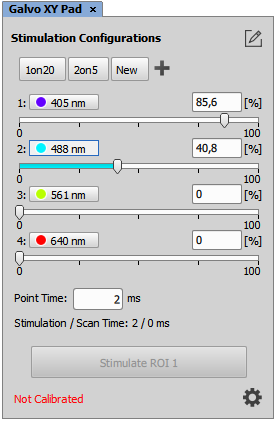
Figure 728.

Click this button to display selection boxes in front of the laser lines. De-select lines to be hidden on the pad. Click the button again to exit the edit mode.

Saves settings of the pad to a preset. Enter its name and click . A button with this name will be created, click it to load the settings.
The first laser line can be tunable. It works similarly to the Ax pad. Click on the three dots on the pad next to the wavelength button for the first laser and a slider will appear where you can select from a range of wavelengths.
This slider adjusts the laser penetration depth into the sample by moving a motorized IRIS. It also influences how the total laser power is concentrated at a given point, allowing you to narrow the beam diameter and extend the Z-PSF to expand the Z-direction stimulation range.
This performs the stimulation on all ROIs associated with the current stimulation configuration. To activate one ROI only, click on the Stimulate button next to the ROI within the image.
Opens a configuration dialog window.
If you have one of the listed products, select it. The Volts low and Volts high values will be filled automatically. For information about the Ax IR Stimulation type, please see Ax IR Stimulation.
Select your NIDAQ board model used to control galvo xy. Available ports will be ch
Available connector blocks for the selected NIDAQ board can be listed. If you select it, port names in the other pull-down menus will be renamed accordingly.
Select NIDAQ ports which control the mirrors.
Maximum and minimum values which can be set to the device.

Sets mirrors to position 0, 0 V.
You can enter arbitrary voltage to the edit boxes. This button sets the voltage to the device.
Select the port which sends the TTL High signal whenever the stimulation is active.
Select the port for external triggering of stimulation.
If the device is equipped with a pulse laser, select the line which controls it. A new slider called Ablation Frequency will appear in the pad.
Opens the calibration window. See Galvo XY Calibration.
Saves the current calibration to an XML file.
Loads the calibration from an XML file saved on a hard drive.
Galvo XY Calibration
(requires: XY Galvo device)
The device must be calibrated manually so that the mirrors are aimed at correct XY coordinates in the image.
Note
If the user changes some system settings (e.g. selects a different objective, zoom or confocal scanning mode), the current calibration may become inaccurate and the stimulation area may shift. In such case, a new calibration should be performed.
Ax IR Stimulation
If the user sets Ax IR Stimulation in the Device type drop-down menu of the Galvo XY Configuration window, the Galvo XY can use lasers connected to Nikon Ax. Only one laser line can be active at a time - the other one sends light to Ax for acquisition purposes.
GalvoXY must be connected in the device manager to a “dummy” NIDAQ laser with a single laser line that’s configured to send a signal to Ax. Ax uses this signal as a so-called Line Enable and controls with it the On/Off state of the laser line currently selected on the GalvoXY Pad.
View > Acquisition Controls > Incubator 
(requires: Incubator NIS Special No.8)
This command displays a control pad of the connected incubator. Depending on the particular model/manufacturer, the pad can be used to set target values (heat/gas concentration/humidity) and to view the current values.
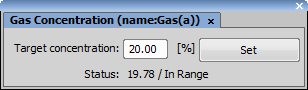
Figure 732.
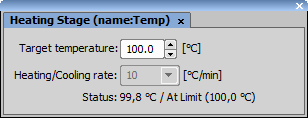
Figure 733.
View > Acquisition Controls > Wellplate Loader 
(requires: Well Plate Loader)
Opens the Well Plate loader control window.
View > Acquisition Controls > OC Panel 
This control window manages and overviews optical configurations defined and used by the application.
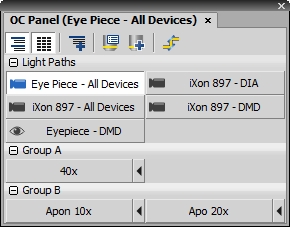
Figure 734.
Control Window Options
 Show Groups
 Press this button to sort the optical configurations displayed in the control window to groups. These groups can be expanded or collapsed by the + / - buttons next to the group name.
 Regular buttons
 After you press this button, all optical configurations button stretch to the same size.
 New Group
 Explore Optical Configurations (Ctrl+N)
 Opens the Optical Configurations window. See Calibration > Optical Configurations for further description.
 New Optical Configuration
 Opens the New Optical Configuration window. See Calibration > New Optical Configuration for further description.
 Lightpath Scheme
 Opens the Lightpath Scheme pad showing the current microscope configuration with visible light paths.
These buttons represent available optical configurations which are placed on the Optical Configuration toolbar. Press the corresponding button to select/unselect an optical configuration. Channel color for optical configuration is displayed next to each of the buttons. If you press the black arrow button, current camera and device settings will be assigned to the selected optical configuration.
Context Menu over Toolbar and Groups
Context Menu over OC buttons
View > Acquisition Controls > Piezo XY Pad 
Opens the Piezo XY Pad used for controlling the piezo XY stage. Adjust the X/Y sliders to move the stage in the particular axis direction or set the value in the edit box and click . The  button returns the stage to its home position.
View > Acquisition Controls > Real Time EDF 
Displays the Real Time EDF control panel. See Real Time EDF.
View > Acquisition Controls > Sample Navigation 
This panel displays overview of the current sample and makes the navigation on it easier. Please see Sample navigation.
View > Acquisition Controls > Shading Correction 
Equals the Acquire > Shading Correction Panel command.
View > Acquisition Controls > Ti2 LAPP Pad 
Opens the Ti2 LAPP Pad. For more information please see View > Acquisition Controls > LAPP Pad.
View > Acquisition Controls > Slide Loader 
(requires: Slide Loader)
This command opens the Slide Loader control window.
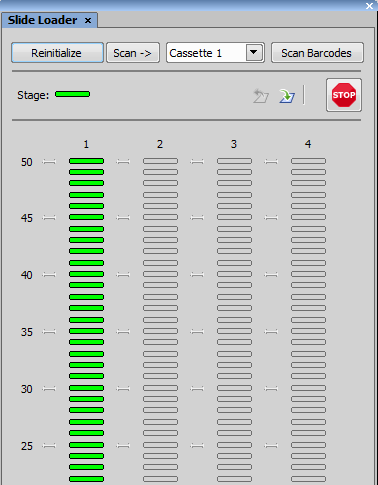
Figure 735.
View > Acquisition Controls > Microscope Pad 
Displays the control pad or the control full pad of the connected microscope.
View > Acquisition Controls > Triggered Acquisition 
(requires: RT Acquisition)
Triggered Acquisition control window sets the fast camera-triggered experiments. Please see Acquisition Settings
View > Acquisition Controls > Two Cameras 
Opens the Two Cameras panel which can run the live signal and capture images on two cameras connected to a single port through a Dual Camera splitter. The highlighted camera name indicates the active camera which can be controlled in the NIS-Elements top toolbar. Active camera can be changed by clicking on its name.
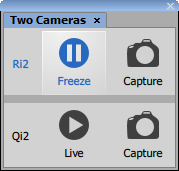
Figure 736.
View > Acquisition Controls > XYZ Navigation 
(requires: Stage XY axis)
If a motorized stage and / or a Z drive is present in the system, their positioning can be controlled using this panel.
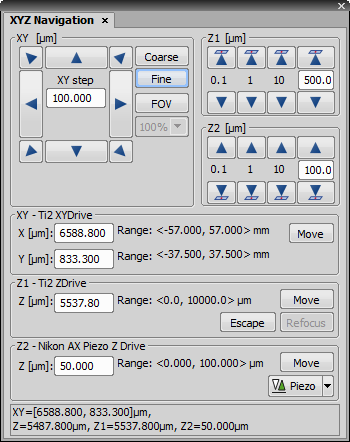
Figure 737.
Relative Movements
Two accuracy settings of movement can be set to Coarse or Fine. Whenever an arrow button is clicked, the stage moves by one step in the selected direction. Moving the stage in a diagonal direction, e.g. top-right direction, behaves like if the top and right moves are performed together. The current step size is displayed between the arrow buttons.
Note
Each physical device has its minimum step size. If the step value set in the edit box is smaller than this minimum, the device will move by the minimum achievable step without warning.
Click the arrow to move the Z drive in the indicated direction with the predefined or custom step size. The arrow button with a sample ( ) indicates the Z drive direction moving towards the sample.
Note
Some stages require Z calibration before Z navigation can be used. If your Z control is disabled (N/A), calibrate the stage using Devices > Calibrate Z.
Absolute Movements
You can move the stage(s) to any position by giving the system its absolute coordinates.
Available only when Piezo Z drive device is connected. Press the arrow button to open a submenu and select an action. This action is performed when you press the Piezo button. The Keep Z position and center Piezo Z option moves Piezo Z drive to the home position, but keeps the original position of absolute Z (sum of Z1 and Z2). The Move Piezo Z to Home Position moves Piezo Z drive to the home position, regardless of Z drive position.
View > Acquisition Controls > XYZ Overview 
(requires: Stage XY axis)
Displays the  XYZ Overview panel:
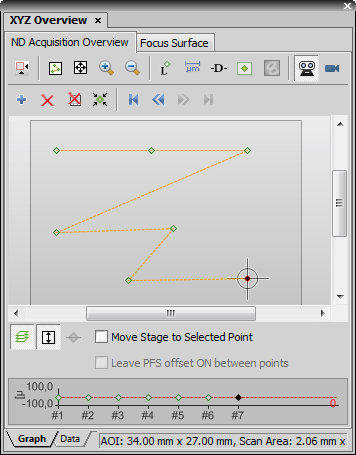
Figure 738.
The window consists of the tabs, each one designed for a different use:
Provides overview of the whole stage with the defined experimental points. It enables the user to modify, add and remove points, which are to be captured during the experiment.
Overview Elements
Selected point is black. All other unselected points are green.
A line marks path of the stage between two points.
A cross represents current position of the stage.
Position of Area of Interest can be changed by pointing mouse cursor over the Area of Interest. Hold down the Ctrl key and the mouse cursor changes its shape to arrows with brown square. Now move the area to a different location. Edit borders of the area to change size or shape of Area of Interest. The status bar on the bottom of the window displays size if the Area of Interest.
Provides overview of the surface used for focusing. It modifies, adds and removes the points, in which the system will refocus. Move the stage to at least 3 different XY positions, focus, and press the Add Point button each time. The points will determine a plane on which the system will always focus (anywhere on the specimen).
All points used in the focus surface can be redefined using autofocus. Being on the Focus Surface Tab, right-click the (xy) preview and select Auto Focus on All points. Auto focus will be performed and the Z positions modified.
Each tab contains: two upper toolbars with control buttons, an overview area (which can be either graph or data table, depending on which tab is selected in the bottom part of the window), bottom toolbar with controls and arbitrarily Z profile graph area.
Common Controls
 Switch to Area of Interest
 Press this button to hide the whole stage area and display only the Area of Interest.
 Adjust to Points
 Show Point Indexes
 Show Point to Point Distances Add Point
 Adds a point at the current position of the stage. You can also use the space bar to add a point.
 Remove All Points
 On Double Click Select Nearest Point
 Double-clicking inside the XYZ Overview area moves the stage. If the button is pressed and you double click near the position where an experimental point is placed, the stage will move precisely to the coordinates defined in the experiment.
 Go to First Point
 Go to Previous Point
 Go to Next Point
 Go to Last Point
 Z Auto Scale
 Automatically sets scale of the Z axis to provide the best view of the Z profile graph.
 Show Focus Surface
Special Controls - ND Acquisition Overview Tab
 Show Scan Areas
 Use this button to display scan areas. It displays area which matches to single captured image over corresponding point. This area depends on selected Objective or Calibration. If a scan area of one point overlaps some scan areas of different points, or scan area of current stage position (marked with a cross) - the color of those areas is red. If they do not overlap, then it is green.
 Show Focus Surface
 If the focus surface is defined, this button displays its color heat-map. The colors indicate whether the focus surface is tilted or curved. A perfectly horizontal focus surface would be displayed as a solid color.
 Front View
 Real position of the sample on the stage is shown in the overview (as seen when standing in front of the microscope).
 Camera View
 Stage overview displays the sample in orientation as it is shown in the live view. Rotation settings in Acquire > Camera Light Path are taken into account.
 Show Z profile
Special Controls - Focus Surface and PFS Surface tab
 Redefine Z Position
 Overwrites the currently selected point in the Focus Surface tab with the current Z position of the stage.
 Reload
 Each time NIS-Elements application is restarted, the focus surface points are cleared. If you want to use the points from the last session click on this button to reload the points.
Choose the method used for point interpolation. Smooth and Nearest Neighbor methods are available.
View > Acquisition Controls > Zoom Manual Pad 
Some microscopes are equipped with a zoom device. If this is the case, it is essential to inform NIS-Elements of the current zoom factor; otherwise, objective calibrations performed at different zoom settings may become invalid. If the zoom device is included in the microscope (such as Nikon Ti), the Zoom logical device is included in it and the zoom factor can be set within the Microscope Control Pad window. In other cases, add the Manual Zoom device in the Devices > Device Manager  and then click
  in the Zoom Manual Pad to adjust the zoom factor.
View > Analysis Controls > Annotations and Measurements 
Manual measurement and annotating of images can be performed using the View > Analysis Controls > Annotations and Measurements control window. All kinds of measurement and annotation tools are grouped in this window:
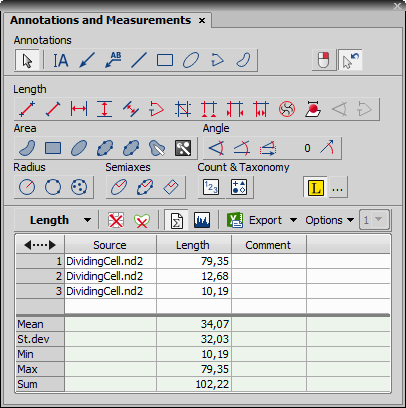
Figure 739.
This toolbar enables you to insert vector objects to the image. The image itself is not affected by the content of the annotation layer, although annotations can be saved with it (JP2, TIFF, and ND2 formats can handle it). After inserting the selected object into the image you can select it using the  Pointing Tool and right-click to edit its Properties.
 Insert Text
 Insert Arrow
 Insert Labeled Arrow
 Insert Line
 Insert Rectangle
 Insert Ellipse
 Insert Polyline
 Insert Polygon
 Confirm with R-Click
 If this button is active, each drawn annotation or measurement object has to be confirmed by the secondary mouse click. This is especially useful for adjusting the object's shape and precise placing.
 Switch to Pointing tool after drawing new object
 If turned on, the cursor is automatically switched to the Pointing Tool after drawing an annotation or measurement object.
See the description of all available measurement tools in the Measurement Tools section.
 Appending Labels
 Text labels are automatically appended to every new measurement object if this button is turned on. Click the adjacent button to adjust visual properties of the label. The label format can be adjusted in the Manual Measurement section of the Measure > Options window.
Press the Options button to display additional commands:
Choose this command to display Measure > Options dialog window.
Loads the previously saved measured data and configuration of their display from an external file.
Saves the measured data and configuration of their display to an external file.
Selects a class number from the combo box next to which is written into the Comment column of the results table. Use this feature e.g. with the  Count tool to count cells (Class 1) and their nuclei (Class 2).
Defines the number of classes. Insert a numeric value.
The measured values are being appended to the results table. There is one table for each measurement type. The measured data can be exported to an external file via the standard Export menu (see the Exporting Results chapter for further details).
 Reset Data
 Pressing this button will erase the currently displayed data, while the data from different types of measurement will not be affected.
 Clear Screen
 Removes all measurement objects from the image while the measurement data remain in the results table.
 Statistics
 Click this button to display an additional table where overall statistics (Mean, Standard Deviation, Minimum, Maximum, Sum) of the measured values are displayed.
 Histogram
 Optionally, histogram of the data inside the results table can be displayed by selecting the Show Histogram button.
Measurement results of the currently measured quantity is displayed in the table. Switching between measurement tools of different quantities automatically changes the table contents.
Note
The data remains in the table even after the application is restarted. The data will be erased only after the computer restart.
Context Menu Commands
Click  right mouse button in the results table reveals a context menu containing the following commands:
If you have clicked on the Source column, this command enables you to display/hide a full path to the measured image file.
These commands enables you to display any combination of columns that is available for the particular measurement type.
Selecting this command adjusts the column width according to the values it contains.
These commands enable you to adjust the current records selection (made using Ctrl/Shift + mouse) and delete the selected records.
Enables you to select the column to sort the records by, and to remove sorting.
The measurement feature selected in this submenu is displayed in the histogram.
Select units and precision for the display of figures.
 Options
 The Options button displays a window with options regarding the histogram appearance. Apart from common appearance settings like color, line width, or default text descriptions of the histogram items there are the following options in the window:
In the Mode pull-down menu, you can select the way of displaying the Y axis (number, number in %, cumulative, cumulative in %).
The histogram can be switched to be displayed as a continuous line instead of a number of bars.
Choose a font and its size to be used for describing x and y axes of the histogram. Write your caption of the particular axis into the Caption edit box below.
Select a font and its size to be used when displaying numeral values inside the histogram.
View > Analysis Controls > Automated Measurement 
The Automated Measurement control window gathers tools needed for fully automated image measurement. The tools can be also displayed as separate panels:
A simple set of tools for binary layers editing. See View > Analysis Controls > Binary Toolbar  .
.
The most common tool for creating a binary layer. See Thresholding.
A tool for classifying pixels. Since it generates a set of binary layers as well as the Thresholding tool does, both these tools are mutually exclusive (only one of them can be selected). See View > Analysis Controls > Pixel Classifier  .
.
For managing of binary layers in the image. See View > Analysis Controls > Binary Layers .
Restrictions applied to the measured binary layers. The purpose of this tool is to exclude the objects which do not match the given criteria from measurement. See View > Analysis Controls > Restrictions  .
.
See also Automated Measurement.
View > Analysis Controls > Automated Measurement Results 
Measured data are displayed within this control window.
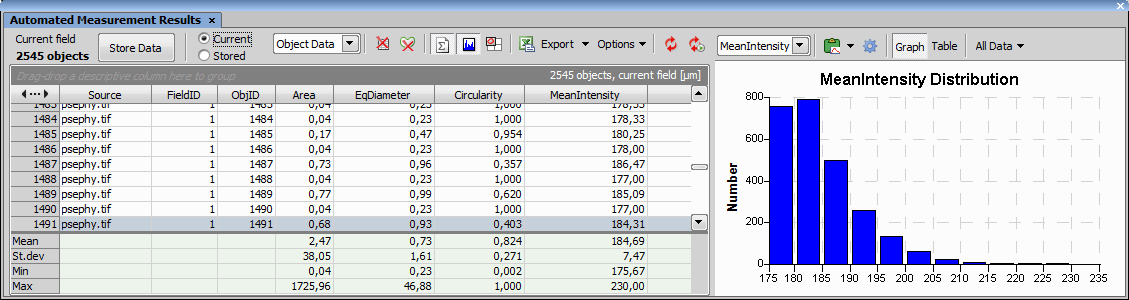
Figure 740.
Use the following tools to handle the measured data:
You can select which data repository appear in the table. The Current data are the currently measured data which can be yet modified by changing parameters in the Automated Measurement control window followed by clicking the Update Measurement button. The Stored data cannot be changed. Current data are appended to this repository each time the Store Data button is pressed, or if the Measure > Perform Measurement command is run.
This pull-down menu selects the type of measured data. The selected method updates the entire table and the Graph (histogram) area.
Each row of the table represents object features for a single object.
Table data show mean feature values calculated from all objects present in the selected frame and the selected binary layer.
Lists one field (frame) per table row containing the selected field features.
Lists one ROI per table row each containing statistics of all objects (from all binary layers) inside/touching the particular ROI.
Lists one ROI and binary layer per table row each containing statistics of all objects (from a given binary layer) inside/touching the particular ROI.
 Time Series Graph
 Show Object Catalog
 Press this button to display the View > Analysis Controls > Object Catalog  window.
Exports the measured data to various locations. See Exporting Results for more information.
Press the Options button to display additional commands:
Choose which features are measured. See Measurement Features. You can also select the Comment feature which enables user to insert arbitrary comments to measured items in the data area. The length of the comment is limited by 63 characters.
Note
Automatic updating features update the whole result table. If the Keep updating measurement or the Update measurement feature is used, the content of the Comment column will be removed automatically.
Choose which features are measured. See Measurement Features. You can select the Comment feature, too (see above).
Choose this command to display Measure > Options dialog window.
Loads the previously saved measured data and configuration of their display from an external file.
Update measurement Press this button to update the current data. Once measurement has been performed, its parameters can be still modified within the View > Analysis Controls > Automated Measurement panel. This button must be pressed in order for the changes to take effect on the data.
Data Area
You can arrange the view of images efficiently by grouping them. You can group images according to any feature, or comment. Drag the column name bar to the grouping bar (right above the column name bars). All files with matching field values of the selected column will be grouped together. This can be undone by dragging the column caption back to the others.
The features are gathered in columns. Click the column caption to sort the data ascending or descending.
The right portion of the window contains data analysis and visualization tools. You can display the histogram graph of the values or a statistics by pressing the adjacent button. Choose the measurement feature from the pull down menu and its distribution is displayed in the histogram. The data are processed. You can export them to a report, MS Excel application or clipboard. Histogram properties can be changed via the Options button (see: Options). If you have grouped the data, you can also display the histogram of a subgroup. The group can be selected from the Groups menu.
Context Menu
Opens a window with a list of measurement features. Select which features you want to measure and press the Add button.
Hides the column you are currently pointing at. To make the column visible again, select it in the Show Column pull down list.
View > Analysis Controls > Binary Layers Number of binary layers can be present. A new binary layer can be created for example in the Binary > Binary Editor. Manage the binary layers using the View > Analysis Controls > Binary Layers control window:
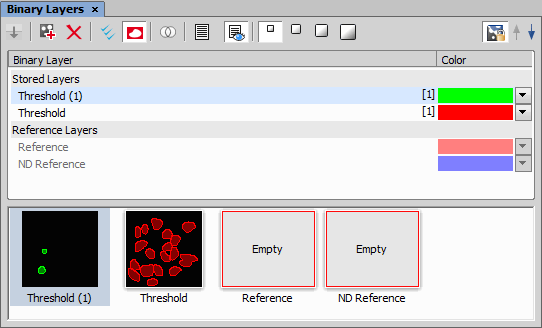
Figure 741. Binary Layers tab
 Store Current Working Layers
 Duplicate Selected Layers
 Select All Layers
 Show Reference Layers
 Binary Operations Dialog
 Show Layer List
 Show List and Thumbnails
 Connect objects to 3D
 Fill missing binary frames
Context Menu Commands
When you right click a thumbnail or binary layer name, a contextual menu appears with additional commands:
Color of the binary layer can be changed from this color pull down menu.
Uses a smart algorithm to prevent neighboring objects to have similar color.
Colorizes objects by 12 different colors in the direction from the top left corner to the bottom right corner.
It is possible to colorize objects according to a measured value.
View > Analysis Controls > Binary Toolbar The most frequently utilized binary tools are grouped in the Binary Toolbar control window. Run the View > Analysis Controls > Binary Toolbar command to display it. It contains the following tools:
 Auto Detect
 Click in the middle of an object and the system will try to detect its borders and highlight them. The algorithm is based on changes of intensity values. The object size can be adjusted by mouse wheel or by the UP/DOWN keys. Finish the detection by right click.
 Auto Detect All
 Click in the middle of an object and drag the mouse to its borders. The system tries to detect the object borders as well as find all the other similar objects. Finish the detection by releasing the mouse button.
 Draw Object
 Draw a binary objects by hand. You can either draw it like polygon or use the “freehand” method while holding the primary mouse button pressed.
 Draw Bezier object
 Delete Object
 Separate Objects Manually
The following tools perform basic morphology operations. Please refer to the Mathematical Morphology Basics chapter for further details.
 Dilate
 Erode
Erode Close
Close Open
Open Separate Objects Automatically
 Clean
Clean Clear View > Analysis Controls > Distance Measurement
Distance Measurement panel provides a full set of measurement tools arranged into six main groups (tabs). Each tab holds the results for each measurement group.
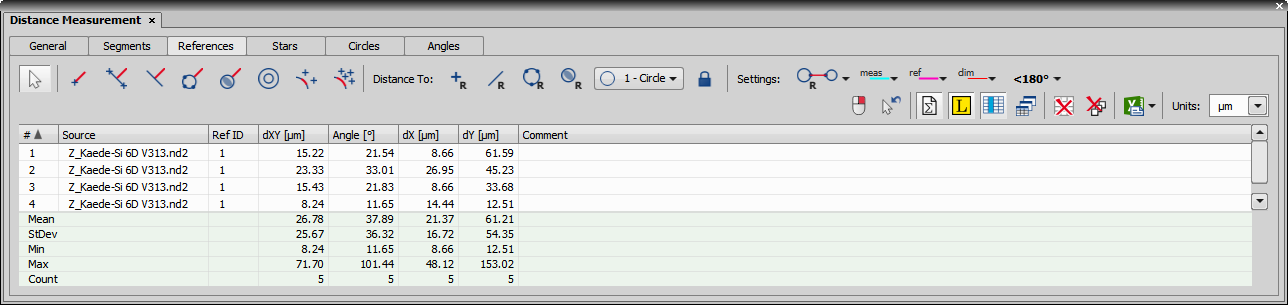
Figure 742. Distance Measurement panel
The table below the measurement tools shows the measurement results and statistics based on the settings of the tools on the right side of the panel. The context menu over a table header enables the user to select which label is shown in the image next to the measurement (Show dXY on Label) and to set the  Columns Visibility.... Context menu over the results data enables the user to Deselect All Rows, Remove Selected Rows, Resize Columns to Contents, Resize Columns to Defaults and Resize Columns Relatively.
Common Tools
 Pointing Tool
 Results by Reference
 If this button is pushed, only the results linked to the selected reference object are shown. If the button is not pushed, all reference measurements linked to all reference objects are shown.
These drop-down menus are used to change the color and size of the measurement objects, reference objects and dimension lines. In the References and Stars tab, points of interest can be further specified.
Switch to Pointing Tool After Drawing Automatically switches to the pointing tool after drawing a measurement object.
Show Statistics, Hide Statistics Shows/hides the statistics area at the bottom of the measurement table.
 Show IDs, Columns Visibility...
 Opens the Columns Visibility dialog where it is possible to select which measurement features are shown as columns. The same dialog can be opened from the context menu over the results header.
 Show Results from All Documents, Show Results from the Current Document
 Displays the measurement results either from all images or just the current image.
 Export to Excel
 Drop-down menu next to this button selects whether to export the measurement data and statistics to Excel, to a File or to Clipboard and whether all measurement tabs are exported as separate excel tabs (Export All Tabs) or just the visible columns are exported (Export Visible Columns). Once the selection from the drop-down menu is made, click this button to perform the actual export.
General
 2 Points
 Simple Line
 Horizontal Lines
 Free Parallel Lines
 Draws two parallel lines with a free rotation. Draw the first line, confirm it by a secondary mouse click and repeat this procedure for the second line.
 Crosses
 3 Points Arc
 Draws an arc by clicking 3 points on it. The second point defines the direction and the third point defines the diameter dynamically during its placing.
 3 Points Circle
 Circle
 Autodetect Circle
 Automatically detects a circle with its center in the center of gravity of the clicked object (confirm its detection by the secondary mouse click). The circle has the same area as the detected object.
 2 Points with Stage
 This function is used for measuring the distance between two points going outside the field of view. Run the live image, click a point in the image, move your stage and click in the image again. The line between the two clicked points is measured.
 Crosses with Stage
 This function is used for measuring the distance outside the field of view with auxiliary crosses. Run the live image, move the first cross to your point of interest and confirm its position by the secondary mouse click. Move your stage and repeat the procedure for the second point. The distance between the two points is measured.
Segments
 Define Segments by Polyline
 Draw a polyline by clicking into the image and confirm it by the secondary mouse click. The segments defined by the nodes are automatically separated and numbered in the results table. Activate the Show Labels button to label each segment in the image with its measured value.
References
To measure reference distances, a reference object has to be defined first. Start with a reference tool from the Distance To toolbox. If multiple reference objects are defined, select one from the drop-down menu next to the reference tools. Then choose which distance is to be measured from the measurement tools on the left.
 Point Distance
 2 Point Line Distance
 Draws a line with two points. The orthogonal distance between this line and the reference object is measured.
 Simple Line Distance
 Draws a simple line. The orthogonal distance between this line and the reference object is measured.
 Linear Pitch
 Measures the distance between two drawn parallel lines which are orthogonal to the reference line.
 Linear Continuous Pitch
 Measures the distances between multiple clicked parallel lines which are orthogonal to the reference line.
 3 Points Circle Distance
 Draws a circle by 3 points and measures the distance between the circle center and the reference object.
 Auto Detect - Circle Distance
 Automatically detects a circle with its center in the center of gravity of the clicked object (confirm its detection by the secondary mouse click). The circle has the same area as the detected object. Distance and angle between the circle center and the reference object is measured.
 Concentric Circle
 Draws a concentric circle with the reference object as its center and measures the distance features between them.
 Circular Arc
 Circular Continuous Arc
 Draws multiple points which define the arch segments on the reference circle which are measured.
 Define Reference Point
 Define Reference Line
 Define Reference Circle
 Define Reference Circle - From Point
 Define Reference Circle - Auto Detect
Stars
This type of measurement is used to measure reference distances and angles of objects around one reference object which has to be defined first. Start with a reference tool in the Distance To toolbox. If multiple reference objects are defined, select one from the drop-down menu next to the reference tools and choose which distance is to be measured from the measurement tools on the left.
3 Points Circle Distance Draws a circle by 3 points and measures the distance and angle between the circle center and the reference object.
Auto Detect - Circle Distance Automatically detects a circle with its center in the center of gravity of the clicked object (confirm its detection by the secondary mouse click). The circle has the same area as the detected object. Distance and angle between the circle center and the reference object is measured.
Concentric Circle Draws a concentric circle with the reference object as its center and measures the distance features between them.
More measurement features can be added from the context menu over the table header (Columns Visibility), such as Cref-C (distance between the center of the reference circle and the center of the second circle) or Cref-E (distance between the center of the reference circle and the edge of the second circle).
Circles
3 Points Circle Distance Draws a circle by 3 points and measures the distance and angle between the circle center and the reference object.
Auto Detect - Circle Distance Automatically detects a circle with its center in the center of gravity of the clicked object (confirm its detection by the secondary mouse click). The circle has the same area as the detected object. Distance and angle between the circle center and the reference object is measured.
Angles
 Angle
Angle Angle between Lines
 3 Points Angle
 4 Points Angle
 Angle To Reference Line View > Analysis Controls > EDF Z-Profile
(requires: Extended Depth of Focus)
The EDF module is needed to display the Z profile.
This control window displays and measures a Z profile of a focused image which was produced by the EDF module.
To display the Z Profile
To add/remove profile lines
To change the profile line color/width/style
Graph/Data/Measurement Tabs
There are three tabs at the bottom of the Z Profile control window named Graph, Data, and Measurement. Switch from the default Graph tab to the Data tab. The number, X, Y, and Z coordinates of every point of the Z profile is displayed there in a table. They can be exported using the Export button described below.
Some measurement actions can be performed within the graph. The results are written to the Measurement tab.
Tools
 Show Profile, Hide Profile
 This button displays/hides the profile line inside the image window. The profile line can be dragged by mouse and the length can be modified. In the 3D Surface view mode (click  Show EDF 3D Surface View button on the image toolbar) the EDF Z-Profile plane can be moved by clicking Ctrl and dragging with the left mouse button.
Z-Profile Options The appearance and behavior of the graph can be modified in the Z-Profile Options window. Press this button to display it or click the General Profile Properties... from the context menu over a profile line.
 Export
 Click this button to display a pull-down menu. The Graph image, graph data, and the measurement results can be exported:
The data and measurement tables can be exported to MS Excel. A new XLS sheet opens and the table is copied to it automatically. There is also the Export All To Excel option, which copies the data table, measurement table, and the graph image into it.
The data and measurement tables can be exported to an external *.txt file, the graph image to a *.bmp file. Select the command from the pull-down menu and define the target file name in a standard Save As-like window, which opens. Confirm the export by the Save button.
The data table, measurement table, and the graph image can be exported (copied) to Windows clipboard. Then the data or the image can be inserted into any appropriate application (text editor, spreadsheet processor, graphics editor) typically by the Paste command.
The Graph image can be exported into the Report Generator (see: Creating Reports).
Measurement on Graph
The following interactive measurements can be performed within the graph. Please see the details in the Measurement on Graph chapter.
Note
Be aware that the scale in the X axis and the Y axis directions usually differ. In such case, the measured value does not match the angle displayed on the screen.
 Distance from Baseline
 Use this function to draw a red reference line (base line) by clicking and dragging in the graph area. Then click any other point(s) in the graph to measure its orthogonal distance to the base line. Finish the measurement by the secondary mouse click.
 Show Measurements
 Use this button to show a table containing results of measurements made in the graph.

 Shift Left(px),
 The Z-profile graph may be zoomed in the usual way. You can click the zoom buttons placed on the control window sides (please see the Image Window chapter for the buttons description) or a mouse wheel can be used. To use the standard zoom, point to the target area and roll the mouse wheel. The graph will be zoomed in/out according to mouse wheel movement direction. To zoom just the horizontal axis, zoom while holding the Ctrl key down. The same applies for the vertical axis, but use the Shift key.
EDF Z-profile Options
Click the Options button. A dialog appears where you can specify the Z- profile options:
General Options tab
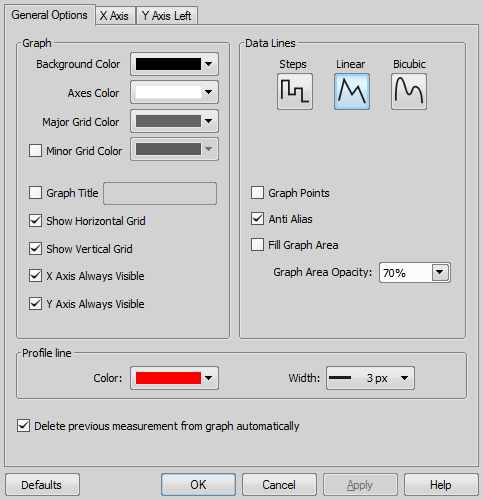
Figure 744. Z-Profile Options
Choose background, axes and grid colors from the palette. Check the Graph Title option to display a title, whose text you can enter in the adjacent field. Then check the Show Horizontal Grid/Show Vertical Grid items if you want to make them visible in the graph. If X Axis Always Visible/Y Axis Always Visible item is checked, the axes do not leave the graph area while zooming in the graph.
Select interpolation method or drawing the graph lines by pressing the relevant button. You can choose Steps (rough), Linear (smoother), or Bicubic (really smooth) interpolation method.
Check this item to display data points. Small dots indicating the actual data values position can be displayed on the graph line. The points appear only if the distance between them is big enough for them to be recognized (they usually appear when you zoom in the graph).
Turning this option ON will make the graph lines look smooth.
Check this item to fill in the area under the line chart with a color. Select the amount of opacity used from the list of predefined values.
X axis
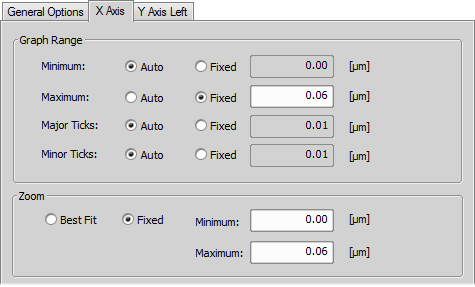
Figure 745.
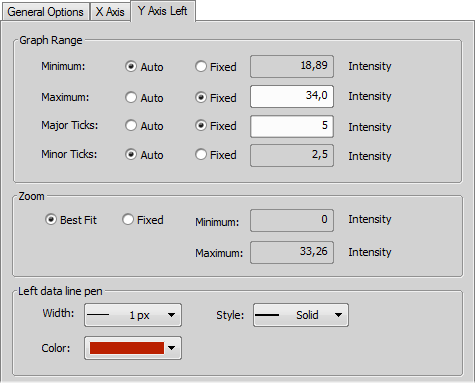
View > Analysis Controls > Intensity Profile This control window displays the image intensity profile.
See Measure > Intensity Profile for more information.
View > Analysis Controls > Layer Thickness Measurement 
(requires: Local Option)
Displays the Layer Thickness Measurement window. See Layer Thickness Measurement.
View > Analysis Controls > Measurement Explorer 
(requires: Local Option)
Opens the Measurement Explorer panel.
See also Measurement Explorer.
View > Analysis Controls > Measurement Sequencer - Definition 
(requires: Local Option)
Opens the Measurement Sequencer - Definition panel used for the preparation of advanced sequential measurement definitions.
View > Analysis Controls > Measurement Sequencer - Run 
(requires: Local Option)
Opens the Measurement Sequencer - Run panel used for executing the measurement definitions previously defined in the View > Analysis Controls > Measurement Sequencer - Definition window.
View > Analysis Controls > Object Catalog This control window displays the objects present in the analyzed image. The Object Catalog is filled with objects at the measurement. The objects can be filtered and sorted. In the contextual menu are additional commands which enable object validation. If you place the mouse cursor over the image thumbnail, a window appears displaying the info about the object measured features.
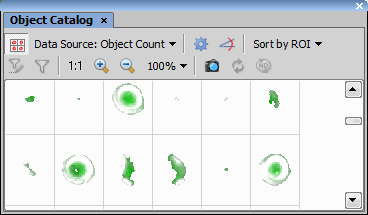
Figure 747.
Top Toolbar
Press this button to fill the Object Catalog with data from Automated Measurement Results.
Choose the data source. Either the Object Count or the Automated Measurement data source is automatically set according to from which window was the Object Catalog invoked.
Select the sorting features (Feature of Interest, Ascending or Descending sort) from the pull down menu that appears after you press this item. The Feature of Interest item is available only for option Unsorted. It displays by which feature the objects are sorted.
Press this  button to define the filter. This button opens the Define Filter window.
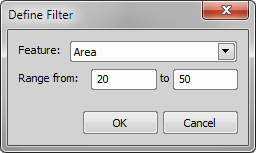
Figure 748.
Select a feature from the list of relevant features in the pull down menu and set the range values.
Press this  button to apply the filter set in the Define Filter window. To discard the filtering conditions, press this button once again. When filtering is active, the icon is highlighted red.
Edit the style of viewing the thumbnails.
Check this option to set the same zoom for all thumbnails.
 button to create a snapshot of all object in Object Catalog. A new image is created.
 button to update object catalog.
Context Menu
Object Catalog Options
This window displays the Object Catalog setting.
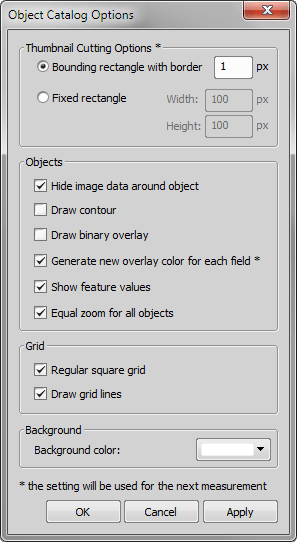
Figure 749.
View > Analysis Controls > Object Count 
The Object Count tool thresholds the image, automatically measures the binary objects, and exports the measured data to a file in a straightforward way.
See Object Count for detailed functionality description.
View > Analysis Controls > Pixel Classifier This control window displays the Pixel Classifier. Pixels can be classified according to selected features:
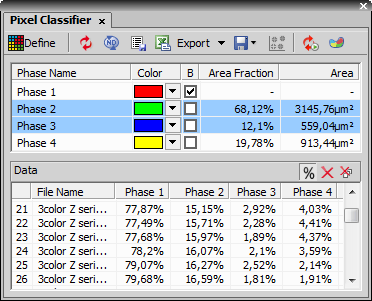
Figure 750. Pixel Classifier
Specify the number of phases by pressing and  buttons. Finish the definition by clicking Define again.
Control Window Options - the Training Mode
Define Classifier This button switches between the standard and the training mode of the classifier. Click Define to start training the classifier.
 Pick samples from current image -- single point,
  ,
, 
These buttons are available only in the training mode. Select one of them and click into the image to select pixel(s) which will be used as samples for the current class.
 Reset samples
 Undo/Redo
 Smooth
 This command applies smooth operation on the classified objects. Choose the smooth strength from the pull-down menu next to the button.
Keep Updating Classifier ON, Keep Updating Classifier OFF Press this button to run the classification continuously. Any changes in the image influencing the classification are shown immediately.
 Classify in ROI ON, Classify in ROI OFF
 Press this button to determine if pixel classification is done only in ROIs (ON) or in the whole image (OFF).
Select a classification method of evaluating the binary objects. Manual enables defining the classes manually. If Bayes is selected, classes are defined via an algorithm for calculating classes from the defined samples.
Select which data are used for classification: Intensity; Channels; Hue, Saturation, Intensity (for RGB images); or Ratio from the picker. Then specify further details picking the appropriate item from the Channels menu.
This window contains list of all defined classes. When in the training mode, you can change the name or the displayed color of each class. If you check the Background option, the selected class is set as background. The Area values define size of the selected class area in proportion to the whole image and also in document units. Press the Test button to display classified objects in the image. Check the Show All option to display all classes in the image. If you do not check this option, only the currently selected class is displayed.
Control Window Options - Standard Mode
 Store classified data
 Open / Save classifier
 Show Area Fraction
Scattergram
Scattergram window appears after clicking  Show scattergram. Select two features which will be jointly represented in the graph. Press the
  Show Grid button to display the grid. Press the button to display options defining the graph appearance.
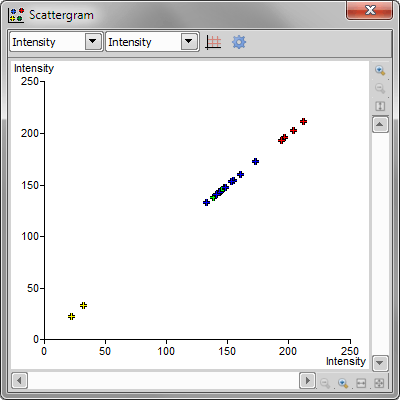
Figure 751.
View > Analysis Controls > Restrictions This panel applies limits to objects in the measurement results table. Only objects which fit these limits will remain in the table.
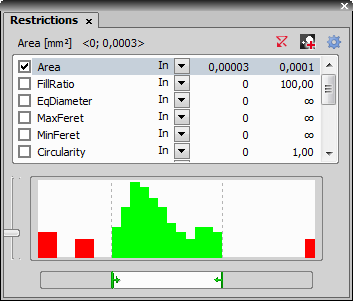
Figure 752.
How to Set Restrictions
Select Object Features Selects the measurement features. The Measure > Object Features dialog box appears.
View > Analysis Controls > ROI Statistics 
This control window displays information about the current Measurement ROI (region of interest).
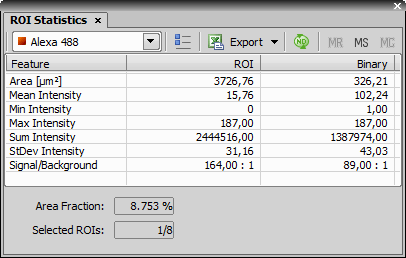
Figure 753.
The following information of the image and the binary layer is available. The statistics include information about the whole image or just the parts covered with Measurement ROI depending on whether the ROI is ON or OFF. The channel can be selected from the combo box.
Displays the signal / background ratio, the Signal value is calculated as follows:
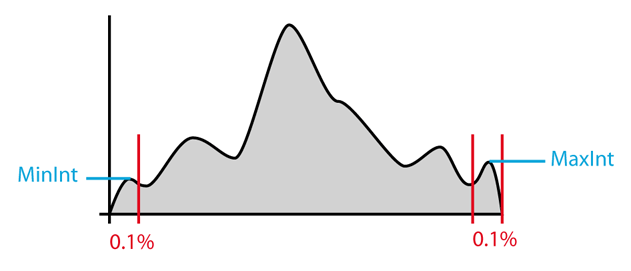
Figure 754.
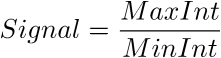
Figure 755.
The function takes 0.1% of the brightest and darkest pixels and only the highest frequency (modus) is used as the MaxInt and MinInt values.
Note
You can modify the quantile size in the Windows Registry Editor under HKEY_LOCAL_MACHINE\SOFTWARE\Wow6432Node\Laboratory Imaging\Platform\User.Name\Platform.INI\Configuration\ROIStatistics.HundredthOfPercent - the default value is 10 (10 x 0.01% = 0.1%).
Other options
 Enable Multiple ROIs mode
 This button switches the ROI statistics window into the Multiple ROI mode displaying summary results per each ROI.
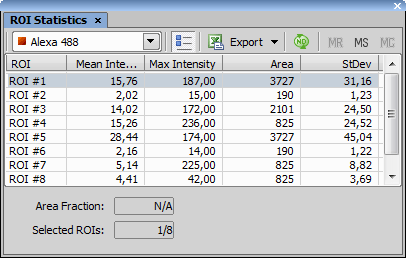
Figure 756.
The displayed data can be exported to a text or MS Excel file via a standard Export pull-down menu. Please see the Exporting Results chapter for further details. If an ND2 file is opened, this  button performs the export of ROI statistics of all its frames according to the defined settings. You will be Navigation in ND2 Files.


 View > Analysis Controls > Thresholding
This control window provides thresholding tools.
See Thresholding for more information.
View > Analysis Controls > Time Measurement 
(requires: Time Measurement)
Records the average pixel intensities within ROIs during a time interval.
See Time Measurement for detailed description of this control window.
View > Analysis Controls > Weld Measurement 
(requires: Measurement Sequencer)
Opens the Weld Measurement dialog window. See Weld Measurement.
View > Visualization Controls > Controls 
Manages the visibility of all control windows.
The main portion of the window contains controls overview. All controls displayed in the application top toolbar are displayed here. You can add another control using the Customize button.
Pressing a control button results in displaying (or hiding already displayed) control window within the application layout.
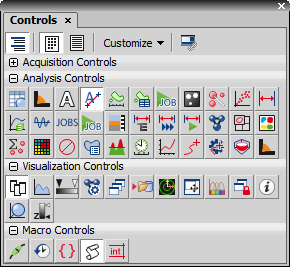
Figure 757.
Control Window Options
Show Groups Press this button to sort the controls displayed in the control window to groups (Acquisition Controls, Analysis Controls, ...). These groups can be expanded or collapsed by the +/- buttons. Items in each group are displayed in alphabetical order.
 Show Bitmaps
Press the Customize button to expand a menu containing all available control window sorted in four submenus. When you select any control from the submenu, the control is added to the control window overview portion and to the application top toolbar as well. The Add All Controls command adds all available controls to the overview and application toolbar at once. Similarly the Remove All Controls command removes all controls.
 Associate with Current Layout
Right-clicking on the buttons in the top application toolbar displays a context menu with the Remove This Button command enabling to remove the button from the toolbar.
View > Visualization Controls > Histogram 
This control window displays a histogram.
See Histogram for detailed window description.
View > Visualization Controls > LUTs 
This command shows the LUTs control docking window. Look-up tables are used for image color and brightness modifications.
See detailed description of LUTs functionality and control in the LUTs - Non-destructive Image Enhancement chapter.
View > Visualization Controls > Opened Images 
This control window displays previews of all opened documents.
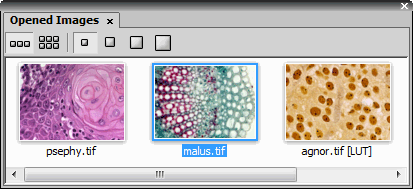
Figure 758.
You can customize display of image thumbnails. Use the buttons to change size of the thumbnail images. Thumbnails can be lined up in a single row or in multiple rows . Number of the rows depends on selected thumbnail size and size of the control window. Thumbnail size in a single row display depends on size of the window while the maximal size of thumbnails is given by the selected size button.
When you right click the image preview, a context menu appears with the following options:
Contextual Menu Items
Use the three top commands to create a reference image, to load the reference image and to switch between the current and the reference image.
When you place the cursor over the image preview, a tooltip containing information about name, filename, path, dimensions, size, and calibration is displayed.
A scale can be displayed in the preview image. Its length is estimated automatically in order to be readable and depends on the image size. The units used depend on the image calibration.
This command displays a dialog-window where all meta-information of the current image is shown. The dialog differs according to type of the image. All records are editable, some of them have predefined possible values. For more information see File > Image Properties.
View > Visualization Controls > Organizer 
Opens the Organizer pad for image files and database work. Please see Organizer for more information.
View > Visualization Controls > Preview 
The preview control image shows a thumbnail of the whole image. The red rectangle indicates position of the currently observed area when the image is zoomed in. The size and position of this rectangle can be changed by mouse - the view of the image changes accordingly.
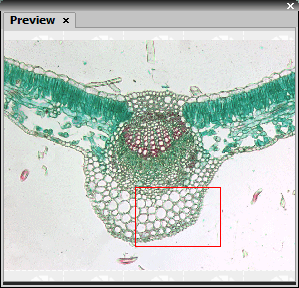
Figure 759.
View > Visualization Controls > Synchronizer 
Synchronizer compares (runs and views) two or more ND2 files at the same time.
See Synchronizer for more information.
View > Visualization Controls > System Information 
This control window indicates the system state. You can display information about the session time, experiment time elapsed, X, Y, and Z position.
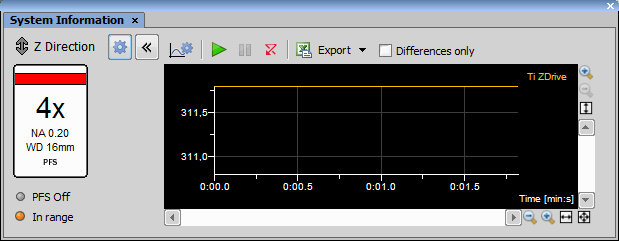
Figure 760.
The arrows indicates the motion. The Last move statement indicates that Z device has stopped moving. The arrow orientation indicates the direction of the motion. The Moving statement indicates that the Z device is moving up or down (again the arrow indicates the direction).
Settings Opens the Settings dialog which can be used to select basic system information which is displayed in the list of the System Information window.
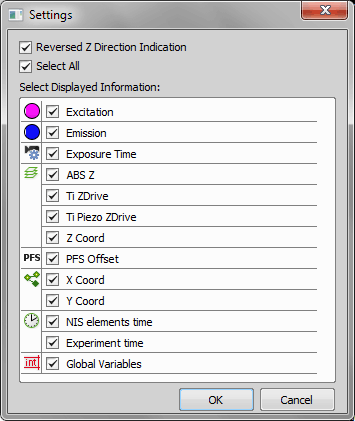
Figure 761.
Check this item to reverse the indication of Z moving.
Selects/deselects all items in the list.
 Select Graph Variables
 Opens a dialog enabling to select which variables are shown inside the graph.
 Run
Run Pause View > Macro Controls > Command History
(requires: Advanced Interpreter)
This control window displays a list of all recently executed commands and manages them. You can also use this control window to easily create a macro from a sequence of recently used commands.
See Macro > Command History for more information.
View > Macro Controls > Debug View 
(requires: Advanced Interpreter)
The Debug View can be used to control the current macro execution. It displays the source code of the macro. When the macro runs, the executed line is indicated by an arrow. If there are any breakpoints put into the source code, the macro execution stops there.
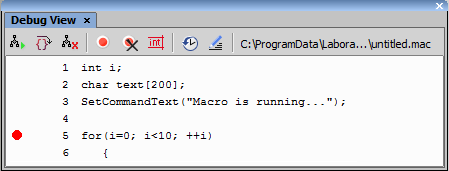
Figure 762.
The following buttons can be used to debug the macro:
 Go
Go Next Step
 Interrupt Macro Execution
 Add/Remove Breakpoint (F9)
 Clear Breakpoints (Ctrl+F9)
 Edit macro
See Also
View > Macro Controls > Variables 
View > Macro Controls > Macro Panel 
(requires: Advanced Interpreter)
Equals the Macro > Macro Panel command.
View > Macro Controls > Variables 
(requires: Advanced Interpreter)
The Variables control window displays values of variables present in the currently running macro. A control window with four tabs appears:
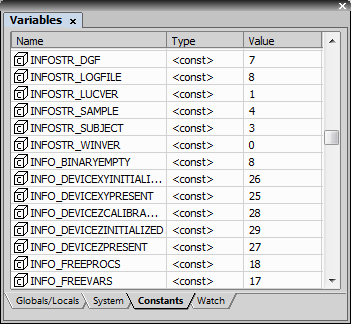
Figure 763.
View > Shortcuts > Create New Shortcuts Pad This command opens the Create Shortcuts dialog window, where you can create a custom shortcut pad by giving it a name in the Shortcuts Name edit box and clicking . The shortcuts pad with this name then automatically opens.
Click on  Add Shortcut in the pad to add the first shortcut either by typing the name of the command into the Search field or find it manually in the menu structure (). You can choose from menu commands, macro commands (Add Command...), macro files (Add Macro from File...) or a separator (Add Separator) which adds another shortcut row to the pad. Optionally change the shortcut icon (by clicking on its icon) or the shortcut text and then click . The command is saved to the shortcut pad.
By right mouse button clicking on a shortcut button in the pad, the user can Edit the selected shortcut, Remove it, Remove All shortcuts or rearrange its order in the pad by moving the shortcut one position to the left or right.
By right mouse button clicking on the Add Shortcut button or in an empty space, the user can Remove All shortcuts, Import/Export the shortcuts from/to an .xml file, Rename the shortcut pad, Create New Shortcuts Pad, Delete the pad or Hide the Add Shortcut button.
View > Image > LUTs > Luts On/Off This command toggles Look Up Tables. This command is equivalent to pressing the LUTs button, placed on the NIS-Elements main toolbar in the upper left corner. When LUTs are activated, this button turns red.
Note
To see how to set and use look-up tables, see LUTs - Non-destructive Image Enhancement.
View > Image > LUTs > Keep Auto Scale LUTs This command runs the auto scale procedure permanently (on the live image). This command corresponds to the  button in the top document toolbar.
View > Image > LUTs > Auto Scale LUTs This command adjusts the white slider position of all channels automatically with the purpose to enhance the image reasonably. This command corresponds to the button in the top document toolbar.
View > Image > LUTs > Create Custom LUTs This command defines a custom LUTs gradient. The left side of the window contains a list of all already defined gradients. Use buttons from the middle portion of the window to manage them. Start with creating a new gradient by clicking the button, name it and define its appearance in the right portion of the window which provides the gradient's overview. You can change the name of the gradient directly in the Name field. Then enter which pixel Intensity value is assigned to a selected color. After you fill in one row, another one is created automatically. When done with defining your gradient, you can press the button and choose the gradient from the LUTs window pull-down menu or it to your image immediately.
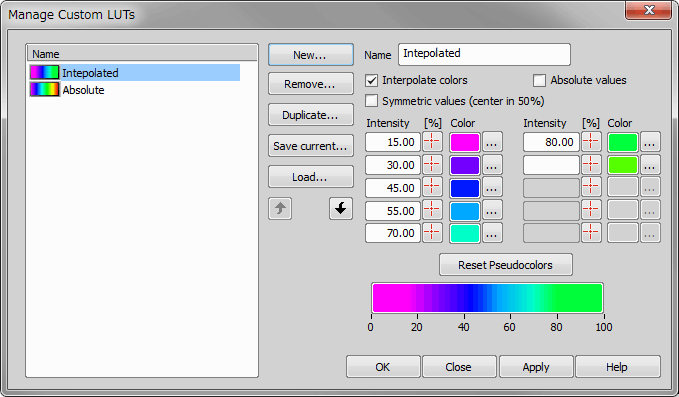
Figure 764.
View > Image > ND View > Main View 
Displays ND document in the main view. See ND Views for more information.
View > Image > ND View > Volume View 
This command displays the sequence of images as a 3D model using perspective projection. Please see Volume Viewer.
View > Image > ND View > Tiled View 
This view displays frames of the selected dimension arranged one next to other. (Requires Z, T or XY dimension).
One or two dimensions can be viewed at a time.
Options
 Fit to screen ,
  1:1 Zoom,
  Zoom In ,
  Zoom Out, Zoom
 You can use the predefine zoom magnifications selected from the drop-down menu as in the standard image window. The resulting zoom is relative to a single tile.
See also Image Window
Layout Settings
You can change the way the tiles are displayed. Press the Layout Settings button in the top image toolbar. The following window appears:

Figure 765.
Layout
Numbering
Numbers may appear on the tiles if you wish. Set the options here:
Other Options
Check this item to keep the tiles apart by a distance. Define the space size between the tiles in pixels.
Check this option to use the default background color for the tiled view. Otherwise, you can pick any color from the Background color palette.
View > Image > ND View > Slices View 
This command displays a new window for exploring the slices of an ND2 file.
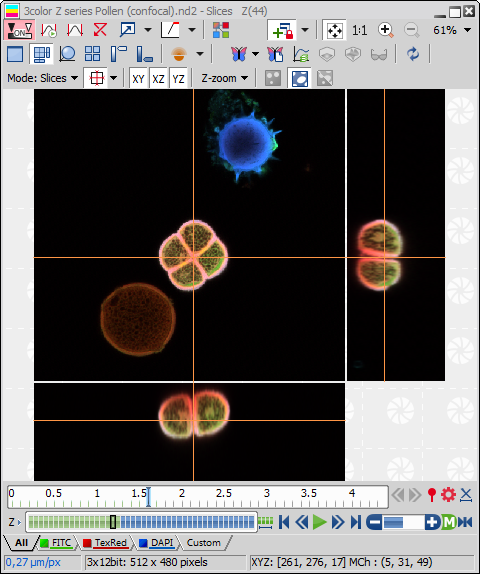
Figure 766.
View > Image > ND View > Switch to Split Component View This command turns on a special view where each component of the image is displayed separately while zoom and view position are synchronized.
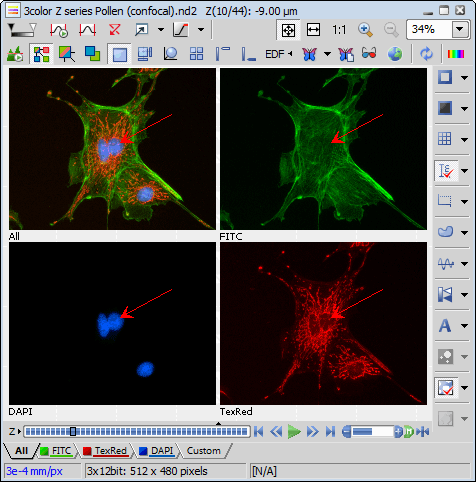
Figure 767.
View > Layers > Probe This command shows or hides probe. It is equivalent to the  button placed as most upper on the right side of image window. To change the probe appearance, invoke the View > Layers Properties > Probe Properties command.
View > Layers > Background ROI This command shows or hides the background probe. It is equivalent to the button placed on the right toolbar of the image window.
View > Layers > Graticules Displays graticules plane in a defined appearance. It is equivalent to the  button placed in the right toolbar of the image window. To change the graticules plane appearance, invoke the View > Layers Properties > Graticules Properties command.
View > Layers > Scale Displays/hides the scale. It is equivalent to the  button placed in the right toolbar of the image window. To change the scale appearance, invoke the View > Layers Properties > Scale Properties command.
Context menu over a scale
View > Layers > LUT Intensity This command displays the LUTs color scale inside the current image. Positions of the Black, White, and Gamma sliders is indicated on the scale.
Note
The scale is available for monochromatic (gray-scale) images only.
View > Layers > Annotations This command displays/hides the annotation layer. It is equivalent to the  button placed in the right toolbar of the image window.
See Image Layers for further information.
View > Layers > ROI Displays the area of measurement (measurement region of interest). See also Introduction to ROIs.
View > Layers > Binary Displays the current binary image.
Note
The command corresponds to the binary button on the right side of the main NIS-Elements window. CTRL+B is the shortcut key.
View > Layers > Color Displays the current color image.
Note
It corresponds to the color button on the right side of the main NIS-Elements window. CTRL+R works as a shortcut key.
View > Layers > Overlay Displays both the current color and the binary image.
Note
It corresponds to the overlay button on the right side of the main NIS-Elements window. CTRL+V is the shortcut key.
View > Layers Properties > Binary Layer Change Color This command changes the color of binary image displayed in the overlay mode. The overlay can be displayed in sixteen different basic windows colors.
View > Layers Properties > Binary Layer Decrease Transparency This command decreases transparency of binary image displayed in overlay.
View > Layers Properties > Binary Layer Increase Transparency This command increases transparency of binary image displayed in overlay.
View > Layers Properties > Probe Properties This command displays window for setting up the probe properties. You can reach this command by left-clicking on the Show probe button (located on the toolbar in image window) too.
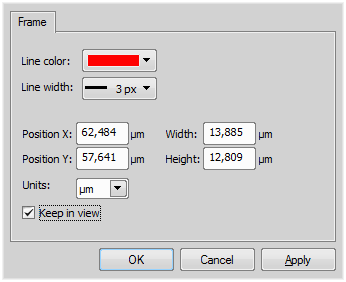
Figure 768.
View > Layers Properties > Graticules Properties This command displays window for setting up the graticule properties. You can reach this command via context menu on the Show graticule button (located on the image toolbar).
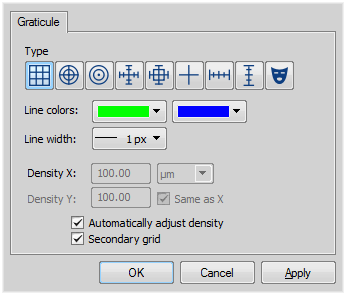
Figure 769.
Most grid types consist of primary and secondary lines. Their color can be selected from these pull-down menus.
The density value - the closest distance between two line intersections of a graticule - can be set in the edit box, or you can let NIS-Elements adjust it automatically according to the current zoom factor. The units selection depends on the image calibration (calibrated/uncalibrated).
View > Layers Properties > Scale Properties This command displays a window with the scale properties.
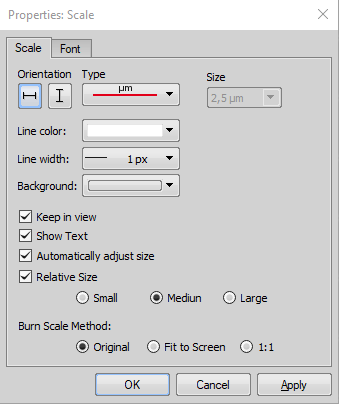
Figure 770.
Scale
Sets the size of the scale. If the Automatically adjust size option is ON, the Size edit box becomes disabled and the system computes the optimal size according to the image calibration and zoom factor.
Sets the scale background color. This is handy if your image has lots of colors and it is difficult to choose a contrasting color for the scale.
This option dynamically places the scale so that it is always visible, even if you zoom in or shift the image.
Check this item to enable the automatic scale size adjustment based on the image calibration and zoom factor.
Size relative to the image width can be selected here. To enable this function check the above option first.
This option determines how the inserted scale will be resized - it can prevent inserting a too small or too large scale. Original burns the scale in the size as you see it in the image in the current zoom. Fit to Screen burns the scale as if you zoomed the image to the Fit to Screen mode and applied the Original method. 1:1 burns the scale as if you zoomed the image to 100% and applied the Original method.
View > Layers Properties > Measurement Frame Properties Equals the Measure > Measurement Frame command.
View > Layers Properties > Profile Properties This command displays a window for setting up the intensity profile properties. The appearance and behavior of the graph can be modified in the Intensity Profile Options window. Press this button to display it from the control window. For more information see Measure > Intensity Profile .
The window contains three tabs:
General Options
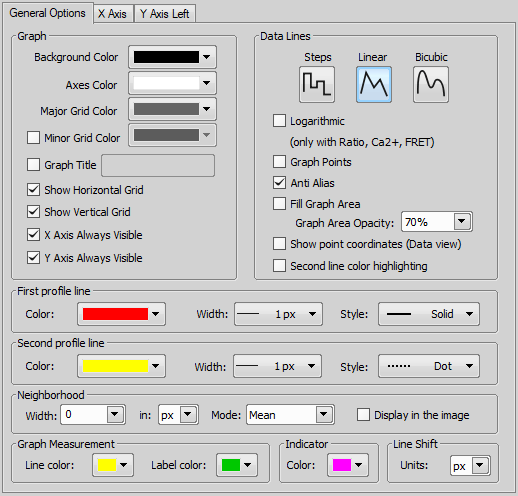
Figure 771.
Choose background, axes and grid colors from the palette. Then check the Show Horizontal Grid / Show Vertical Grid items if you want to make them visible in the graph. Check the X Axis Always Visible / Y Axis Always Visible item to make the axis always visible while zooming in the graph.
Select interpolation method for data treatment by pressing the relevant button. You can choose Steps, Linear, or Bicubic interpolation method.
Check to use logarithmic scale in the graph.
Check this item to display data points. Small dots indicating the actual data values position can be displayed on the graph line. The points appear only if the distance between them is big enough for them to be recognized (so they usually appear when you zoom in the graph).
Turning this option on will make the graph line edges look smooth.
Check this item to fill in the area under the line chart with a color. Select the amount of opacity used from the list of predefined values.
Check this item to display or hide X, Y coordinates of pixels in the Data tab of the Intensity Profile control window.
If two profile lines are used, this feature highlights the second line inside the graph view.
Set the profile line appearance. You can change its color, width and style.
Note
These settings are applied to the profile line displayed over the image as well as to the graph lines, with only one exception: If image channels have their color specified (e.g. RGB image), the graph lines are displayed in this color and the color specified within this window is ignored.
By defining a neighborhood, you extend the source area from 1pixel line to a stripe. Specify the Width of the stripe and its units - in (pixels, microns) and select which value to display within the graph:
Check Display in the image to visually indicate the neighborhood in the image.
Note
If a custom value, which is not listed in the Width box, is entered, the neighborhood measurement may be performed in an area narrower than specified due to pixel truncation.
When you click into the graph area, a vertical line appears in the graph and the “Indicator” appears in the image as well. Indicator is a line which displays the position on the profile line corresponding to the mouse position in the graph. You can select its color within this pull down menu.
X axis
Figure 772.
Y axis left
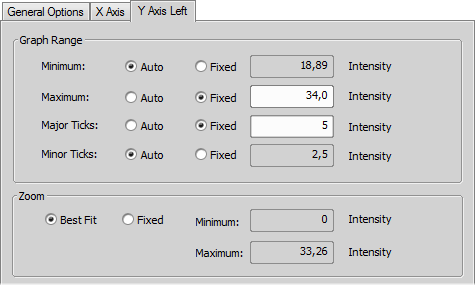
Figure 773.
View > Zoom > Full Screen 
Hides all screen elements such as menus, buttons, status bar etc. To return the hidden elements to the screen press ESC key.
View > Zoom > Fit to Screen Adjusts the zoom factor to view exactly the whole image as big as possible.
View > Zoom > Best Fit 
Fills the screen with an image and crops the view of its marginal parts in one direction. The scroll bar appears on one side of the screen only.
View > Magnifier Glass Options Displays the window for setting options for Magnifier Glass tool. The Magnifier Glass can be activated by the View > Zoom > Toggle Magnifier Glass  function.
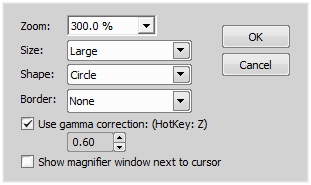
Figure 774.
The image displayed in Magnifier Glass can be enhanced by gamma correction in order to see the details brighter. The value for gamma correction is set in the box below.
(requires: Local Option)
If checked, zoom levels are fixed relative to 1:1 (100%) scale. For example, 300% will always mean three times the original size, regardless of the current zoom. If unchecked, the zoom level multiplies the current zoom. For example, at 150% zoom, applying 300% will zoom to 450%.
View > Zoom > Toggle Magnifier Glass Enables or disables the magnifier glass tool, allowing you to zoom into images by enlarging a circular area around the clicked point. This tool also supports magnification of 3D volume images.
View > View/Process Component > RGB/All This command displays all color channels of the current image in the overlay mode and can be used to select a single component to display.
View > View/Process Component > [Component Name] In this menu it is possible to set the component to be shown and processed. Selected component is marked by the check mark on the right side. This command works the same way as switching the proper channel tabs manually in the image window.
View > Streaming Tool Opens the Streaming Tool dialog window used for setting the streaming parameters. The stream is turned on by the View > Start Streaming function. Multiple users can access the streamed video signal and watch the screen of the streaming device. The stream can be password protected so that it is viewed only by clients knowing the password. To be able to use this function, Screen sharing option has to be selected during NIS-Elements installation.
Dialog Window Options
Internet - is used for streaming through an Internet service. In the Server drop-down menu, select a predefined Internet streaming service. Then click on the link below redirecting you to the website of the selected service. There you should register and acquire a streaming key. Enter this key into the Stream Key field. The  button can be used to show the hidden characters.
Server - is used when the streaming server is installed on a different computer available on a network for NIS-Elements as well as for all clients. Enter the IP address into the Server edit box, check whether to access the stream with a password (Use Password) and click to register this copy of NIS-Elements for streaming on this server. To register this device on a different server, click . Click on the generated link to see the stream or use and send the address to all clients which are about to watch the stream. To be able to use this option, Streaming Server has to be installed (contact your distributor to acquire the installation file).