

Press the
 button.
Select a macro. The Predefined, Shared and Recently used macros are listed in separate sections. When you need to import a macro from file, press the
button and choose proper file. To select multiple macros, use the  button to select them all within a section, or check their individual check-boxes.
When necessary, use the
 command to edit the selected macro in the Macro editor.
Confirm by pressing the OK button.
Right-click the command and select the Properties command from the context menu. Change appearance properties (used bitmap, font properties, etc.) of the command's button and confirm.
Check the events you would like to assign a macro/command to.
Click the arrow button to invoke a pull-down menu. Select one of the following options to select a macro/command:
Run MacroAn open-like dialog appears allowing you to browse for a macro (*.mac) file on hard disk.
Command ListDisplays a complete list of commands available in the system. Select one and confirm it by (See
 Macro > Command).
Confirm the settings by .
The
 Capture button in the shading correction panel.
- Calibration > New Optical Configuration for Fluorescent Probe
or the Set as Active action is run outside an ND experiment (e.g. by selecting an optical configuration in the main toolbar).
Macro > Repeat Last This command repeats last performed command. When selecting this command the last executed function is called and appended to the list of executed functions.
Macro > Command History This command opens a dialog window which manages a list of recently executed commands.
The main portion of the window contains a list of recently executed commands. Select a sequence of commands (or just a single command) which are useful for you and then use the commands in the top portion of the window to create a new macro, or to execute the sequence of commands again. You can also delete any of the commands present in the list by pressing the  Reset history button. You can copy or delete the selection of commands using the contextual menu which appears when you right-click the list.
In the information bar at the bottom of the dialog window you can see the total number of commands currently recorded in command history and info about available memory capacity.
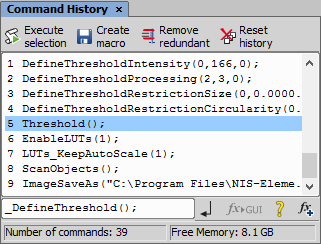
Figure 680.
 Create macro
 Use this button to create a macro. You will be prompt whether to use the selected commands or the whole commands history. Before the macro is created and opened within the macro editor, the Remove Redundant command is performed automatically.
 Remove redundant
 The sequence of commands that make no image changes will be automatically removed. Usually, it concerns commands that toggles the image between two states and were used several times. It can be for example ShowAnnotations(), ShowProbe(), or EnableLUTs(). No functionality gets lost when only the last command is kept.
This field displays currently selected command from the list. You can also paste or enter any command.
 Transform to interactive
 This command replaces selected command with an interactive one, that means a command which opens corresponding dialog window. Only commands related to some interactive commands can be transformed.
 Help on command
 Add command...
 This command opens the Paste Command dialog window. You can search and paste any command to the edit field and then run it by  Execute command.
Macro > Macro Panel (requires: Advanced Interpreter)
This control window displays chosen macros and/or commands as buttons. Macros and commands can be run by clicking on their button representative, or using a hotkey defined in the Setup Macro Panel.
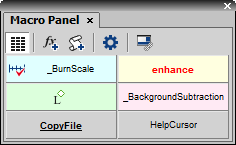
Figure 681.
Control Window Options
 Regular Buttons
 Use this command to change size of the buttons to be the same width. When this button is not pressed, buttons wrap the title (a text or an icon) of the button.
Add Command This command opens the Paste Command dialog. You can choose a command, which is added to the Macro Panel.
Add Macro This command opens the Add Macro dialog. You can select a predefined, shared or recently used macro or a macro from a file, which is added to the Macro Panel.
 Associate with Current Layout
How to add a command
How to add a macro
The buttons can be rearranged in the panel by drag and drop. Title of the button can be renamed using the Rename command from the context menu.
Setup Macro Panel Options
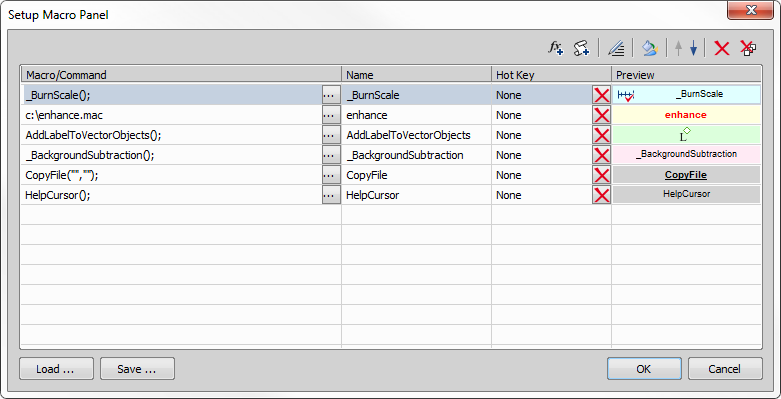
Figure 682.
Overview of added macros and commands is displayed in this window. Name of the command or full path to the macro is visible in the first column. The second column shows names of the commands/macros. The third column displays assigned hot keys. The forth column contains preview of the button in the Macro Panel. You can directly edit the name, hot key or preview, if you left-click the corresponding field of the selected command/macro.
 Properties

 Remove Macro > Command
 Allows you to execute a single function. When selecting this command the Execute Command dialog box appears:
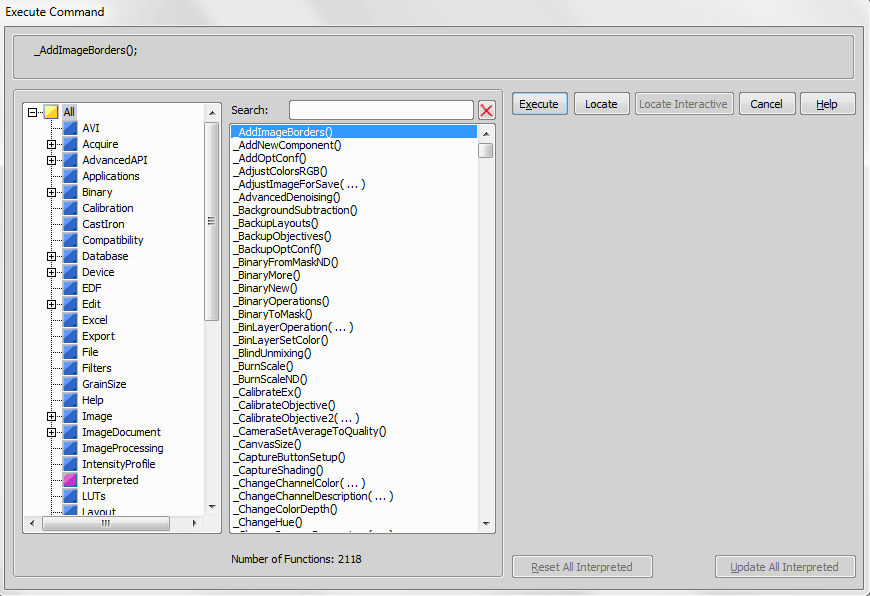
Figure 683.
Macro > Write to Port Sends a string to a serial port.
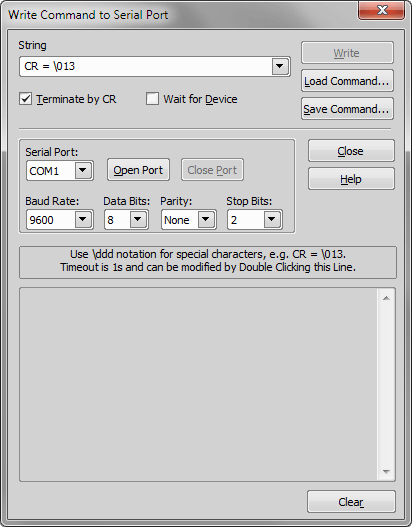
Figure 684.
If you want to use special characters use \ddd notation, where ddd are 3 decimal digits, e.g. CR=\013.
If checked, CR character (carriage return, 13 decimally) is appended to the end of the string. Most devices communicate with commands separated by CR.
If checked, the system is waiting for answer from the device. If Terminate by CR is checked, the system is waiting for the CR character. If Terminate by CR is not checked, the system is waiting for the string of characters terminated by 250 ms gap. If there is no answer from the device after time-out, (by default 60 s), it stops and displays an error message. You can change the time-out value by double clicking the bottom line of the dialog box.
A small database of commands is available; the name of command represents a string, Terminate by CR option and Wait for Device option. You can load a command, remove it from the list or directly execute it (send it to the port).
Assigns current string with Terminate by CR and Wait for Devices options to the description text. Do not use “=” character in the description text.
Note
If you use scanning stage or illuminator control unit with LIM drivers, these ports are opened automatically when you start NIS-Elements and it is strongly recommended not to close them manually.
Macro > Record Starts/stops the recording of commands to macro. The -Rec- text appears/disappears in the right part of the status bar.
Macro > Run 
Runs active macro.
Note
Besides the current active macro you can load and subsequently run up to 9 macros. Open the Macro > Options  window. Flag up to 9 macros and use for instance <Ctrl+Alt+1> short cut key for loading and running Macro 1.
Macro > Run From Runs macro from file. Browse for the *.mac file and confirm the selection by the button.
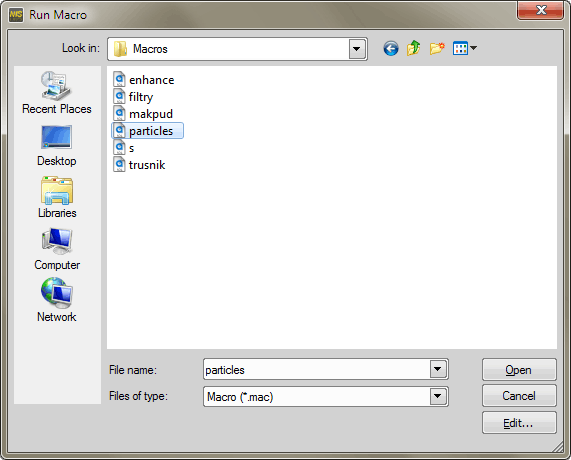
Figure 685.
Macro > Pause Macro This command temporarily stops execution of a macro command. Press the Resume button to continue.
Macro > Abort Macro Interrupts execution of the currently running macro.
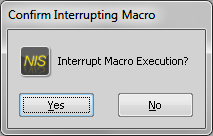
Figure 686.
Confirm the interruption by or continue the macro by clicking .
Macro > New Creates a macro. The New Macro dialog box appears. Specify the target location of the macro file. After you type the name of a macro to be created, push , a new empty macro is created and loaded as the current one.
Macro > Open Loads a macro to NIS-Elements. The Open Macro dialog box appears. Browse for the *.mac file and press the button.
Note
The name of the opened macro is inserted to the list of recently used macros. The position of the last opened macro is checked (= the macro becomes active). Use the numbers and names to open one of the recently used macros. Select the number or name that corresponds to the macro you want to open.
Macro > Save As Saves active macro in the file you have selected. The Save Macro dialog box appears.
Macro > Browse Enables you to search a disk for macro files, view comments of macros or find macros containing user-defined string. The following window appears:
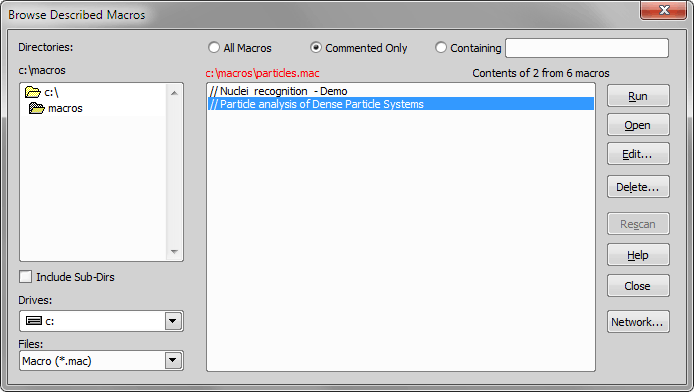
Figure 687.
Macro > Edit This command allows you to edit the active macro. The macro editor window appears:
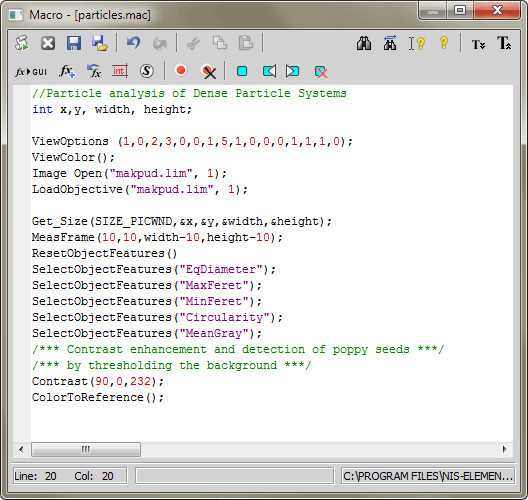
Figure 688.
Type sequences of NIS-Elements inside the window, or utilize the available buttons:
Close and run macro (Ctrl+R) Saves the active macro on the disk and runs it. The macro editor closes.
 Close
Close closes the macro editor. If there were some unsaved changes in the macro, you would be prompt to save the macro first.
 Save As
 invokes a standard Save As window which enables you to select the destination folder and the macro name.
If checked, the macro is executed first, suspending any other tasks until the macro is finished.

 Undo,
Undo,  Cut
Cut Copy
Copy Paste
Paste Find
Find Replace
 Help on command at cursor (F1)
 Opens the application help and displays the page corresponding to the currently selected command.
 Zoom Out
 Zoom In Transform to Interactive
 Transforms the selected command to its interactive alternative which opens corresponding dialog window.
Paste Command... Displays the list of all NIS-Elements functions and enables you to paste one of them to the macro.
 Insert Commands from History
 Enables you to paste commands corresponding to the recently performed actions. It displays a wizard that will lead you.
 Show List of Variables
 Displays the list of all local and global variables and constants currently valid throughout NIS-Elements.
 Use Special Commands
 Toggle breakpoint (F9)
 Remove all breakpoints
 Toggle bookmark at line (Ctrl+F2)
 Go to previous bookmark (Shift+F2)
 Go to next bookmark (F2)
 Remove all bookmarks Macro > Manage Shared Macros
 This command opens a window for sharing and managing macros. Users with a right to Modify shared macros can import, create, edit, and remove any of the shared macros. Users without this permission can only run the shared macros and utilize them as templates for macros of their own.
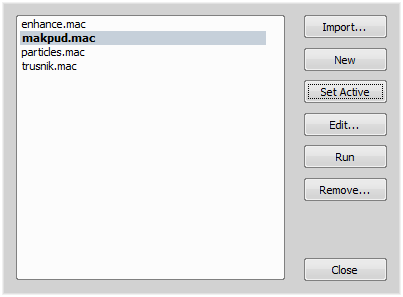
Figure 689.
This button adds an existing macro to the list of shared macros. A standard open-like window appears. Select the macro (*.mac) file to import to the list.
Note
The imported files are copied to NIS-Elements application data directory. The original file is not connected to the list of shared macros.
The New button adds a blank macro to the list of shared macros. Use the Edit button to open the macro editor and modify it.
Select a macro from the list and press the Set Active button to set the macro as "current". The active macro is run when the Macro > Run command is called.
Macro > Run Macro on Events This command assigns macros/commands to various application events. Every time a particular event occurs, the assigned macro/command is run. The following window appears:
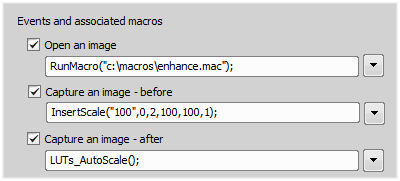
Figure 690.
Events
This is the list of events descriptions which a macro can be assigned to.
The macro is run before any of the following commands is performed or if an image is opened from the  Organizer

The macro is run automatically before or after the commands:

The macro is run during the following procedures (before or after each frame):
The macro is run before the File > Save or the File > Save As command are performed.
The macro is run after one of the following commands is run:

The macro is run after the optical configuration is selected inside an ND experiment. The commands are the same as with the previous option
The macro is run before each frame is captured during an ND experiment.
The macro is run after each frame is captured during an ND experiment.
The macro is run after the Device Capture Button is pressed and an image is acquired. See Acquire > Capture Button Setup.
This event is triggered before the nosepiece position is changed.
Example: A macro can be created checking the current and the destination nosepiece position. If the user switches from an immersion objective to a dry one, the system can prompt him to clean the sample, or so.
Macro > Options Sets preferences concerning the macro execution.
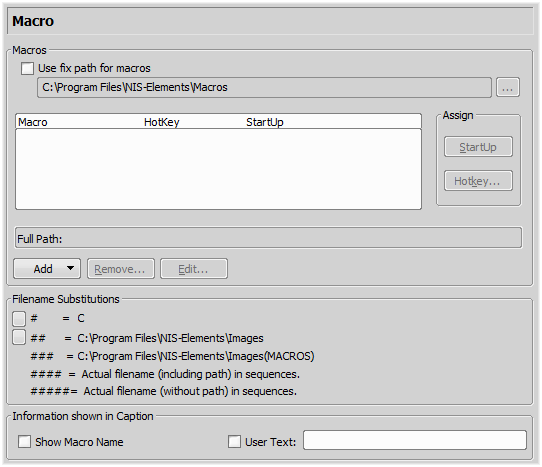
Figure 691.
Lists of macros that can be executed using hot keys or automatically at the beginning of the NIS-Elements session.
To launch a macro automatically after starting the NIS-Elements program, select it and press the StartUp button. StartUp field of the selected macro in the list box is filled.
To assign a hotkey to a macro, select the macro in the macro list box and press the button. Select among 9 pre-defined hot key combinations and press OK button.