
Object counting is the most fundamental measurement workflow in GA3. At its core, it requires only two steps: segmentation to detect objects and object count measurement to quantify them. However, this workflow demonstrates a complete analysis pipeline that produces comprehensive results including temporal trends, per-object features, and synchronized visualizations.
Workflow overview
The recipe consists of four functional blocks:
Segmentation
Detects objects using thresholding (or alternative segmentation methods).
Object counting block
Measures field-level statistics, accumulates data across time, and displays temporal trends.
Object measurement block
Measures detailed features for individual objects in the current frame.
Presentation block
Organizes all tables and graphs into a synchronized, interactive display.
Recipe variations
This workflow comes in three variations that share the same core structure:
RGB version (single frame):
Uses Segmentation > Threshold > RGB Threshold for color images.
Processes a single RGB image.
Demonstrates the basic workflow structure.
Fluorescence version (time-lapse):
Uses Threshold for fluorescence channels.
Processes multi-frame time-lapse data.
Shows temporal evolution of object counts.
Catalog version (with gallery):
Adds Results & Graphs > Tables > Object Catalog node.
Displays a grid gallery of detected objects.
Includes border object removal for cleaner results.
Note
The following sections describe the shared workflow structure. Specific differences between RGB and fluorescence variants are noted where relevant.
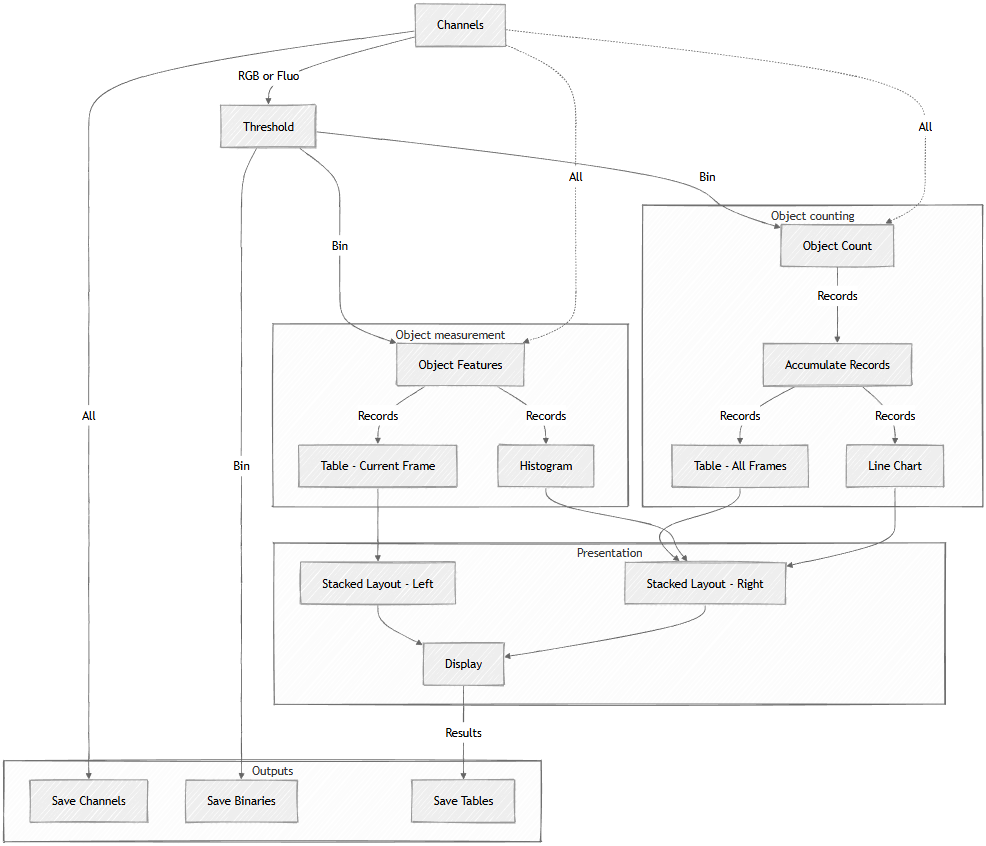
Figure 692. Schematic
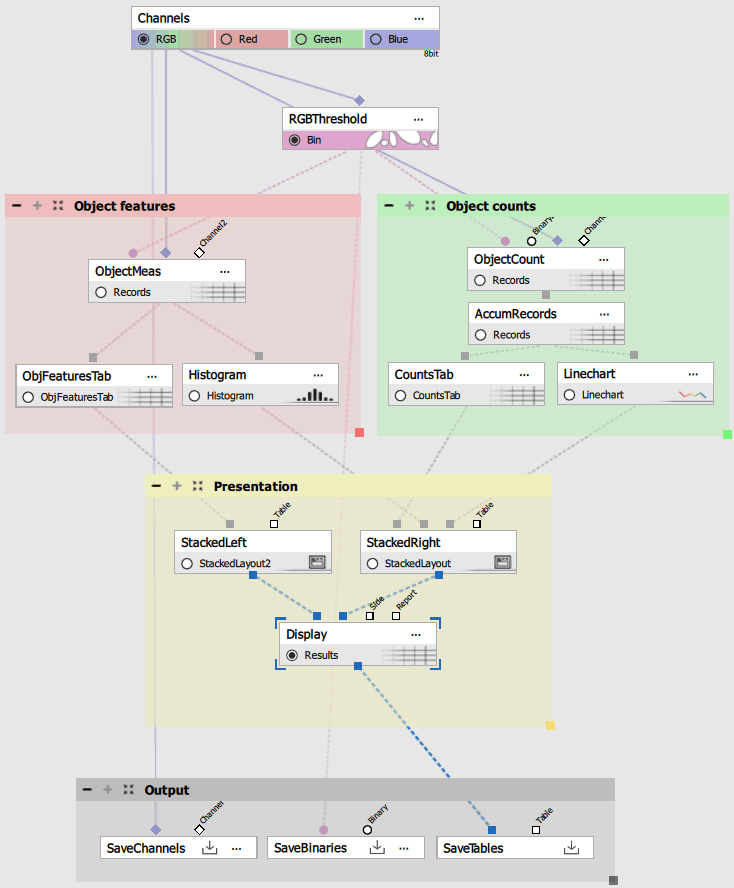
Figure 693. Recipe
Segmentation
Segmentation is the critical first step that determines which pixels belong to objects of interest. GA3 provides multiple segmentation methods, with thresholding being the most straightforward.
Threshold methods
For RGB images - Segmentation > Threshold > RGB Threshold:
Works directly on RGB color images.
Separates objects based on color (hue, saturation, intensity).
Settings used:
Auto Threshold Method: Intermodes algorithm.
IsHSI: 1 (uses HSI color space instead of RGB).
GreenHigh: 142 (upper limit on green channel in HSI).
Clean: 0.504 µm to remove small debris.
Smooth: 0.063 µm to regularize boundaries.
Fill: Enabled to fill holes inside objects.
FilterByCircularity: Enabled with CircularityLow: 0.25 to remove elongated artifacts.
For fluorescence images - Threshold:
Works on grayscale fluorescence channels.
Separates bright objects from dark background.
Settings used:
Auto Threshold Method: Triangle algorithm.
AutoThresholdOn: Enabled for automatic threshold determination.
Clean: 0.498 µm to remove noise.
Separate: 0.498 µm to split touching objects.
Smooth: 0.498 µm to smooth boundaries.
Fill: Enabled to fill holes.
IntensityLow: 114 (manual override if needed).
Note
Auto threshold algorithms: GA3 provides many automatic thresholding methods (Triangle, Intermodes, Otsu, Li, etc.). Each works best for different intensity distributions. If auto settings do not work well:
Try different auto methods from the drop-down.
Use the histogram to manually set IntensityLow/High.
Check the preview to verify segmentation quality.
Alternative segmentation methods
While thresholding works for many samples, GA3 offers more sophisticated segmentation for challenging cases:
Spot Detection (Spot detections)
For small, bright, round objects (cells, particles, nuclei).
Uses contrast and expected diameter.
More robust to background variations.
Segment.ai (NIS.ai > Segmentation > Segment.ai)
AI-powered segmentation for complex structures.
Learns from training data.
Handles variable morphology.
Segment Objects.ai (NIS.ai > Segmentation > Segment Objects.ai)
AI segmentation for specific object types.
Pre-trained models available.
Best for cells, nuclei, organoids.
Cellpose (Segmentation > Special detections > Cellpose4)
State-of-the-art cell segmentation.
Works without training data.
Excellent for cells and nuclei.
Choose the segmentation method that best matches your sample characteristics.
Object counting block
This block measures field-level (population) statistics and tracks them across time. It produces a table showing how object counts change over the time-lapse sequence.
Measurement > Basic > Object Count computes aggregate statistics for all objects in each field. Unlike measuring individual objects, this node produces one row per frame containing population-level data.
Measured features:
Time: Timestamp of the frame (seconds or frame number).
Object Count: Total number of detected objects in the field.
Total Object Area: Sum of all object areas (µm2).
Area Fraction: Proportion of the field covered by objects (0-1).
Calculated feature:
Area Fraction %: Calculated column = AreaFraction × 100 for easier interpretation as percentage.
The node has two inputs:
Binary layer: The segmentation result defining objects.
Channel: For intensity measurements in the objects.
This measurement runs frame-by-frame through the time-lapse, producing one row per frame.
Accumulate Records
Data manipulation > Basic > Accumulate Records collects measurements from all frames into a single table. Without accumulation, only the current frame data would be available.
Key settings:
LoopName: “All loops” (accumulate over all loops - time-lapse, z-stack, multi-point).
PreviewMode: OFF (accumulate all data in preview).
Note
Preview optimization: To speed up preview, check Apply only on current frame in preview. This limits accumulation during preview but includes all frames in the final run. This is useful for long time-lapses where preview would be slow.
The accumulated table contains one row per frame, allowing temporal analysis of the entire sequence.
Counts table
 Data manipulation displays the accumulated object counts with interactive functionality.
Configuration:
Data/Display: “All data” to show all frames.
Interaction/Row selection: Enabled to link table rows to image frames.
Statistics: Shows min, max, mean of all columns.
Interactive behavior:
Clicking a row in the table jumps to that frame in the image.
The current frame is highlighted in the table.
Enables quick navigation through the time-lapse.
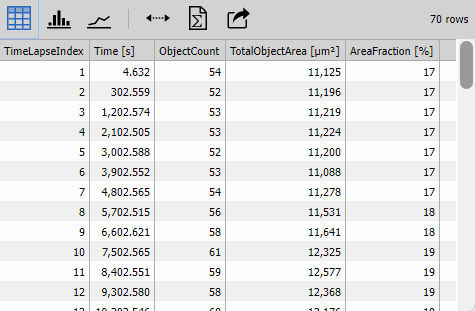
Figure 694.
Line chart
Results & Graphs > Graphs > Linechart visualizes the temporal evolution of object populations.
Configuration:
Data/Display: “All data” to plot all frames.
X-axis: Time (with format set to display as time).
Left Y-axis: Object Count.
Right Y-axis: Area Fraction % (secondary axis for different scale).
Display features:
Dual Y-axes allow plotting variables with different scales.
Time formatting displays timestamps properly.
Interactive tools: pan, zoom, frame selection.
This chart immediately reveals trends like:
Increasing object counts (proliferation, accumulation).
Decreasing counts (cell death, removal).
Periodic patterns (division cycles).
Sudden changes (experimental interventions).
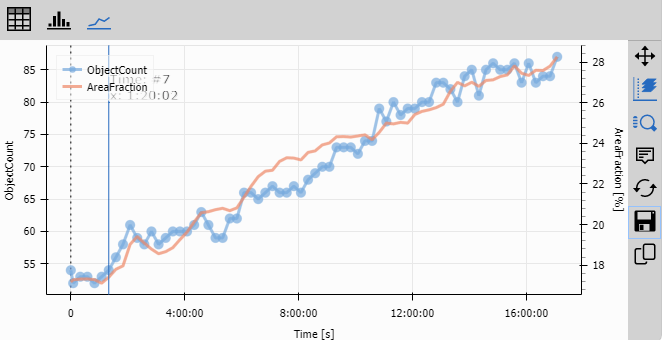
Figure 695.
Objects measurement block
While the counting block provides population statistics, this block measures detailed features for every individual object. It produces rich morphological and intensity data for single-object analysis.
Object Features measurement
Measurement > Basic > Object measures comprehensive features for each detected object. This node produces one row per object, with many measured columns.
Inputs:
Binary layer: Defines object boundaries.
Channel(s): For intensity measurements.
Measured feature categories:
Morphological features:
Size: Area, Equivalent Diameter, Perimeter.
Shape: Length, Width, MaxFeret, MinFeret.
Form factors: Circularity, Elongation.
Position: CenterX, CenterY (object centroids).
Intensity features (per channel):
MeanIntensity: Average pixel intensity in the object.
SumIntensity: Total intensity (integrated).
MinIntensity, MaxIntensity: Intensity range.
StdDevIntensity: Intensity variation.
Note
Feature selection: The node can measure dozens of features. Select only those relevant to your analysis to keep the table manageable. More features = larger tables and slower processing.
This measurement runs per frame, producing a table of objects for the currently displayed frame.
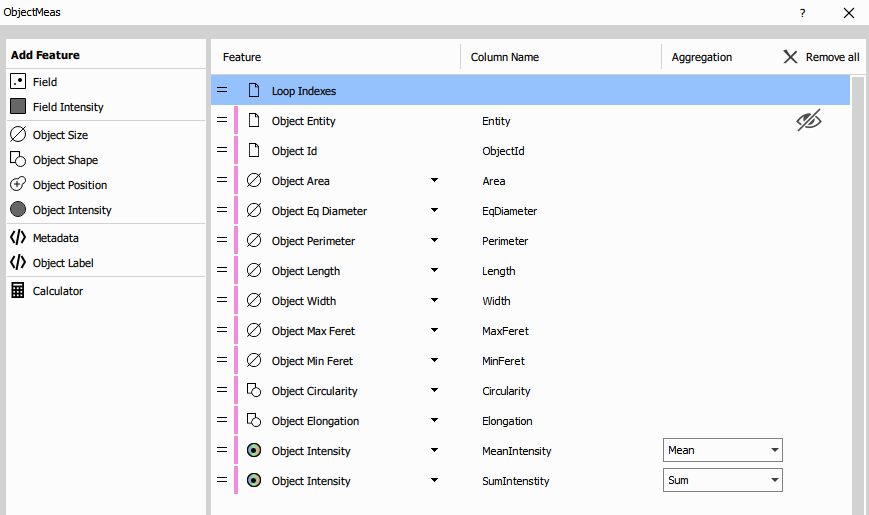
Figure 696.
Object Features Table
Table ( Data manipulation) displays individual object measurements.
Configuration:
Data/Display: “Current frame” to show only objects in the displayed frame.
Interaction/Row selection: Enabled to highlight objects.
Column Sorting: Enabled for sorting by any feature.
Interactive behavior:
Selecting a row highlights the corresponding object in the image.
Selecting an object in the image highlights its row in the table.
Sort by any column to find largest/smallest/brightest objects.
Multiple row selection highlights multiple objects.
This allows for detailed inspection:
“Which object has the largest area?”
“What are the intensities of the brightest objects?”
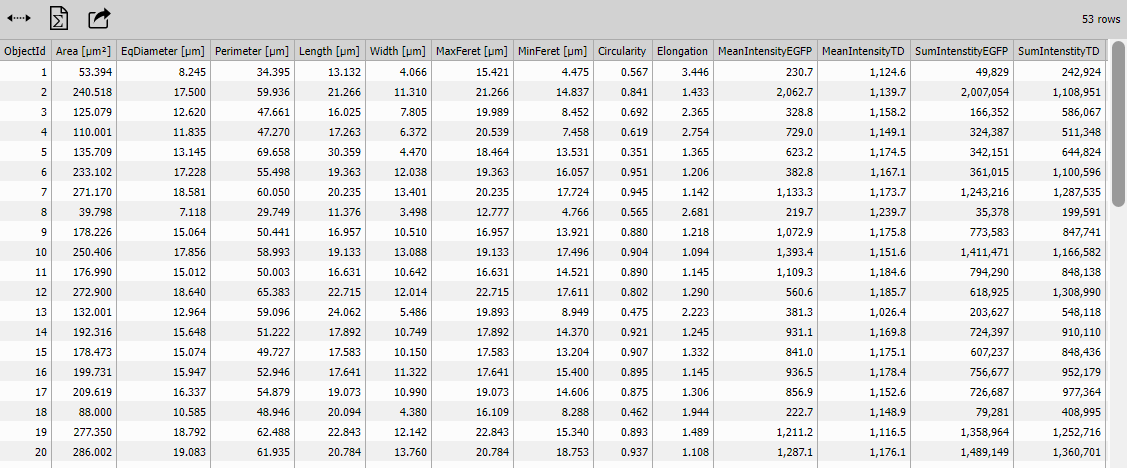
Figure 697.
Histogram
Results & Graphs > Graphs > Histogram shows the frequency distribution of any selected object feature.
Configuration:
Data/Display: “Current frame” to show distribution for current frame objects.
Data/Displayed columns: Configurable feature selection (drop-down).
Bin count: Number of histogram bins.
Fit normal: Optional Gaussian fit overlay.
Visualization options:
Select which feature to plot (Area, Circularity, Intensity, etc.).
View distribution shape (normal, bimodal, skewed).
Identify outliers or subpopulations.
Statistical fit shows mean and standard deviation.
The histogram reveals patterns like:
Uniform population (narrow distribution).
Size heterogeneity (broad distribution).
Two populations (bimodal distribution).
Outliers (isolated bars far from the main peak).
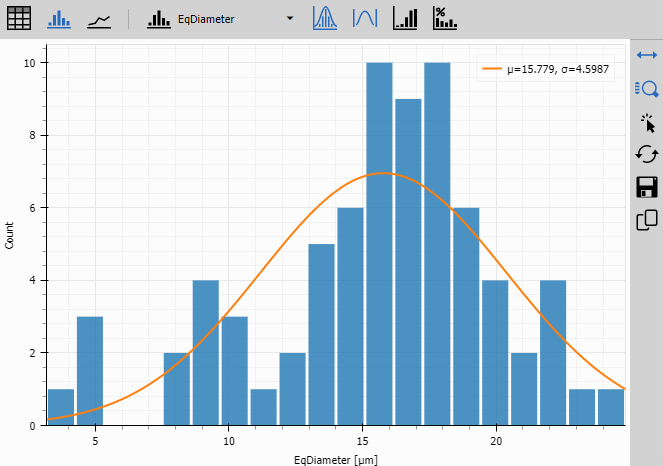
Figure 698.
Presentation block
The presentation block organizes all tables and graphs into a synchronized, interactive display. This creates a cohesive analysis interface where all views are linked together.
The presentation uses stacked layout nodes (Layout) to organize visualizations:
Left pane
Object Features Table (current frame individual objects).
Right pane (stacked vertically):
Counts Table (all frames population statistics).
Histogram (feature distribution).
Line Chart (temporal trends).
Display node
Results & Graphs > Layout > Display combines the two layout panes with the image viewer.
Settings
showNotes: 0 (hides the notes panel).
Synchronized interactions:
Selecting an object in the image → highlights its row in Object Features Table.
Selecting a row in Object Features Table → highlights the object in the image.
Selecting a row in Counts Table → navigates to that frame.
All views update together when changing frames.
The Results & Graphs > Layout > Display node creates a complete analysis environment where image data and measurements are tightly integrated.
Layout customization
The layout button in the interface allows reorganizing views:
Horizontal or vertical splits.
Resize panes by dragging dividers.
Show/hide individual views.
Maximize specific views.
Experiment with layouts to find the arrangement that best suits your analysis workflow.
Output files
The recipe saves three types of output for further analysis or documentation:
Save Channels
Input & Output > Save to Document > Save Channels does not modify channel data as it “stores” the source (Original):
All input channels (RGB or fluorescence).
Original intensity values preserved.
Save Binaries
Input & Output > Save to Document > Save Binaries saves the segmentation results:
Binary layers are saved into H5 file by default.
Useful for verifying segmentation quality.
Save Tables
Input & Output > Save to Document > Save Tables saves all measurement results:
Data is saved into H5 file.
Object count table (population statistics).
Object features table (individual measurements).
Can be exported to Excel, CSV for external analysis.
Results section includes all graphs and visualizations.
Adding the Object Catalog (optional)
The catalog variation adds a visual gallery of all detected objects, which is especially useful for quality control and classification.
Additional nodes for catalog version
Remove Border Objects (Binary processing > Remove objects > Touching Borders)
Removes objects touching the image frame.
Prevents incomplete objects from appearing in the catalog.
Placed immediately after Threshold.
Object Catalog (Results & Graphs > Tables > Object Catalog)
Creates a grid gallery of object thumbnails.
Input: Connected to the object features table.
Settings:
tableRowVisibility: “all” to show all objects.
colorChannelSelection: Enabled for channel selection.
binaryLayerSelection: Enabled to show segmentation overlay.
Modified layout:
Object Catalog gets its own stacked layout pane.
Typically displayed on the left alongside the object table.
Creates a three-pane layout: Catalog | Table | Counts/Charts.
Interactive features:
Click a thumbnail to select that object in the image.
Thumbnails show the object cropped from the original image.
Can toggle between channels and binary overlay.
Useful for visual inspection of segmentation quality.
The catalog is particularly valuable when:
Verifying segmentation accuracy across many objects.
Identifying misclassified objects.
Finding objects with specific morphologies.
Quality control in automated screening.
Extending the workflow
This basic counting workflow can be extended in many ways:
Add classification:
Use feature thresholds to classify objects (small/large, dim/bright).
Create calculated columns for classification logic.
Color-code objects by class.
Add tracking:
Connect objects across time using Tracking > Tracking > Track Objects.
Measure per-track features instead of per-frame.
See Tracking workflow.
Add multi-well analysis:
Process well-plate data with Wellplate Metadata (
Data manipulation).Compare object counts across wells.
See Assays on well plate assays workflow.
Add statistical analysis:
Calculate p-values between conditions.
Fit curves to temporal data.
Use statistical nodes in Data manipulation category.
Add 3D analysis:
Replace 2D threshold with Segmentation > Threshold > Threshold
 .
.Use 3D Object Count (Measurement > Basic > Object Count).
See 3D counting and tracking workflow.
Summary
Object counting is the foundational workflow in GA3 that demonstrates the complete analysis pipeline: segmentation → measurement → accumulation → visualization. While simple in concept (just threshold + count), this workflow teaches the essential patterns used in more complex analyses:
Frame-by-frame vs. accumulated processing.
Current frame vs. all data display modes.
Field-level vs. object-level measurements.
Synchronized multi-view interfaces.
Master this workflow and you will understand the building blocks for all the GA3 analyses.