


Turn the Background ROI ON, or set any existing ROI as background (right-click a ROI and select Use as Background ROI).
Place the ROI so that it would define the background you would like to subtract.
Invoke the Subtract Background command. The average value of background is subtracted from each channel.
It takes all frames of one Time layer (e.g. every first frame of all Z stacks).
It creates the Maximum Intensity Projection image from them.
It subtracts the maximum intensity projection image from every frame of the Time layer.
This procedure is performed on every Time layer of the current ND2 file.
It takes all frames of a Z stack.
It creates the Maximum Intensity Projection image from them.
It subtracts the maximum intensity projection image from every frame of the Z stack.
This procedure is performed on every Z stack of the current ND2 file.
It takes all frames of one Time layer (e.g. every first frame of all Z stacks).
It creates the Minimum Intensity Projection image from them.
It subtracts the minimum intensity projection image from every frame of the Time layer.
This procedure is performed on every Time layer of the current ND2 file.
It takes all frames of a Z stack.
It creates the Minimum Intensity Projection image from them.
It subtracts the minimum intensity projection image from every frame of the Z stack.
This procedure is performed on every Z stack of the current ND2 file.
It takes two subsequent frames of the Time loop - e.g. the first frames of the first (T1) and the second (T2) Z stack.
It subtracts the second one from the first one and saves absolute value of the result as the first frame:
Tresult = abs( T1 - T2 )All image pairs of all Time loop of the current ND2 file are processed.
It takes two subsequent frames of a Z stack - Z1 and Z2.
It subtracts the second one from the first one, and saves absolute value of the result as the first frame.
Zresult = abs( Z1 - Z2 )All image pairs of every Z stack of the current ND2 file are processed.
It takes two subsequent frames of the Time loop - e.g. the first frames of the first (T1) and the second (T2) Z stack.
It subtracts the second one from the first one, and saves the result as the first frame.
Tresult = T1 - T2All image pairs of all Time layers of the current ND2 file are processed.
It takes two subsequent frames of a Z stack - Z1 and Z2.
It subtracts the second one from the first one, and saves the result as the first frame.
Zresult = Z1 - Z2All image pairs of every Z stack of the current ND2 file are processed.
Brightfield - standard contrast based criterion
Fluorescence - suitable for fluorescence microscopy
Confocal - criterion based only on the intensity values. Can be useful in confocal microscopy.
Yeast, Bacteria (Ph) - a criterion optimized for yeasts under phase contrast (Ph) microscope.
Run the
 Image > ND Processing > ND Images Arithmetics command. A window appears.
Select ND2 files from the top pull-down menus.
Select one of the available actions.
Check the preview and confirm it by OK. The operation will be performed on the corresponding image pairs.
 Addition = A+B
  Subtraction = A-B
  Absolute value of the difference = |A - B|
  Minimum = min(A,B)
  Maximum = max(A,B)
  Concatenate - this will connect the ND files one behind the other.
The Immunofluorescent Array tomography method - converting a multipoint to Z-Stack
Semi-automated Z-stack acquisition - when the user moves a Z-drive manually or via joystick while running the
Acquire > Fast Time-lapse command. The resulting images are Time ND, but the user will convert them to Z-stacks.Open an ND image.
Run the
Image > ND Processing > Exchange Dimensions command.Select one or more destination dimensions and adjust their properties.
It is important that the resulting ND file has equal or smaller number of frames than the original.
If you select more than one destination dimension, select the intended Experiment Order.
Select this command. The mouse cursor changes.
Click to draw a line in the image. Finalize it by a secondary mouse click outside the drawn line.
A new image called “Kymograph” is created.
Select whether to align to the Previous Frame (use for dramatic changes in the scene) or First Frame of the sequence (use for non-dramatic changes in the scene).
Select the size of the resulting ND2 file. If you prefer not to loose any image data, select The union of moved images.
Optionally, select:
Favor correction of the smooth movementFor time-lapse scenes containing slow and constant movement.
Process on the entire image (don't select a significant area)Suitable for stationary scenes where nothing moves.
Use correction for image heavily corrupted by noiseFor samples containing a lot of image noise.
Use SuperResolution alignment (slows down processing and can slightly smooth data)For high-precision alignment. However, this option slows down the processing and can slightly blur the resulting image.
Press . If the Process on the entire image (don't select a significant area) is not selected, the procedure follows:
The mouse cursor changes waiting for you to draw a rectangle in the image. Draw the rectangle so it would contain some significant area such as a contrasting object. You can adjust its position and size by mouse.
Confirm the rectangle definition by the secondary mouse click. The application starts to align the ND2 file according to the selection.
Select the shifting units - voxels (in 3D), pixels (in 2D) or micrometers.
Define XY(Z) step size for the arrow and spin buttons.
Select a check box next to one channel to set it as reference. This channel will be always visible.
Click a table row to give focus to the channel you want to shift (the row gets highlighted). Use the arrow buttons to shift the channel as necessary.
It is a good idea to open the ND image in another view (such as volume view) to check whether the shift between channels has been corrected.
Click to apply the shifts on all frames.
Open two ND2 files used for the alignment.
Run
Image > Channel Alignment and Registration > Multimodal Image Registration.Click . Fixed image is placed on the left side, Moving is placed on the right.
Adjust the rotation/flipping of the Moving image if necessary.
Find at least one reference point contained in both images and mark it in both images using the
 Add Point tool. The more pairs of points you add the more precise the alignment will be.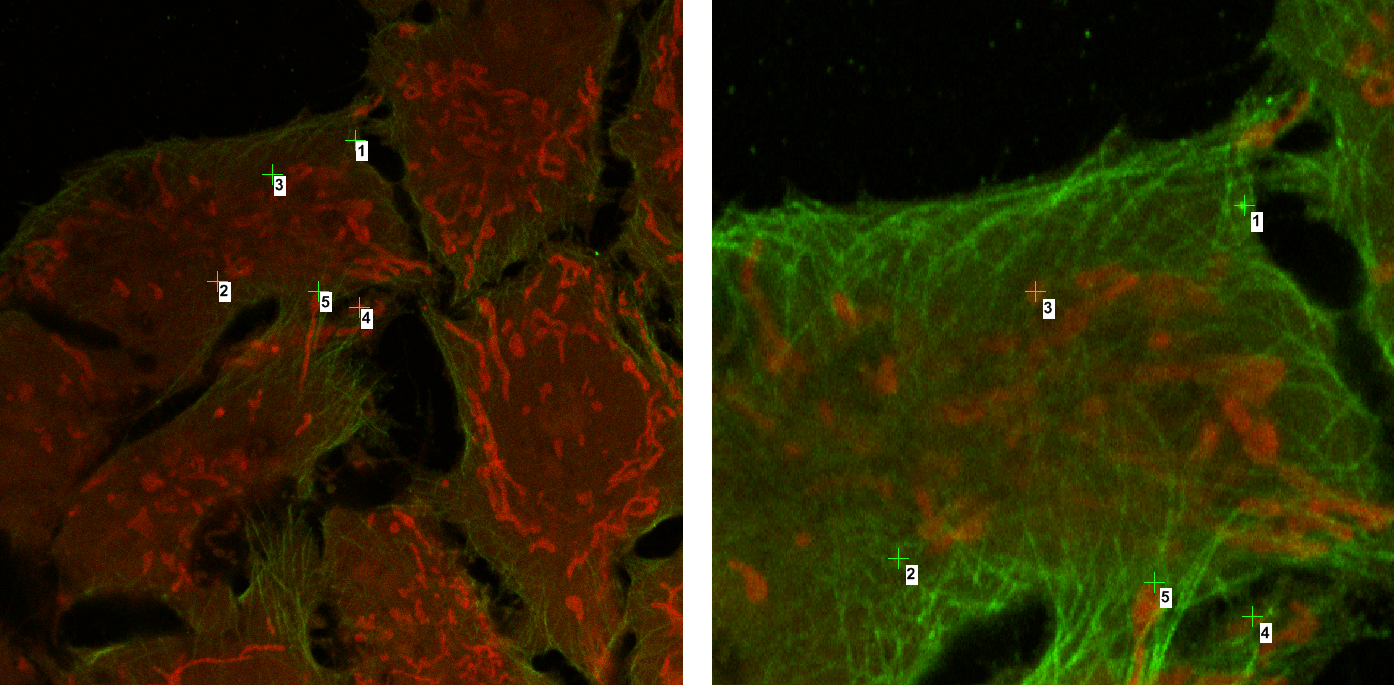
Figure 1792.
Click .
If the Save Registration Results dialog window appears, name your modalities and click so that the manual alignment does not have to be repeated for images captured by the similar hardware (see:
Image > Channel Alignment and Registration > Optical Path Corrections).New ND2 file with aligned images and merged attributes is created.
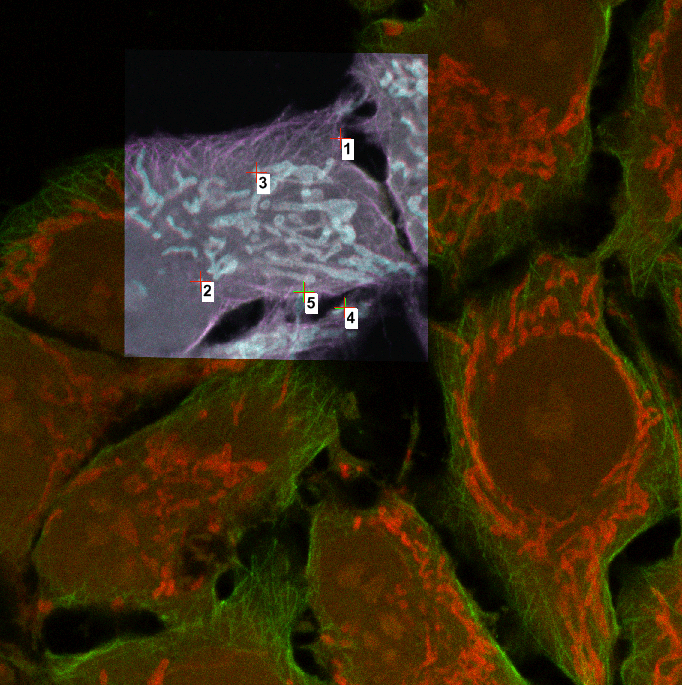
Figure 1793.
Select one of the predefined reference spectra listed in the Source Elements portion of the window.
Or, if any region of interest is defined, the image information from within a ROI can be used as reference spectra. Select the ROIs category, and select the actual ROI.
Or, the User Defined category is available, where arbitrary spectra definition can be loaded from a text file. This can be done within the
Image > Manage Stored Spectra window.Click the Add button to move the selected spectra to the Unmixing Elements table.
Removing crosstalks between channels during simultaneous excitation with Nikon Ax Confocal.
Removing crosstalks between channels on a wide-field fluorescence sequential excitation camera experiment with a multi-band emission filter.
Image > Contrast 
Increases contrast of the image. It changes intensities of the current image. Hue and saturation are not affected. Intensities are rescaled according to the selected method.

Figure 1717.
Options
Sets the Range so that the limits correspond to the minimum and maximum intensities found in the image.
The parameter for the Gamma Correction method. It ranges from 0.05 to 5.00. Set Gamma < 1 to get more information in dark areas or set Gamma > 1 to enhance bright parts of the image.
Set the low/high contrast intensities. Pixels with intensity greater than the high value set will be changed to a pure white, whereas pixels with intensity smaller than the low value set will be changed to pure black (zero). The range itself will be stretched to fit the available intensity range.
Type
Image > Local Contrast Enhances contrast of the current image while accentuating its details. The contrast is enhanced within both bright and dark areas of the image.

Figure 1718.
Procedure
Image > Component Contrast Enhances the contrast of each image component separately.

Figure 1719.
Selects component for processing: when you are processing an RGB image, press the button which corresponds to the desired channel. When processing a multichannel image, select which channel is used from the pull down menu.
Coefficient of gamma correction. Gamma correction maps the intensity interval <Low, High> according to exponential equation with parameter gamma. For gamma <1, you get the more sensitive information for the low intensities parts of image, whereas for gamma >1 higher intensities image parts are enhanced.
If checked, all components (Red, Green, Blue or all multichannel components) of the image are displayed. If not checked, only the selected component is displayed.
Apply the command to the whole image sequence, the selected dimension or just the current image frame. See ND2 Files Processing.
See Image processing for description of other settings.
Image > Enhance Details Enhances details of the current image.
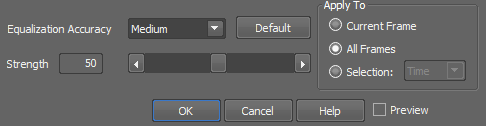
Figure 1720.
Choose the accuracy level of the image enhancement. The higher option you choose the more contrast is introduced into the final image.
Defines the strength of the details enhancement. The higher value set the more details are accentuated and the more noise is introduced into the final image.
Apply the command to the whole image sequence, the selected dimension or just the current image frame. See ND2 Files Processing.
Image > Adjust Image > White Balance Balances and adjusts red, green and blue components of the current RGB image. One or two circular probes appear in the image. Move the probes to specify the white point and - optionally - the black point in the image.
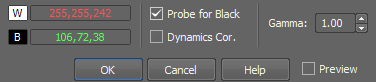
Figure 1721.
Note
Probe assignment is determined dynamically. If you move the red probe (white balance) over an image area which is darker then the area under the green probe (black balance), the probes swap automatically, so the text color in the window swaps as well to indicate the change.
See Image processing for description of other settings.
Image > Adjust Image > RGB Transformation Transforms color image independently for each RGB component.
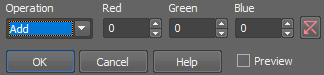
Figure 1722.
Type of image transformation.
Adds Red resp. Green resp. Blue value to red resp. green resp. blue component of each pixel.
Subtracts Red resp. Green resp. Blue value from red resp. green resp. blue component of each pixel.
Assigns minimum of red resp. green resp. blue component and Red resp. Green resp. Blue value to relevant component of each pixel.
Assigns maximum of red resp. green resp. blue component and Red resp. Green resp. Blue value to relevant component of each pixel.
Assigns Red resp. Green resp. Blue to red resp. green resp. blue component of each pixel.
Multiplies red resp. green resp. blue component of each pixel by Red resp. Green resp. Blue value.
Divides red resp. green resp. blue component of each pixel by Red resp. Green resp. Blue value.
See Image processing for description of other settings.
Image > Adjust Image > Intensity Transformation Transforms intensities by arithmetic operations.
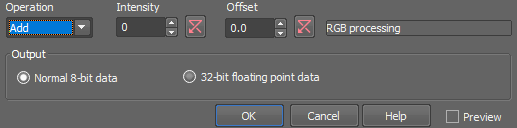
Figure 1723.
(requires: Calcium, FRET) or
(requires: 2D Deconvolution) or
(requires: 3D Deconvolution)
Select data type of the output file. You can choose either the same original bit depth or 32-bit floating point image.
Note
Preview is disabled for 32-bit floating point data.
See Image processing for description of other settings.
Image > Adjust Image > Frame to Pixel Storage Layout (requires: Dual Camera Support) (requires: Tripple/Quad camera support)
In some triple- or quad- camera configurations, you can turn on a speed optimization (by a registry key). It speeds up the acquisition but makes the captured image disordered. Use this command to repair such image to the standard format.
Image > Adjust Image > Change Saturation 
Changes saturation of an RGB image.
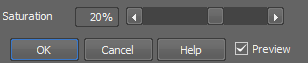
Figure 1724.
See Image processing for description of other settings.
Image > Adjust Image > Change Hue Changes the color tone of an RGB image while maintaining its brightness and saturation.

Figure 1725.
Note
This transformation is used for color image enhancement. Note, for instance, that positive hue shift turns blue color towards red.
See Image processing for description of other settings.
Image > Adjust Image > Subtract White This command removes light parts of the image. Saturation of the image is increased.
See Image processing for description of other settings.
Image > Adjust Image > Mix Components Mixes red, green and blue channels of the current RGB image arbitrarily.
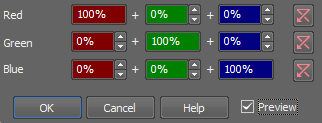
Figure 1726.
See Image processing for description of other settings.
Image > Adjust Image > Divide Components Performs arithmetic division of intensities of two components of the current image. You can multiply the result and add a constant to it. The formula is clear from the dialog:
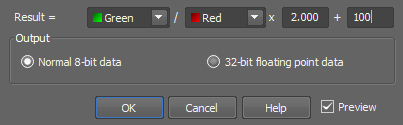
Figure 1727.
(requires: Calcium, FRET) or (requires: 2D Deconvolution) or (requires: 3D Deconvolution)
Select data type of the output file. You can choose either the same original bit depth or 32-bit floating point image.
Note
The function can be used to calculate the fraction of two selected image components, multiply and add offset to the result. Performing this command, the _DivideComponents is called.
See Image processing for description of other settings.
Image > Adjust Image > Adjust RGB Adjusts the hue independently on each color channel of an RGB image.
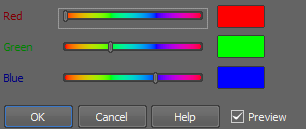
Figure 1728.
See Image processing for description of other settings.
Image > Adjust Image > Complement Colors 
Transforms a color image into its complementary color image.
See Image processing for description of other settings.
Image > Adjust Image > Adjust Details and Noise via Fourier Transform This command provides an alternative to other noise reducing and details enhancing commands (Smooth, Sharpen, etc.). The procedure utilizes Fourier transformation. The following window appears.

Figure 1729.
Check the Preview box in order to observe the influence of the transformation on the image.
See Image processing for description of other settings.
Image > Background > Subtract Background Using Background ROI This command subtracts background defined by the background probe from the whole image.
Subtracting background

Figure 1730.
See Image processing for description of other settings.
Image > Background > Subtract Background Using Reference This command subtracts pixel values of the reference image from the current image. The reference image is created by the Reference > Current Image -> Reference menu command.
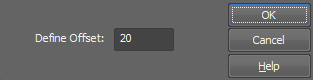
Figure 1731.
Image > Background > Subtract Background Using Constant Subtracts a value from each channel separately.
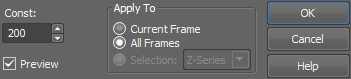
Figure 1732.
See Image processing for description of other settings.
Subtracts a value from the selected channel.
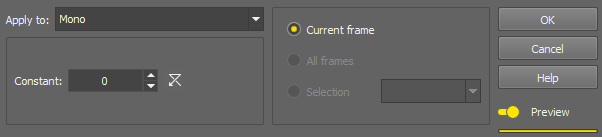
Figure 1733.
See Image processing for description of other settings.
Image > Background > Shading Correction This command defines parameters of the background shading correction.
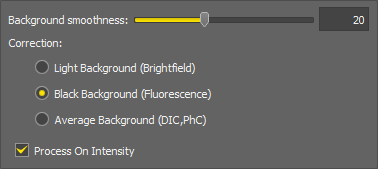
Figure 1734.
See also Acquire > Shading Correction Panel.
Image > Background > Shading Correction under ROI Performs the background shading correction only inside the ROI (Region Of Interest) area.
Select on which background the correction is performed:
For Brightfield.
For Fluorescence.
For Differential Interference Contrast or Phase Contrast.
Apply the command to the whole image sequence, the selected dimension or just the current image frame. See ND2 Files Processing.
See also Acquire > Shading Correction Panel.
Image > Background > AX Shading Correction Compensates image shading of the current image using a correction image specific for Confocal Microscope AX. The correction image is already a part of the function so no shading image needs to be acquired.
Apply the command to the whole image sequence, the selected dimension or just the current image frame. See ND2 Files Processing.
See also Shading Correction
Image > Background > Rolling Ball Correction This function estimates the background intensity by rolling a ball of the defined radius over/under the image intensities.
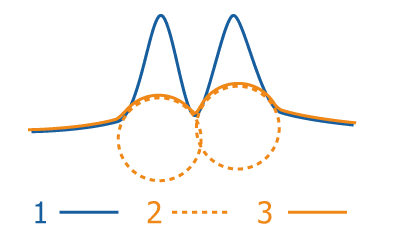
Figure 1735. Rolling Ball Background Correction Scheme
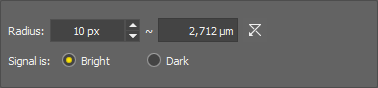
Figure 1736.
Set radius in pixels. The value should be bigger than size of the biggest object in the image.
Apply the command to the whole image sequence, the selected dimension or just the current image frame. See ND2 Files Processing.
Image > Smooth 
This command performs smoothing on the color image.
The following dialog box appears:
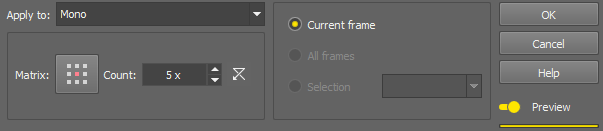
Figure 1737.
Click the button to change the structuring element used for this operation. See Matrix.
Process each RGB channel separately or perform the processing on the intensity channel? See Image processing.
 Image > Advanced Denoising
 Advanced denoising can be used to reduce any kind of noise in the image (Gaussian, Poisson noise). It can be applied on both 2D and 3D (Z-Stack) images.

Figure 1739.
Define the strength of the denoising algorithm for each channel separately using the slider or the edit box. If the slider is set to zero, denoising is done with an estimated noise variance. Move the slider to the right and denoising calculates with higher noise variance (more noise is present in the image) and vice versa.
Choose a denoising method suitable for your image.
This method is based on denoising via pixel large neighborhoods in a spatial and frequency (incl. wavelets coefficients) meaning. It is a one-pass algorithm.
Iteratively denoises every pixel according to its local neigborhood. In every iteration, local linear regression is computed for every pixel and the value is replaced by the regressed value. This method belongs to the same family as the Original method.
Fusion between the Original and the Regression method. It takes the better parts of both algorithms.
This method is slower, but it uses a high-quality algorithm. A probabilistic approach is used to compute the most likely estimate from the neighboring pixels.
See ND2 Files Processing for description of common settings.
Image > Low-Pass Filter This command defines a filter, which passes only details larger than the set pixel value.
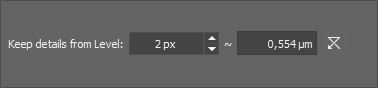
Figure 1740.
Set the size of details which will be kept. Smaller details will be suppressed.
Apply the command to the whole image sequence, the selected dimension or just the current image frame. See ND2 Files Processing.
Image > Resonant Denoising (Deep Learning) Performs denoising of the current image captured by a resonant scanner. The algorithm was created using “deep learning” methods on a broad set of samples captured by a resonant/galvano scanner of Nikon A1. Therefore it is predetermined to give the best results when processing images from resonant scanners. A dialog window appears where the user selects channels to process.
Image > Homogenization This command enhances details of the image by creating a plastic-like imprint. Use this function in combination with LUTs to enhance barely visible details. Set the resolution degree using the slider.
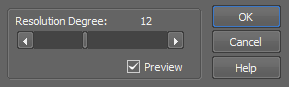
Figure 1741.
Apply the command to the whole image sequence, the selected dimension or just the current image frame. See ND2 Files Processing.
Image > Sharpen > Sharpen 
This function sharpens the image.
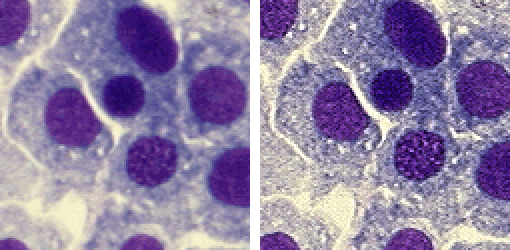
Figure 1742. Before - after applying the Sharpen function
Image > Sharpen > Sharpen Slightly This function slightly sharpens the image.
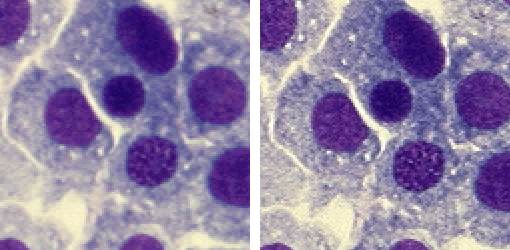
Figure 1743. Before - after applying the Sharpen Slightly function
Image > Sharpen > Gauss-Laplace Sharpen This command increases sharpness of the image. However, the scale in which the sharpening is performed is bigger than standard - i.e. large objects are affected, not tiny details.
Figure 1744.
 Image > Sharpen > Guided Sharpen
 It sharpens the image while suppressing countershading around edges often produced by unsharp masking. It is an improvement of the Image > Sharpen > Unsharp Mask function.
See Image processing for description of other settings.
Image > General Analysis (requires: General Analysis)
This command enables applying General Analysis settings on captured images. For more details about General Analysis, please see the General Analysis chapter.
Recipes
Analysis settings can be saved as presets. These are called Recipes. Once done with adjusting the analysis parameters, you can save your recipe for later loading which can be done from the pull-down menu (Recipe database) or from a .ga file.
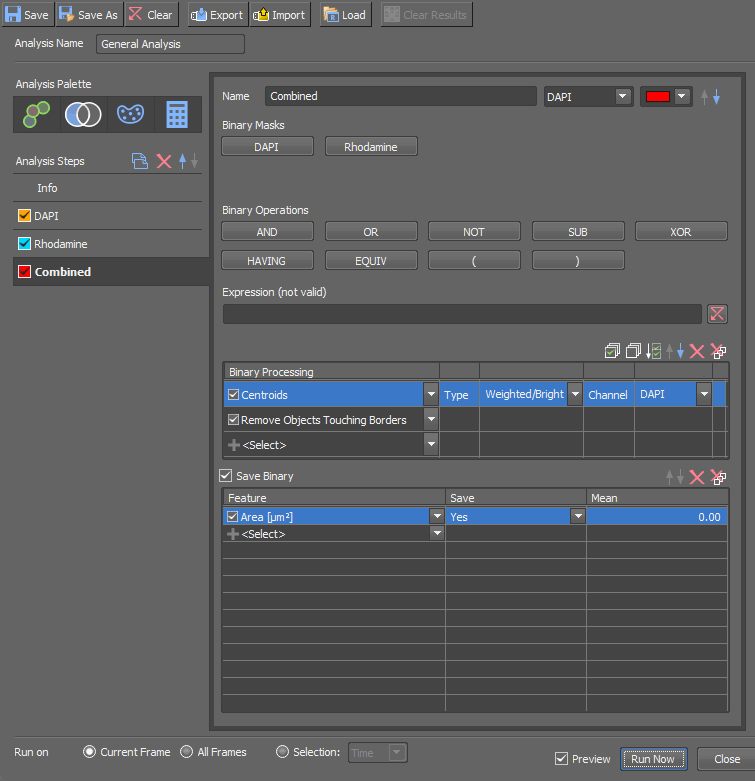
Figure 1746.
Main Toolbar
Loads a recipe from the recipe database. Choose <Manage...> to open the default folder containing recipe files.
This button clears all data shown in the View > Analysis Controls > Automated Measurement  tab which were captured by the current analysis.
Main Toolbar
 Save
Save Saves the current analysis settings into the database as a new recipe or updates any changes made to the currently used recipe. To load the recipe, use  Load.
Load.
 Save As
 Saves the current analysis settings into the database as a new recipe with a given name. To load the recipe, use Load.
 Export
 Import
 Clear Results
 This button clears all data shown in the View > Analysis Controls > Automated Measurement tab which were captured by the current analysis.
Image > General Analysis RGB (requires: General Analysis)
Displays the General Analysis RGB dialog window. It allows to create a new binary layer defined as an intersection of the three RGB channels based on the RGB or HSI threshold values. All other features of the dialog window are the same as in General Analysis (see: Image > General Analysis).
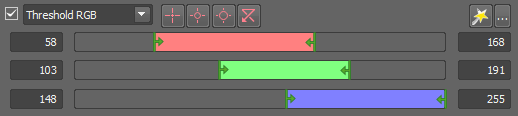
Figure 1747. RGB Threshold in General Analysis RGB
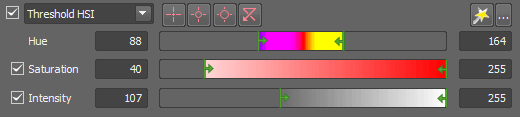
Figure 1748. HSI Threshold in General Analysis RGB
Image > Most Recent GA3 recipe (requires: General Analysis)
Opens the latest version of the General Analysis 3. For more information please see General Analysis 3 .
Image > Batch GA3 (requires: General Analysis)
Equals the View > Analysis Controls > Batch GA3 command.
Image > ND Processing > Create Maximum Intensity Projection Image in Time This command creates the maximum intensity projection image on the T dimension of the current ND2 document. Pixel values of the original image which have the same XY coordinates are compared throughout the image sequence and only the pixels with the highest intensity value are displayed in the new image.
Image > ND Processing > Create Maximum Intensity Projection Image in Z This command creates the maximum intensity projection image on the Z dimension of the current ND2 document. Pixel values of the original image which have the same XY coordinates are compared throughout the image sequence and only the pixels with the highest intensity value are displayed in the new image.
Image > ND Processing > Create Minimum Intensity Projection Image in Time This command creates the minimum intensity projection image on the T dimension of the current ND2 document. Pixel values of the original image which have the same XY coordinates are compared throughout the image sequence and only the pixels with the lowest intensity value are displayed in the new image.
Image > ND Processing > Create Minimum Intensity Projection Image in Z This command creates the minimum intensity projection image on the Z dimension of the current ND2 document. Pixel values of the original image which have the same XY coordinates are compared throughout the image sequence and only the pixels with the lowest intensity value are displayed in the new image.
Image > ND Processing > Subtract from Maximum Intensity Projection in Time This command processes the Time dimension of an ND2 file in the following way:
Image > ND Processing > Subtract from Maximum Intensity Projection in Z This command processes all Z series of an ND2 file in the following way:
Image > ND Processing > Subtract Minimum Intensity Projection in Time This command processes the Time dimension of an ND2 file in the following way:
Image > ND Processing > Subtract Minimum Intensity Projection in Z This command processes all Z series of an ND2 file in the following way:
Image > ND Processing > Subtract Average in Time Calculates an average from the whole time sequence and subtracts it from each frame.
Image > ND Processing > Subtract Average in Z Calculates an average from the whole Z sequence and subtracts it from each Z plane.
Image > ND Processing > Difference of Subsequent Frames in Time This command processes the time dimension of an ND2 file in the following way:
Image > ND Processing > Difference of Subsequent Frames in Z This command processes all Z series of an ND2 file in the following way:
Image > ND Processing > Subtract Subsequent Frames in Time This command processes the time dimension of an ND2 file in the following way:
Image > ND Processing > Subtract Subsequent Frames in Z This command processes all Z series of an ND2 file in the following way:
Image > ND Processing > Crop Image Showing MaxIP This command creates a temporary “maximum intensity projection” image out of all frames of the current ND image and turns on the standard cropping tool. It prevents you from cutting off some important part of the scene just because it was not displayed in the current frame.
Image > ND Processing > Crop Image Showing MinIP This command creates a temporary “minimum intensity projection” image out of all frames of the current ND image and turns on the standard cropping tool. It prevents you from cutting off some important part of the scene just because it was not displayed in the current frame.
Image > ND Processing > Equalize Intensity in Time, Image > ND Processing > Equalize Intensity in Z, Image > ND Processing > Equalize Intensity in XY These commands enhance the dynamic range of an ND2 file which contains more images in the corresponding dimension. It analyses the image and calculates “auto-contrast” values common for the whole dimension and then processes all frames of the dimension. This method is robust to noise and preserves original trends of histogram.
You can select a method used to equalize the intensity.
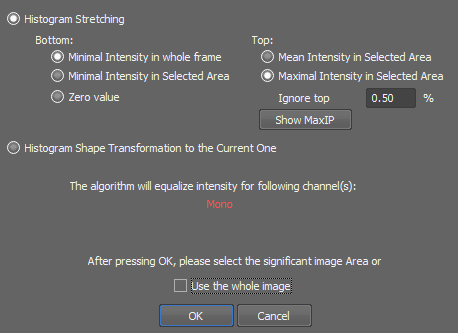
Figure 1749.
After you press the button, you will be prompted to select according to which area the image will be equalized. Draw the rectangle and confirm it with  right mouse button. The image is processed afterwards.
Image > ND Processing > Select Best Focused Plane This command automatically selects frames of an ND2 image sequence, the ones with the best focus. A new image is created.
Defines which focus criterion is used:
Image > ND Processing > ND Image Average This command performs averaging on ND frames.
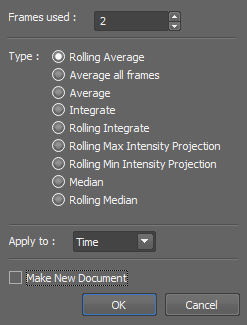
Figure 1750.
Averaging methods
This method takes the frames closest to the current frame, counts the average, and writes it to the current frame position. This method causes no loss of frames.
This method takes all frames, counts the average, and rewrites all frames. This option disables the Frames used option.
This method merges the adjacent frames, and counts the average. It reduces the number of frames in the ND2 file.
This method merges the adjacent frames, and adds them to each other. It reduces the number of frames in the ND2 file. The images get brighter.
This method integrates (sums) the adjacent frames. Number of adjacent frames can be set in the Frames used option. Number of frames of the result image is the same as in the original image. The images get brighter.
This method performs the Maximum Intensity Projection function on the defined number of frames. Number of frames of the result image is the same as in the original image.
This method performs the Minimum Intensity Projection function on the defined number of frames. Number of frames of the result image is the same as in the original image.
Select to which dimension will the averaging apply to. See ND2 Files Processing.
Image > ND Processing > ND Images Arithmetics This command performs various operations on two ND2 files or on an ND2 file and an image. However, the documents must have a matching image resolution and the same dimensions structure.
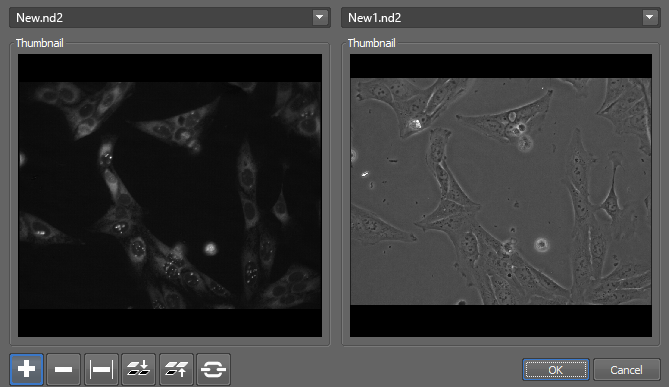
Figure 1751.
The processing can be performed using one ND2 file and a single image. Than, the operation is performed using the single image with each of the ND frames.
Available actions
The following actions match certain mathematical operations. Let us call the ND2 files “A” and “B”.
Image > ND Processing > Concatenate 1DT This command converts a multi-frame 1DT (X or Y dimension + Time) image (created by Nikon A1 line-scan operation) to a single-frame 1DT image.
Image > ND Processing > Exchange Dimensions This commands can change structure of the current ND file. It does not process any image data so it is very fast.
Use cases
Usage
Image > ND Processing > Create Kymograph by Line A kymograph gives a graphical representation of spatial position over time. In NIS-Elements, it displays pixel intensity changes under a defined linear section over time. A trajectory of a tracked object, or a user-drawn line can be used as the kymograph line.
See Also
Tracking
Image > ND Processing > Kymograph Line Settings Line Thickness sets the size of the kymograph line. This line determines the neighborhood which is taken into account while using the Image > ND Processing > Create Kymograph by Line command. Intensity Computed As sets the intensity calculation method across lines thicker than 1 px. Pixel intensities of the resulting kymograph are calculated from the area covered by the line.
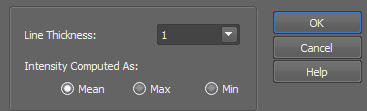
Figure 1752.
Note
Context menu over images having a T dimension reveals a quick option Create Kymograph By Line having the same functionality as Image > ND Processing > Create Kymograph by Line.
Image > ND Processing > Align Current ND Document This command aligns frames of an ND2 file. Depending on the type of your ND2 file, you will be prompt to select the dimension to which the alignment will be applied. After that, a dialog window appears:
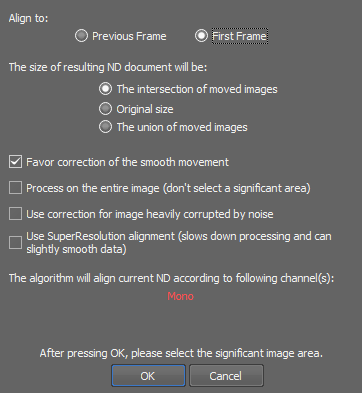
Figure 1753.
Note
Precision of the resulting alignment depends on image quality and therefore can not be guaranteed. If the result is not satisfactory, please use manual means to align the ND image. See Shifting Image Channels, Image > Shift > Right, Image > Shift > Left, Image > Shift > Up, Image > Shift > Down
Image > ND Processing > Stitch Multipoint to Large Image This command converts a multi-point ND2 file into a large image. The XY coordinates contained in the multi-point dimension are used to arrange the images correctly. If the original scanned area was not homogeneous, the blank places will be filled with a background color.
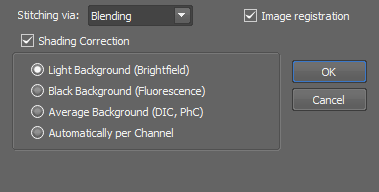
Figure 1754.
Options
Select how image margins will be treated, please see Methods Used for Stitching Large Images.
Position of images can be adjusted automatically based on texture comparison. If there are pixel-shifts between neighboring images, this function will help.
(requires: Local Option)
This function corrects geometrical image distortion to eliminate duplicated structures in overlapping image tiles. It is closely described in Distortion Correction.ai.
Select whether to perform the shading correction and which type of image you are stitching (type of the image background).
Please see Acquire > Shading Correction Panel.
Image > ND Processing > ND Automatic Shading Correction Performs the automatic shading correction. Choose the type of correction which best represents your image background.
Please see Shading Correction for further details.
Image > ND Processing > Convert Custom Acquisition to Time-lapse This command converts opened ND2 file created by Custom Acquisition to Time-lapse format.
For more details about Custom Acquisition see Acquire > Custom Acquisition.
Image > ND Processing > Convert Custom Acquisition to ZStack This command converts opened ND2 file created by Custom Acquisition to ZStack format.
For more details about Custom Acquisition see Acquire > Custom Acquisition.
Image > ND Processing > Convert Custom Acquisition to Multipoint This command converts opened ND2 file created by Custom Acquisition to Multipoint format.
For more details about Custom Acquisition see Acquire > Custom Acquisition.
Image > Image Operations This command enables advanced operations with images.
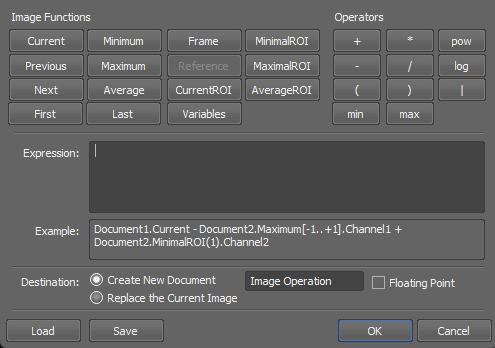
Figure 1755.
Press the button of a corresponding function from the variety of available functions to insert it to the custom equation.
Define further parameters of the selected function in the dialogs that appear after you press the corresponding button:
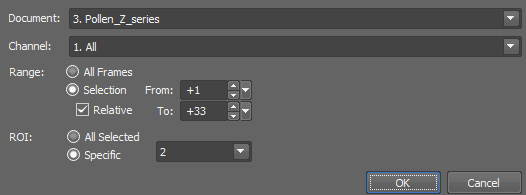
Figure 1756. Example of selection of possible parameters
Choose which document is processed.
Choose which channel is processed.
Define range of processed frames of an ND document: All Frames, or Selection (From, To) can be selected. If you check the Relative option, the range can be defined relatively. Then the current frame's number is 0, previous frames are defined by negative numbers and next frames by positive numbers.
Define which ROIs are processed.
Press the button of a corresponding operator to insert it to the custom equation.
Operators
Addition
Subtraction
Multiplication
Left bracket
Right bracket
Absolute value
Division
(requires: Calcium, FRET) or (requires: 2D Deconvolution) or (requires: 3D Deconvolution)
Minimum of two or more values
Maximum of two or more values
Power function.
(requires: Calcium, FRET) or (requires: 2D Deconvolution) or (requires: 3D Deconvolution)
Logarithm function.
(requires: Calcium, FRET) or (requires: 2D Deconvolution) or (requires: 3D Deconvolution)
Write the custom expression into this field. Use the functions and operators provided in the window. You can also edit the expression manually.
Select what to do with the resulting image. If you choose the Create New Document option, you can edit name of the new file in the edit box.
There is also a possibility to create the floating point image as the result of operation. (requires: Calcium, FRET), (requires: 2D Deconvolution) or (requires: 3D Deconvolution)
Image > Radon Transform Opens the Radon Transform dialog window applying the Radon Transformation (see Radon Transform).
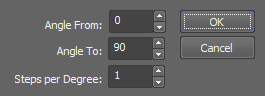
Figure 1757.
Apply the command to the whole image sequence, the selected dimension or just the current image frame. See ND2 Files Processing.
Image > Detect > Detect Valleys 
Detects edges by morphological transformations on color images.
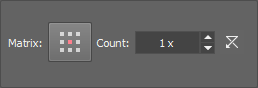
Figure 1758. Dialog options
Click the button to change the structuring element used for this operation. See Matrix.
Process each RGB channel separately or perform the processing on the intensity channel? See Image processing.
Apply the command to the whole image sequence, the selected dimension or just the current image frame. See ND2 Files Processing.
Note
The Detect Valleys command enhances small dark objects by “Top Hat” morphologic transformation. The size of the selected objects is determined by level of the transformation, which depends on Matrix type and on Number of steps. This command enables the specific segmentation of small objects to the exclusion of larger objects and also can help you in the case of non-homogeneous background.
Image > Detect > Detect Peaks The Detect Valleys (Top Hat) dialog box appears.
Figure 1759.
Click the button to change the structuring element used for this operation. See Matrix.
Process each RGB channel separately or perform the processing on the intensity channel? See Image processing.
Apply the command to the whole image sequence, the selected dimension or just the current image frame. See ND2 Files Processing.
Note
Detect Peaks command enhances small light objects by “Top Hat” morphologic transformation. The size of objects selected is determined by the size of the used structuring element, which depends both on Matrix and Number parameters. This command enables the specific segmentation of small objects to the exclusion of larger objects and also can help you in the case of non-homogeneous background.
Image > Detect > Regional Minima The Regional Minima function detects regional minima. It is a subset of top hat transformations.
The Regional Minima dialog box appears.
Figure 1760.
Click the button to change the structuring element used for this operation. See Matrix.
Image > Detect > Regional Maxima Detects regional maxima. It is a subset of top hat transformations.
The Regional Maxima dialog box appears.
Figure 1761.
Click the button to change the structuring element used for this operation. See Matrix.
Image > Detect > Gradient Morpho Detects edges by morphological transformations of color images.
The following dialog appears:
Figure 1762.
Click the button to change the structuring element used for this operation. See Matrix.
Process each RGB channel separately or perform the processing on the intensity channel? See Image processing.
Apply the command to the whole image sequence, the selected dimension or just the current image frame. See ND2 Files Processing.
Note
Morphologic gradient is the difference between dilated and eroded images. It enhances edges.
Image > Detect > Detect DIC Objects This command can enhance objects in a DIC image so that the objects can be thresholded reasonably.
The Differential interference contrast capturing method produces special kind of images, where objects look three-dimensionally having glow on one side and shadow on the other side. Such objects can not be thresholded and further analysed. The Detect DIC Objects command performs recognition of the objects and makes them bright in order to be easily thresholded.
Figure 1763. Detect DIC Objects dialog for Multichannel images
Apply the command to the whole image sequence, the selected dimension or just the current image frame. See ND2 Files Processing.
Image > Detect > Gabor Edge Detection Gabor Edge Detection method represents a linear filter useful for visualizing specific features of an image. Use the Orientation combo box to select a direction [°] in which the features are visualized. Select a proper direction and adjust the Amplitude of the wavelet to find the sharpest result. Real, Imaginary or Both filters can be applied. Switching from Positive to Negative value highlights the surroundings of the object.
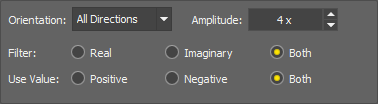
Figure 1764.
Image > Detect > Canny Edge Detection Detects edges of objects based on the Rolling Ball Radius value and Light/Dark signal using the Canny algorithm.
Start by setting the level of details (Edge Size) and then define the Low and High threshold value to include/exclude targeted portions of your image. Check the Preview check box to see the result. Once you are satisfied with the detection, click to apply it to your image.

Figure 1765.
Image > Fourier Transform > Inverse 2D Fourier Transform Serves to recover a function from its Fourier transformation.
Image > Fourier Transform > Apply Binary Mask on FT Applies binary mask on the Fourier transform image.
Image > Fourier Transform > Log Power Spectrum Opens the Log Power Spectrum dialog window applying the 2D Fourier Transformation (see Fourier Transform).
Image > Morphology > Open Performs morphological opening on current color image. Morphological opening is erosion followed by the same number of dilations. The transformation removes small light objects. If the structuring element dimension has an odd value, there are two enhanced pixels in structuring element depicting centers: one for erosion and the other for dilation.
The following dialog appears.
Figure 1766.
Click the button to change the structuring element used for this operation. See Matrix.
Image > Morphology > Close Performs morphological closing on the current color image.
The following dialog appears.
Figure 1767.
Click the button to change the structuring element used for this operation. See Matrix.
Morphological closing is a dilation followed by the same number of erosions. Small dark areas are removed by this transformation. If the structuring element dimension has an odd value, there are two enhanced pixels in structuring element depicting centers: one for erosion and the other for dilation.
Image > Morphology > Erode Performs morphologic erosion on color image. Erosion affects the intensity of color image. Hue and saturation are not affected. Dark areas grow whereas light areas shrink.
The following dialog appears.
Figure 1768.
Click the button to change the structuring element used for this operation. See Matrix.
See Also
Image > Morphology > Open Image > Morphology > Open , Image > Morphology > Close Image > Morphology > Close , Image > Morphology > Dilate , Image > Morphology > Linear Erode
Image > Morphology > Dilate Performs morphological dilation on color image. Dilation of color images changes their intensity. Light areas grow and small dark objects and structures disappear. Hue and saturation are not affected.
The following dialog appears.
Figure 1769.
Click the button to change the structuring element used for this operation. See Matrix.
Image > Morphology > Linear Open Removes small light areas in the direction specified by Matrix.
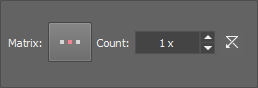
Figure 1770.
Click the button to change the structuring element used for this operation. See Matrix.
Image > Morphology > Linear Close Closes color image using a linear structuring element.
The following dialog appears.
Figure 1771.
Click the button to change the structuring element used for this operation. See Matrix.
Note
Linear morphological closing is a dilation followed by erosion using the same linear structural element. The transformation is performed on the intensity component and removes small dark areas in the direction specified by Matrix orientation. Number specifies level of closing.
Image > Morphology > Linear Erode Erodes color image using a linear structuring element.
The following dialog appears.
Figure 1772.
Click the button to change the structuring element used for this operation. See Matrix.
Note
Linear erosion affects the intensity of color image in one direction. Hue and saturation are not affected. Dark areas linearly grow whereas light areas linearly shrink in the direction defined by Matrix orientation. It is an anisotropic transformation.
Image > Morphology > Linear Dilate Erodes color image using a linear structuring element.
The following dialog appears.
Figure 1773.
Click the button to change the structuring element used for this operation. See Matrix.
Note
Linear dilation of color images changes their intensity in one direction, specified by Matrix orientation. Light areas linearly grow and small linear dark objects and structures disappear. Hue and saturation are not affected. It is an anisotropic operation.
Image > More Convolutions > 1. Laplace 4 Neighbors This function performs edge detection by Laplace4 detector.
See Image processing for description of other settings.
Image > More Convolutions > 2. Laplace 8 Neighbors This function performs edge detection by Laplace8 detector.
See Image processing for description of other settings.
Image > More Convolutions > 3. Sharpen More This function sharpens the image.
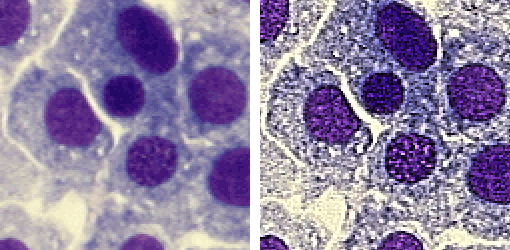
Figure 1774. Before - after applying the Sharpen More function
See Image processing for description of other settings.
Image > More Convolutions > 4. Horizontal Edges This function performs horizontal edge detection.
See Image processing for description of other settings.
Image > More Convolutions > 5. Vertical Edges This function performs vertical edge detection.
See Image processing for description of other settings.
Image > More Convolutions > 6. Mexican Hat This function performs filtration on intensity component (or on every selected component - when working with multichannel images) of an image using convolution with 5x5 kernel. Mexican Hat kernel is defined as a combination of Laplacian kernel and Gaussian kernel, it marks edges and also reduce some noise.
Image > More Convolutions > 7. Golay Filter Smooths and detects edges of color image.
The Golay filter dialog box appears.
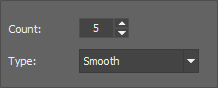
Figure 1775.
Note
Golay filter function uses polynomial (second order) fitting of the image data for smoothing image. Fitting is performed in the neighborhood defined by Kernel parameter. The Vertical Edges detection is derived from the 1st derivation of image data in the X direction. The same is true for Horizontal Edges detection (Y direction). General edge detection is calculated as the sum of the absolute values of the 1st derivations in X and Y directions. Edge detection includes dynamics corrections. Algorithm exactly calculates edge values.
Image > More Convolutions > Delineate Enhances edges and smooths homogeneous areas in color image. The Delineate dialog box appears:
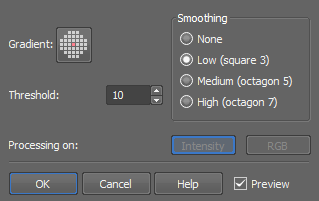
Figure 1776.
Process each RGB channel separately or perform the processing on the intensity channel? See Image processing.
Apply the command to the whole image sequence, the selected dimension or just the current image frame. See ND2 Files Processing.
Note
In the resulting image, edges are enhanced and smooth areas are more homogeneous.
Image > More Convolutions > Relief Creates a pseudo 3-D image. The Relief dialog box appears:
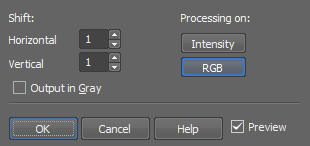
Figure 1777.
If checked, the result of the transformation is a gray image. This option is only applicable to RGB images.
Process each RGB channel separately or perform the processing on the intensity channel? See Image processing.
Apply the command to the whole image sequence, the selected dimension or just the current image frame. See ND2 Files Processing.
Note
Superimposition of the original and the shifted image results in a pseudo 3-D image.
Image > More Convolutions > General Convolution This command is used for creating new or modifying the existing convolution kernels and applying the convolution to an image.
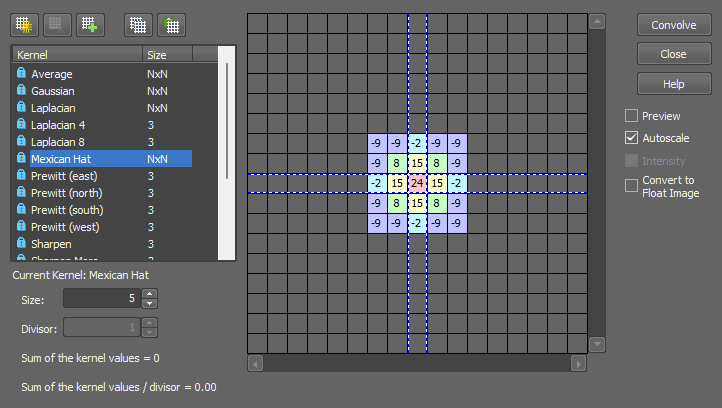
Figure 1778.
There is a list of predefined (locked) kernels which can be extended by kernels of your own. Use the following buttons:
 New
New Delete
 Copy current
 Copy to clipboard
 Paste from clipboard
Modify kernel
Options
Usage of some kernels may result in pixel values which it is impossible to display within the image (negative values, high values). Such values would be clipped to fit the acceptable range (0-255 for 8bit images), and you could loose certain amount of image information because such pixels would turn black/white. However, you can prevent this image distortion by using the Autoscale option. It maps all the computed values to the acceptable range so it can be displayed correctly.
You can decide whether to perform the convolution channel by channel, or on the intensity only. This option is only applicable for RGB images.
Floating point images are supported. If the provided image is an integer and this option is checked, the image will be converted to a floating point image.
See Image processing for description of other settings.
Image > Crop 
Cuts off everything outside the selected area. Selecting this command invokes the crop cursor. Click the primary mouse button and drag to define the cropping area. Adjust the area you want to crop using the red rectangle. Move the white squares on the rectangle edges to adjust its size and move the whole rectangle using the primary mouse button to set its position.
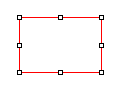
Figure 1779. Cropping rectangle
Another way to set the crop is to use the dialog window in which you can specify the Left and Top corners of the rectangle, its Width, Height and the units used (pixels, µm, mm). Once you finish defining the cropping rectangle, confirm it by clicking .
The  Draw Rectangle... button hides the dialog window and lets you draw the cropping rectangle manually. Remember Last Settings remembers the crop data which can be reused in future image cropping. If the image being cropped with the remembered data is smaller than the previously cropped one, it may be reduced and moved automatically.
Image > Split Image Splits an image into separate tiles. Please see Splitting Large Images for more information.
Image > Size > Resize Using this command it is possible to adjust image dimensions. You can enter the new size as an exact value in pixels or in percents of the current image.
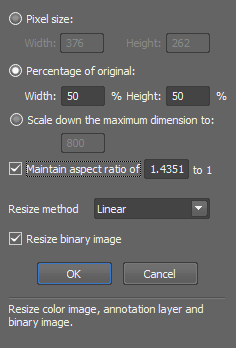
Figure 1780.
In case this option is checked, you can enter the size of new image in percents of the current image.
Scales down the image. The longer side of the image is rescaled to the defined number of pixels while the aspect ratio is kept. Shorter side of the image is calculated automatically.
If this option is active, you can enter only one dimension of new image and the other is filled automatically to keep selected aspect ratio. Aspect ratio is computed and pre-filled according to your current image dimensions.
See Also
Image > Convert > Change Color Depth
Image > Size > Canvas Size This command sets the dimensions of current image. Selecting this command displays the following window:
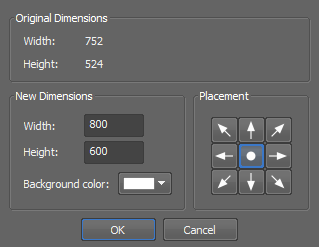
Figure 1781.
The upper part of window is informational and shows current image dimensions. You can set new dimensions using the Width and Height edit-boxes. The image will not be resized, but cropped (in case of new dimensions are smaller than the old ones) or placed in the image, surrounded by borders in background color (in the case of new dimensions are grater than original image). You can define the placement of an old image in the new image using the arrow button tool.
Image > Size > Add Borders This command adds color borders to current image. Selecting this command, the following dialog box appears:
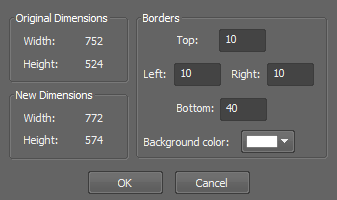
Figure 1782.
Image > Size > Binning Opens the Image Binning dialog window enabling to bin the current image based on the binning factor and binning method.
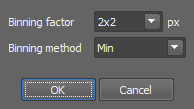
Figure 1783.
Image > Convert > Convert to Gray 
Transforms current color image into gray image. The resulting intensities are defined for every pixel as an average of red, green and blue component values.
When you are analyzing a ND2 file, select the frames to which the function is applied in the window that appears.
Image > Convert > Convert to RGB Transforms the current gray image into a color image. The resulting RGB image consist of three components with identical values. The image looks still grey.
Image > Convert > Convert to Multichannel This command changes the image (image) type of the current RGB image to Multichannel. The Custom channel is appended.
Image > Convert > Convert RGB to HSI Converts color image from standard RGB representation to HSI representation. The standard RGB color image representation is natural for NIS-Elements G and the image is displayed in its original colors on the monitor. The HSI image cannot be displayed in its original colors.
Image > Convert > Convert HSI to RGB Converts color image from HSI representation to standard RGB representation. The HSI color image is transformed to RGB representation. It is the inverse function to Convert RGB to HSI; after these transformations the image retains its original colors.
Image > Convert > Binary To Color Converts current binary image to color image. The content of image remains unchanged but the image obtains color status. In another words, objects in binary image are transformed to areas with white color (RGB=(255, 255, 255)) in current color image. Background in current binary image is transformed to black (RGB=(0,0,0)) in current color image. This means, that all color transformations commands become available.
Image > Convert > Convert Binary to Color Component, Convert Binary to Color Component This command appends the contents of the active (visible) binary layer to the current image as a new channel. The original color of the binary layer is used for the channel. If multiple binaries are visible, one channel will be created for each binary layer.
Note
In case of a multi-frame image, the function is applied to all frames automatically.
Image > Convert > Change Color Depth This command changes the color depth of the current image. You can increase or decrease the depth to 8, 10, 12 or 16 bits.
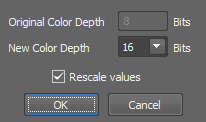
Figure 1784.
See Also
Image > Size > Resize
Image > Convert > Convert Floating Point Image to Use this command to convert a floating point image to a new standard image. Define which method is used to convert the currently opened floating point image to integer values. Select the bit depth of the new image. Recommended bit depth is displayed below the pull down menu.
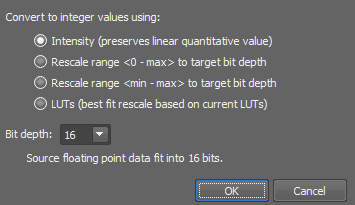
Figure 1785.
Stretches the interval “0 to image maximimum” to fit the target bit depth.
Stretches the interval “image minimum to image maximum” to fit the target bit depth.
Stretches the interval “LUTs black slider to LUTs white slider” to fit the target bit depth. See LUTs - Non-destructive Image Enhancement.
Image > Convert > Convert to Floating Point Image (requires: Calcium, FRET)
This command converts current image to new floating point image.
Image > Convert > Extract Component Transforms an RGB image to one of its RGB or HSI components. On multichannel images, the HSI color space is not available.

Figure 1786.
Note
In the resulting gray image all RGB components are identical and the image is stored in the same way as a “usual” color image.
Image > Convert > Add New Component Adds a new channel to the current image. The following dialog appears:
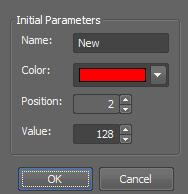
Figure 1787.
Image > Rotate > Rotate By Degree Performs free image rotation. The Rotation dialog box appears:
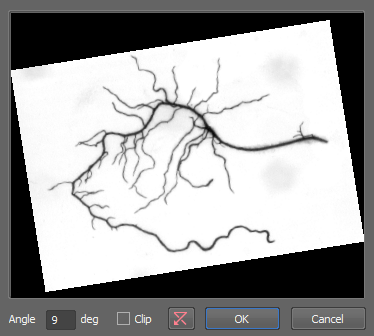
Figure 1788.
Image > Rotate > Rotate in Center Performs a rotation via line. Drawing the line you specify only the angle of rotation. The center of the rotation will be in the center of the image. Defined line in the image is rotated to become horizontal using the sharp angle. Rotated image is computed from the source using 4-neighbourhood.
Image > Rotate > Rotate Level Horizontal Performs rotation via line. Line in the image is rotated to become horizontal. Drawing the line you specify the center and the angle of rotation. Defined line in the image is rotated to become horizontal using the sharp angle. Rotated image is computed from the source using 4-neighbourhood.
Image > Rotate > Rotate Level Vertical Performs rotation via line. Line in the image is rotated to become vertical. Drawing the line you specify the center and the angle of rotation. Defined line in the image is rotated to become vertical using the sharp angle. Rotated image is computed from the source using 4-neighbourhood.
Image > Rotate > Rotate Rectangle Enables you to select a rectangular shaped part of an image and adjust its final orientation. The rest of the image will be cut off.
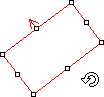
Figure 1789.
Place, resize and rotate the red rectangle. When you confirm the action by right click, the command will crop the image and rotate the selected area, so that the red arrow will point upwards.
Image > Shift > Right This command moves the current image or a selected component by one pixel in the defined direction. The pixels that overflow the image borders appear on its opposite side.
When using this command via the key shortcut (Ctrl+Shift+Arrow) on a single component, all components are displayed together until the Ctrl+Shift keys are released.
Image > Shift > Left This command moves the current image or a selected component by one pixel in the defined direction. The pixels that overflow the image borders appear on its opposite side.
When using this command via the key shortcut (Ctrl+Shift+Arrow) on a single component, all components are displayed together until the Ctrl+Shift keys are released.
Image > Shift > Up This command moves the current image or a selected component by one pixel in the defined direction. The pixels that overflow the image borders appear on its opposite side.
When using this command via the key shortcut (Ctrl+Shift+Arrow) on a single component, all components are displayed together until the Ctrl+Shift keys are released.
Image > Shift > Down This command moves the current image or a selected component by one pixel in the defined direction. The pixels that overflow the image borders appear on its opposite side.
When using this command via the key shortcut (Ctrl+Shift+Arrow) on a single component, all components are displayed together until the Ctrl+Shift keys are released.
Image > Clear > Clear Color 
This function clears the color layer of a image. All pixel intensities are set to zero.
Image > Clear > Clear Annotations Clears current annotation layer and sets color of all pixels to transparent.
Image > Channel Alignment and Registration > Align Channels Opens the Align Channels dialog window enabling to manually shift each channel in the X, Y or Z direction.
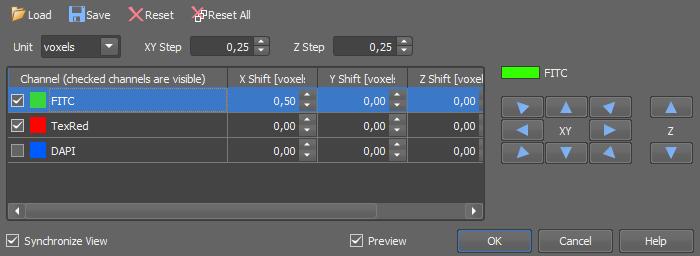
Figure 1790.
Example procedure
Align Channels
 Load
Load Reset
Reset Reset All Image > Channel Alignment and Registration > Image Registration
 Corrects the image color shifts. Color shifts most likely origin when you are using two cameras for capturing one scene. The cameras can have different resolution or are not aligned properly. So when you put the two grabbed images together, they do not match each other perfectly.
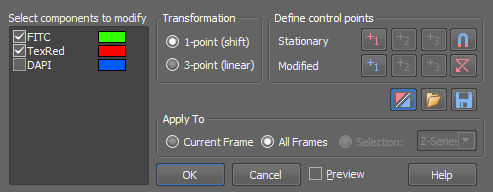
Figure 1791.
Check the component(s) you want to modify. The unchecked component(s) remain unchanged.
Select the way how to match the components.
This option allows to shift the components. You have to define one point.
This option allows to fit the components more precisely, but it changes the calibration of the modified components. The modified components are shifted, rotated and stretched to fit the stationary components. The definition is done by setting three point.
Use the button to define one or three control points (depending on the selected method). Press the Stationary point button and click into the image to mark the stationary point. Then place the Modified point mark. Then define the remaining two points (for 3-point method). To see each component (stationary/modified) separately during control point definition, press the  button. To reset all definitions, press the button.
The  Fine Tune button runs an algorithm that tries to correct small differences in point definition using alignment in near neighborhood of defined point. It does not invoke any action but it keeps the state and have influence on automatic alignment done after all points are defined.
See ND2 Files Processing.
See ND2 Files Processing.
Image > Channel Alignment and Registration > Multimodal Image Registration Opens the Registration Wizard dialog window which can be used to manually align two images and create a new ND2 document combining both perfectly aligned images.
Typical alignment procedure

Figure 1794.
Select documents for alignment
Merging strategy
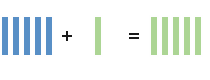
Z stack in the left image often has a different amount of planes than in the right image. Merging strategy defines how the missing planes are obtained. Any undefined planes will be shown black in the resulting image.
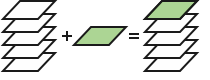
Single Z plane is placed at the bottom of the Z-stack.
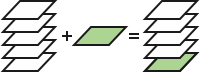
Figure 1796. Z - Single: Bottom
Single Z plane is placed over the home position of the Z-stack.
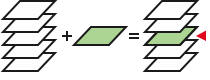
Figure 1797. Z - Single: Home
Single Z plane is placed over the whole Z-stack.
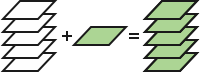
Figure 1798. Z - Single: Duplicate
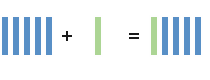
Single Z plane is placed over the closest Z-plane based on the Z distance obtained from Recorded Data.
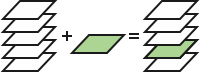
Figure 1799. Z - Single: Closest Z
Planes with Z distance closest to the Fixed image are taken into account. Left Fixed image is used as a reference image from which the Z-step is taken. Planes lying in the Z distance range of the Z-step are included in the result whereas others are displayed black.
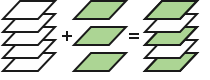
Figure 1800. Z - Z: According to Z
Missing planes are linearly interpolated across the Z-distance between two adjacent planes.
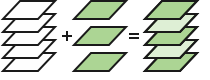
Figure 1801. Z - Z: Interpolated
Note
Matching two time lapse images is not supported and multi-point images cannot be included in the alignment.

Figure 1804.
Registration Wizard
 Hand tool
Check the check box, left-click into the image and hold the mouse button to zoom into the clicked area, position the mouse and release the button to place an alignment point.
 More Options
 Auto
Auto Rotates the image according to information taken from image metadata. If registration results are available, they are automatically applied.
 180 Reset
 Removes any alignment and rotation made by registration results, turns off the Auto function and zooms the Moving image to  Best Fit ( View > Zoom > Best Fit ).
If the two Z stack images opened for alignment were captured using different objectives, it is almost certain that the Z distance is shifted. Use this function to correct the shift. Z distance of the Moving image is automatically corrected by the difference of Z positions of your alignment points.
 Help
Help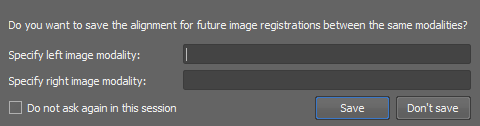
Figure 1805. Save Registration Results dialog window
Save Registration Results
If multiple cameras are used (two cameras each on a different camera port), one camera with two different objectives is used or one camera having a different zoom value (defined in two optical configurations) is used, Save Registration Results dialog window appears after clicking in the Registration Wizard dialog window. Enter the modality name and choose whether or not to save the alignment for future image registrations between the same modalities.
Image > Channel Alignment and Registration > Optical Path Corrections Opens a dialog window where you can manage registration results (e.g. used for aligning images by Image > Channel Alignment and Registration > Multimodal Image Registration). Camera port, objective, relay lens zoom, microscope zoom and microscope body name are stored.
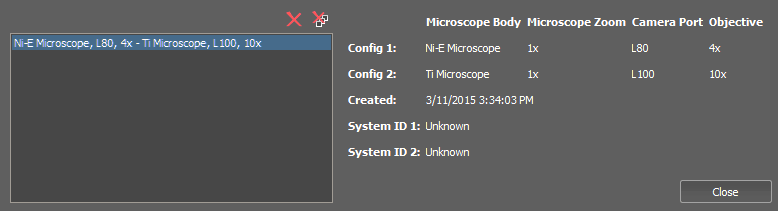
Figure 1806.
Image > Spectral Unmixing Setting This command displays a window with the unmixing options. Unmixing of a spectral image can be performed if you click the Unmix button.
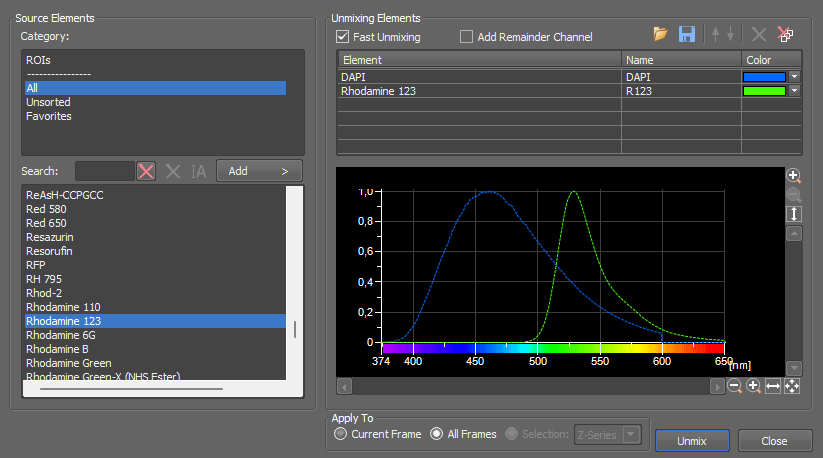
Figure 1807.
Source Elements
Image > Unmixing with Last Settings This command performs spectral unmixing of the current image using most recent Image > Spectral Unmixing Setting command settings.
 Image > Manage Stored Spectra
 Opens a window which controls and manages the stored spectra.
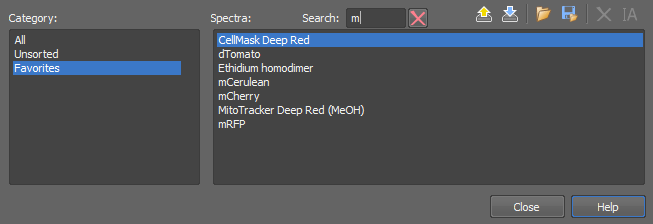
Figure 1809.
Choose one of the groups in the Category area. All dyes present in the selected group are displayed in the Spectra area. Select a spectra or find it using the box. Then use the controls in the top right corner to manage the selected spectra. You can backup user spectra to an external *.xml file (Backup User Spectra), restore them again (Restore User Spectra), import previously stored spectra (Import Spectrum) export the existing ones into an external text file (Export Spectrum). User defined spectra can also be removed (Remove Spectra) or renamed (Rename Spectrum).
Image > Fluorescence Unmixing (requires: Local Option)
Performs dye unmixing which is most useful for Nikon Ax Confocal + DUX and widefield images(quad-band emission filter, sequential excitation).
Use Cases
Note
This unmixing is not suitable for spectral detector images.
Sets the unmixing channel separation strength.
Defines the number of dyes for unmixing. The number of dyes cannot be bigger than the number of channels present in the image.
Apply the command to the whole image sequence, the selected dimension or just the current image frame. See ND2 Files Processing.
Select this option to preview the effect of the operation on the current image.