Measure > Perform Measurement
Performs the automatic object measurement. The segmented image (the current binary layer) is scanned and a set of size, shape, color and density features is measured. The set of features is defined by the Measure > Object Features command.
Note
If the measurement ROI or measurement frame are turned ON, or measurement restrictions are set, all these settings are taken into account.
Measure > Measure Field and ROIs 
Performs automatic field measurement.
Note
A set of size, shape and density measurements defined by the Measure > Field and ROI Features command is performed on a field.
See Also
Measure > Field and ROI Features , Measure > Perform Measurement
Measure > Object Features Enables you to select features to be measured. The description of each measurement feature can be found in the Measurement Features chapter.
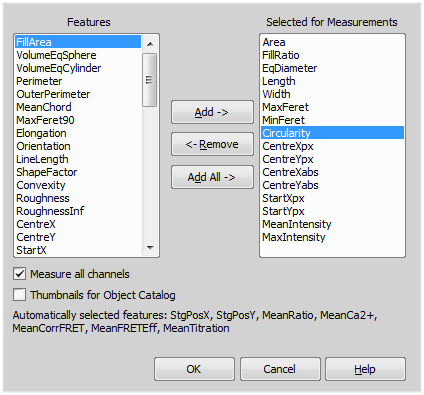
Figure 1889. Object Measurement Setup dialog window
Check this item to measure the selected measurement features Min, Max, Mean, Sum on all channels instead of on one selected channel. Calculated channels as ratio or FRET will be measured as well.
After you click , first the low level function ResetObjectFeatures and then several functions SelectObjectFeature are called and appended to the list of executed functions. The number of SelectObjectFeature functions is equal to the number of selected features in the dialog box.
Measure > Field and ROI Features Enables you to define the field (textural) measurement. The description of all measurement features can be found in the Measurement Features chapter. The Field and ROI Measurement Setup dialog box appears.
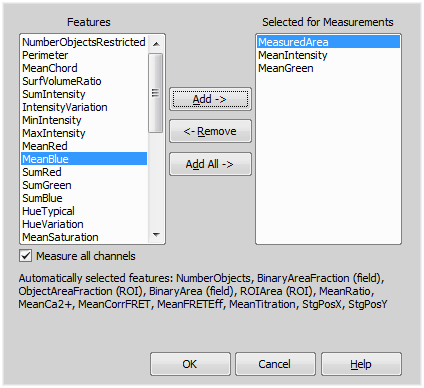
Figure 1890.
Measure > Custom Features This command defines custom measurement features. The Setup Custom Features window appears:

Figure 1891.
Custom Features Window
After you press the Add or Edit button, following window appears:
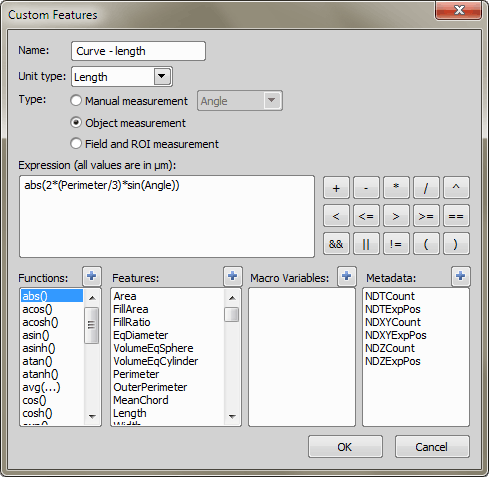
Figure 1892.
Enter the name of the custom feature.
Select what type of units is used to measure the feature.
Select for which type of measurement should be the feature used.
Select the type of manual measurement.
Defines a feature that is involved in object measurement.
Defines a feature that is involved in field and ROI measurement.
Enter the custom expression for calculating the feature.
Contains a list of available mathematical functions. Press the  button to add selected function to the expression.
Contains a list of available internal measurement features. Press the button to add selected measurement feature to the expression.
Contains a list of available macro variables. Press the button to add selected macro variable to the expression. The variable must be global, defined via user macro.
Contains a list of available metadata items. Allows to select ND global variables (number of counts and current count of time, multipoint or Z). Press the button to add metadata item to the expression.
Measure > Restrictions Opens a window which filters measurement results according to the specified conditions.
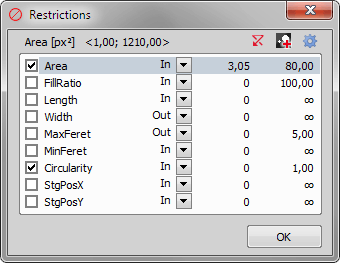
Figure 1893.
You can also set restrictions using the View > Analysis Controls > Restrictions  control window.
Name of the selected feature appears above the table. The current interval of possible values is indicated next to the feature name.
 Reset
Reset Generate Binary Using Restrictions
 Select Object Features
 Selects the measurement features. The Measure > Object Features dialog box appears.
Measure > Generate Binary Using Restrictions Creates a binary image with objects accepted by Measure > Perform Measurement command.
Note
Some objects are not involved in measurement because of lying out of the measurement frame, the measurement ROI image or the restriction interval, e.g. you can create a binary image that contains only circular objects, if you put restrictions on circularity feature. Performing this command, the GenerateBinary is called and appended to the list of executed functions.
Measure > Inspect objects Select two features to display and start clicking on the binary objects you want to inspect. Measured values of the clicked binary objects are added to the table.
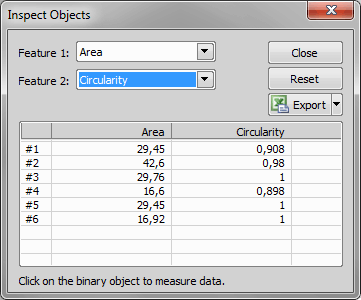
Figure 1894.
Select a measurement feature to be displayed in the table. You can change it anytime later during the inspection.
This button exports the table to an external file. Please see Exporting Results.
Measure > Manual Measurement > Length 
This command opens the View > Analysis Controls > Annotations and Measurements  control window and activates the tool which was last used. Each time a measurement object is drawn over the image, the measured values are appended to the results table.
See Measurement Tools.
Measure > Manual Measurement > Area 
This command opens the View > Analysis Controls > Annotations and Measurements control window and activates the tool which was last used. Each time a measurement object is drawn over the image, the measured values are appended to the results table.
See Measurement Tools.
Measure > Manual Measurement > Taxonomy 
This command opens the View > Analysis Controls > Annotations and Measurements control window and activates the corresponding tool.
See Measurement Tools.
Measure > Manual Measurement > Counts 
This command opens the View > Analysis Controls > Annotations and Measurements control window and activates the corresponding tool.
See Measurement Tools.
Measure > Manual Measurement > Radius 
This command opens the View > Analysis Controls > Annotations and Measurements control window and activates the tool which was last used. Each time a measurement object is drawn over the image, the measured values are appended to the results table.
See Measurement Tools.
Measure > Manual Measurement > Semiaxes 
This command opens the View > Analysis Controls > Annotations and Measurements control window and activates the tool which was last used. Each time a measurement object is drawn over the image, the measured values are appended to the results table.
See Measurement Tools.
Measure > Manual Measurement > Angle 
This command opens the View > Analysis Controls > Annotations and Measurements control window and activates the tool which was last used. Each time a measurement object is drawn over the image, the measured values are appended to the results table.
See Measurement Tools.
Measure > Manual Measurement > 3D Measurement 
This command opens the View > Analysis Controls > Annotations and Measurements control window and activates the corresponding tool.
See Measurement Tools.
Measure > Manual Measurement > 3D Angle This command opens the View > Analysis Controls > Annotations and Measurements control window and activates the corresponding tool.
See Measurement Tools.
Measure > Manual Measurement > 3D Polyline This command opens the View > Analysis Controls > Annotations and Measurements control window and activates the corresponding tool.
See Measurement Tools.
Measure > Time measurement (requires: Time Measurement)
This command displays the Time Measurement control window.
See Also
Time Measurement
Measure > 3D Object Measurement 
(requires: 3D Measurement)
This window allows you to define the objects for measurement, displays various measurement features and allows you to export the results to Excel.
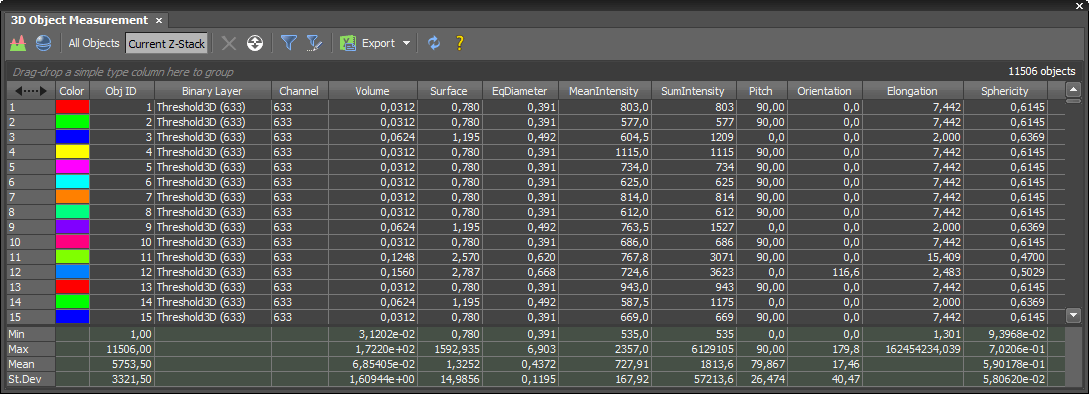
Figure 1895. 3D Object Measurement window
Measure > Intensity Profile 
Enables interactive profile measurement. The Intensity Profile control window appears and the arrow indicating the profile cross section is displayed in the image.
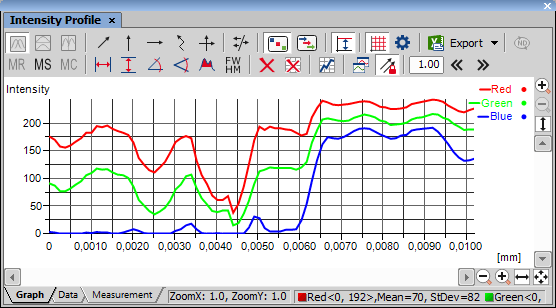
Figure 1896.
There are three tabs at the bottom of the Intensity Profile control window named Graph, Data, and Measurement. Switch from the default Graph tab to the Data tab. The number, X, and Y coordinates of every point of the profile is displayed there in a table. They can be exported using the Export button described below.
Some measurement actions can be performed within the graph. The results are written to the Measurement tab.
 No split
 Split horizontally
 Split vertically
Defining the Profile(s)
One or more intensity profiles can be displayed together. A profile is defined by an arrow placed inside the image. There are the following profile modes:
Note
Context menu over the basic arrows allows you to reverse the arrow, switch it to full size or open the Profile Properties (see: View > Layers Properties > Profile Properties).
 Free line
 The profile line can be resized by dragging its ends by mouse arbitrarily. It is always a straight line
 Vertical line,
  Horizontal line
 In this mode, the profile line is always in a vertical or horizontal direction.
 Polyline
 This mode enables you to draw a free-hand (curve) or a polyline profile line. The existing profile line disappears and the cursor changes. Draw a curve or define a polyline by placing node-points to the image by single clicks. A right click defines the last point and finishes drawing.
 Perpendicular
 This mode displays two straight mutually perpendicular profile lines composing a cross. The cross can be resized and rotated. The zero value of x-axis is in the centre of the cross.
 Multiple Profiles
 If you switch from the single-profile mode to the multi-profile mode, a copy of the current profile line is created. Additional profile lines can be added by the Add Profile Line command from the context menu. Multi-selection of profile lines can be made holding Ctrl - the selected profile lines are indicated by a framed number.
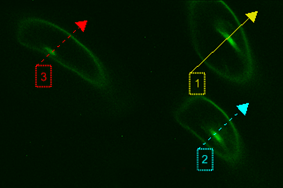
Figure 1897.
“Resize” and “move” operations are applied to the selected profile lines.
One or more intensity profiles can be displayed together. A profile is defined by an arrow placed inside the image. There are the following profile modes:
Note
Context menu over the basic arrows allows you to reverse the arrow, switch it to full size or open the Profile Properties (see: View > Layers Properties > Profile Properties).
Mode
 Channels Mode (shows graph lines in channel colors)
 Lines Mode (shows graph lines in profile-line colors)
Tools
 Vertical Autoscale
 Optimizes the displayed graph area. If the measured intensities do not reach maximum values, the top part of the graph is hidden.
 Show Graph Grid Profiles Options
 Displays the options window. See View > Layers Properties > Profile Properties.
 Export
 Click this button to display a pull-down menu. The Graph image, graph data, and the measurement results can be exported. See Exporting Results.
Note
If the document is calibrated, all the exported values are in the calibrated units instead of the pixel values.
 Export ND profiles
 This option is enabled when you are working with ND2 files. Press this button and select a frame / frames to which the export will apply.
 Show Memorize Data,
  Memorize,
  Clear Memory
 You can save the current graph to memory and display it later for comparison with another graph. Please see Graph Memorizing.
 Measure Vertical Lines,
  Measure Horizontal Lines, Slope via Angle,
  Slope via Free Angle,
  Area under the curve,
  Full width at half maximum,
  Clear Measurement Objects,
  Reset measurement data
 There is a set of functions for measurement inside the graph. Please see Measurement on Graph.
 Show Measurements
 Use this button to show a table containing results of measurements made in the graph.
 Display profile data from all opened images
 Shows a legend for each channel of all opened images on the right side of the graph area.
 Synchronize profile lines on multiple images
 If working with multiple images, the profile lines can be moved in sync using just one of the arrows.
 Shift Left(px),
  Shift Right(px)
 Shifts the intensity profile graph left or right by the amount of pixels specified in the edit box.
The intensity profile graph may be zoomed in the usual way. You can click the zoom buttons placed on the control window sides (please see the Image Window chapter for the buttons description) or a mouse wheel can be used:
To use the standard zoom, point to the target area and roll the mouse wheel. The graph will be zoomed in/out according to mouse wheel movement direction. To zoom just the horizontal axis, zoom while holding the Ctrl key down. The same applies for the vertical axis, but use the Shift key.
Intensity profile from selected ROIs
When working with ROIs, their intensity profile can be evoked by selecting Create Profile Line from Selected ROIs in the context menu over selected ROIs.
Note
Minimal, maximal, mean and standard deviation intensity values of all components present in the image are displayed in the status bar at the bottom of the window.
Measure > Intensity Surface Plot Enables advanced interactive intensity measurement. This command will create an image surface view based on evaluating the pixel intensity values. The surface can be freely rotated and zoomed.
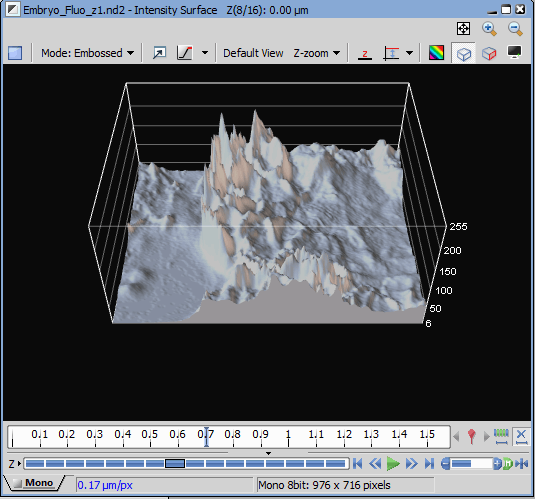
Figure 1898.
The following buttons are available:
 Select Background Color
 Low Intensity is lowest
 Low Intensity is highest
 Show Box
 Show Crop Plane
 Show Legend
The intensity range is automatically scaled unless you press this button. For setting the manual scale range select the Vertical Manual Scale > Set Min/Max... command.
Enter new values in a window that appears. You can use the Auto or Max buttons which help you to set the limits effectively.
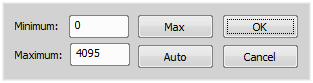
Figure 1899.
Measure > EDF Z-Profile 
(requires: Extended Depth of Focus)
Equals the Applications > EDF > EDF Z-Profile  command.
Measure > Time Series Graph This command is enabled only for ND2 files with a T dimension. It tracks how a feature has changed in time.
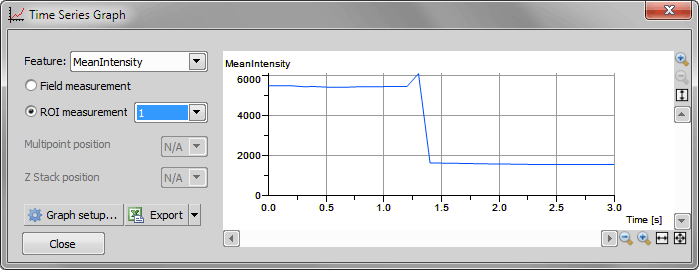
Figure 1900.
Select which feature will be used for Y axe in the graph. Possible values are the features defined by Measure->Field and ROI Features.
Select which values will be used. You can choose the measurement field data or ROI measurement data. You can further specify the ROI data by selecting one ROI from the list of all ROI and “All” in the list of possible values.
Time Measurement Options
The window contains three tabs:
General Options
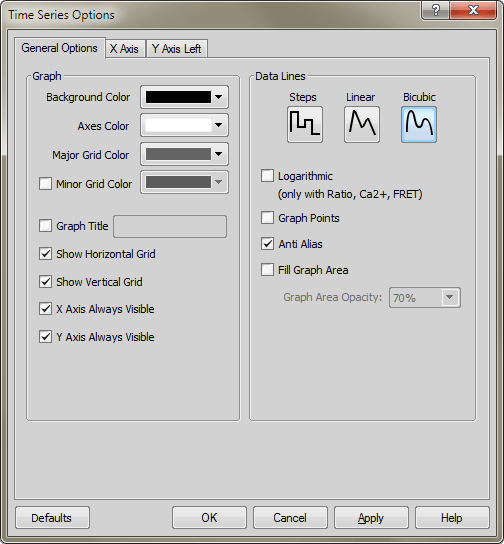
Figure 1901.
Choose background, axes and grid colors from the palette. Then check the Show Horizontal Grid/Show Vertical Grid items if you want to make them visible in the graph. Check the relevant X Axis Always Visible/Y Axis Always Visible item to make the axis always visible while zooming in the graph.
Select interpolation method for data treatment by pressing the relevant button. You can choose Steps, Linear, or Bicubic interpolation method.
Check to use logarithmic scale in the graph.
Check this item to display data points. Small dots indicating the actual data values position can be displayed on the graph line. The points appear only if the distance between them is big enough for them to be recognized (so they usually appear when you zoom in the graph).
Turning this option on will make the graph line edges look smooth.
Check this item to fill in the area under the line chart with a color. Select the amount of opacity used from the list of predefined values.
X axis
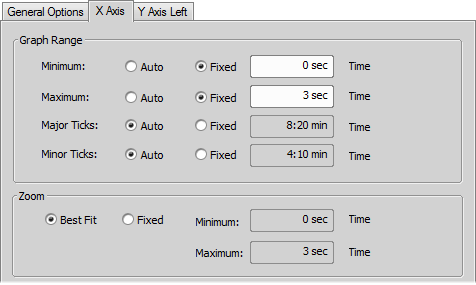
Figure 1902.
Y axis left
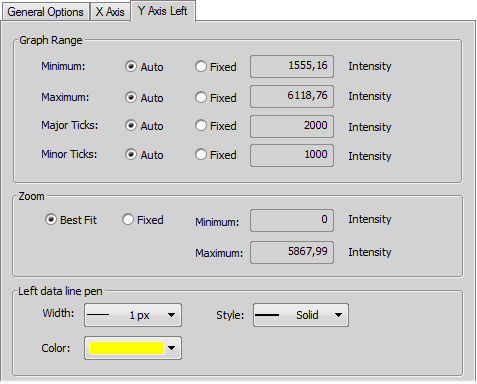
Figure 1903.
The Graph Range and Zoom options are described above.
Set the line appearance - line color (in case color of image component is not set), thickness and style (solid, dot, dashed, dash-dot).
Measure > Distance Measurement Opens the Distance Measurement panel. Please see View > Analysis Controls > Distance Measurement .
Measure > Options The following window appears:
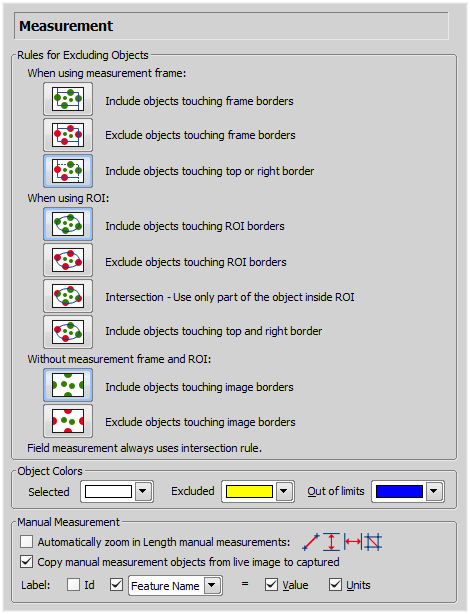
Figure 1904.
This section regards automatic measurement. Select the options how to treat the objects touching the area borders when you are performing the automatic measurement:
Pick up the option how to treat the object touching the measurement frame. Run the automatic measurement by the Measure > Use Measurement Frame command.
Pick up the option how to treat the object touching the ROI frame. Run the automatic measurement by the View > Layers > ROI command.
Pick up the option how to treat the object touching the image border. Turn off the measurement frame and ROI and run the automatic measurement.
Note
Rules for excluding objects are valid for all features of objects measurements. For field, frame and ROI measurement, these rules are taken into account only for the number of objects and do not affect the field measurement results. Field measurement is always applied inside the defined area without exceptions.
After the automatic measurement is performed, all measured objects are highlighted by color borders. Here you can select colors for the objects excluded from measurement according to the ROI/measurement frame settings. The Out of limits color will be used to highlight objects which do not fit the applied restrictions ( View > Analysis Controls > Automated Measurement  ).
).
This option zooms the image while placing the measurement points to the image. Only the indicated measurement tools are affected.
If enabled, measurement objects made in the live image are copied into the captured image after the Acquire > Capture command is executed.
The manual measurement objects can be labeled. Select what information will be attached to every manual measurement object in an image.
Measure > Taxonomy Options Opens a dialog with taxonomy settings.
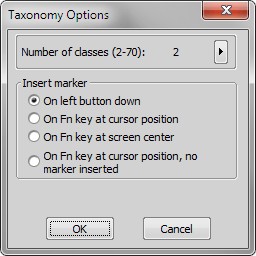
Figure 1905.
In the window select how many classes will be present and select the method of marker inserting as well.
See also Measurement Tools.
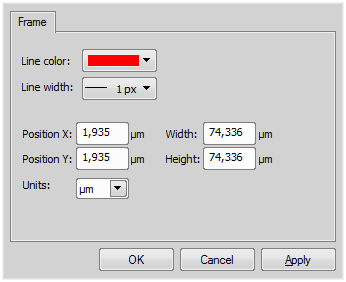
Measure > Use Measurement Frame Displays/hides the measurement frame. When ON, binary objects outside the frame are omitted when performing automatic measurement. Actual settings of the frame behavior can be set by the Measure > Options command. The frame size and position can be adjusted by mouse, or specified precisely within the Measure > Measurement Frame command window.