
 Show Scale
 Shows/hides the image scale bar.
 Show Annotations
 Shows/hides image annotations.
 Select
 This tool is used for selecting annotation elements.
 Draw Arrow
 This tool is used for drawing arrows.
 Draw Rectangle
 This tool is used for drawing rectangles.
 Draw Polygon
 This tool is used for drawing polygons.
 Line length
 Measures the length of a line. Click and hold the primary mouse button over the starting position and drag to the ending position and release the button. Confirm the object by the secondary mouse click.
 Polyline length
 Measures the length of a polyline. A polyline consists of several line segments. Use the primary mouse button to draw the line segments. Each mouse-click creates a new node. Complete the total length definition by the clicking the secondary mouse button.
Polygon EqDiameter EqDiameter of a polygon is measured. Draw a polygon by clicking the primary mouse button inside the image. The secondary mouse button or a double-click will place the last node of the polygon and close the object. To draw a free-hand shape, hold down the primary mouse button. Confirm the object by the secondary mouse click.
 Default Annotations Settings
 Opens the New Annotations Settings used for adjusting the annotation line color and width, and other text label parameters.
 Mark region for rescan
 Marks the selected region to be re-scanned using the  Re-Scan button in the bottom left.
Click a magnification to zoom in the current slide at that level. The view corresponds to the selected objective magnification. Use the mouse wheel to zoom in/out with finer increments.
 Show slide navigation overlay
 Opens the slide navigation used for quick navigation in the slide or its label. To hide it click Hide navigation  . Use the Overview and Label button to switch between these two modes. Click in the navigation to move to the particular position. The
  button opens the slide information table.
Click Live View (top right) to enter smart live view mode. This layout displays the acquired region (left) alongside the live signal (right). Objectives can be switched and both views can be zoomed. At 1:1 magnification, the images synchronize, allowing for simultaneous navigation. To prevent sample bleaching, smart live captures the image and turns off the laser automatically.
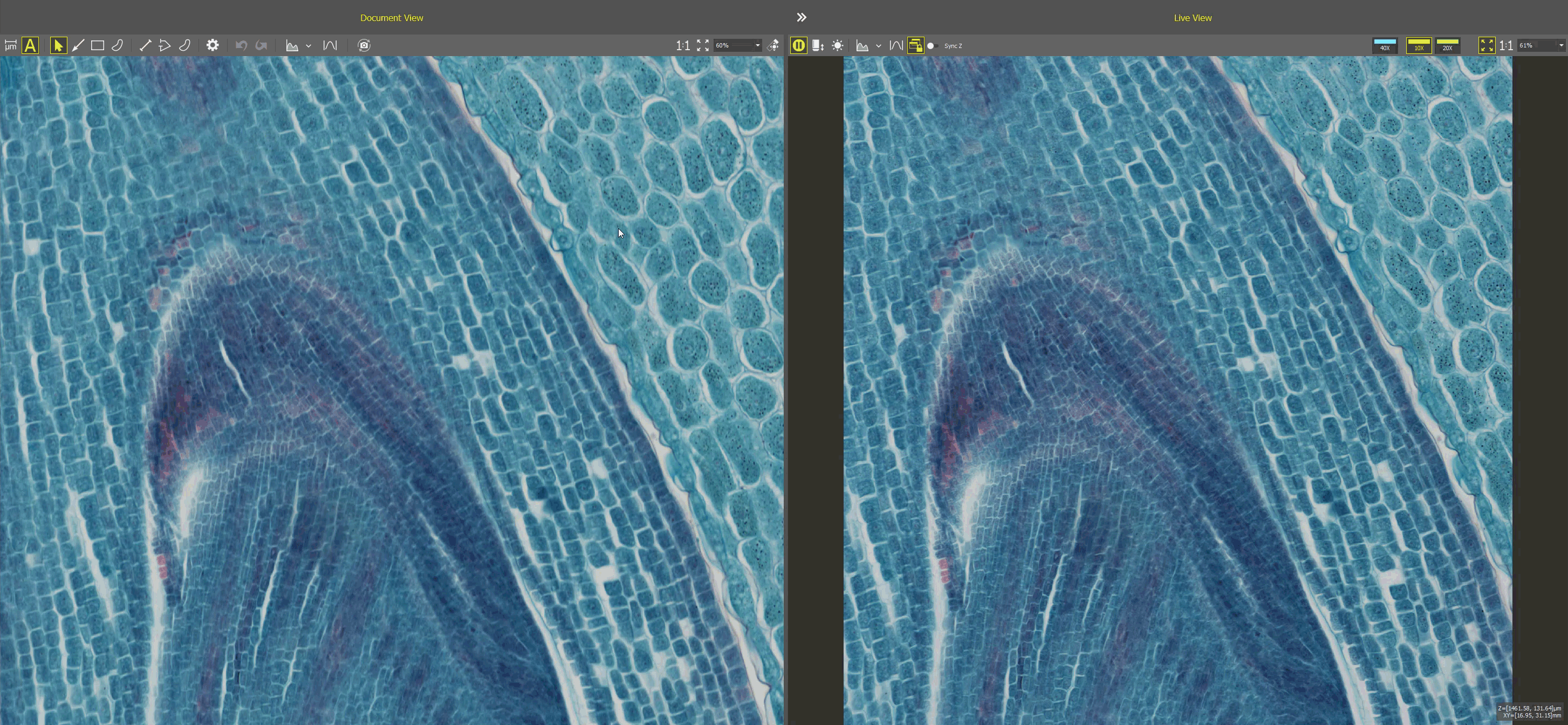
Figure 1531. Live View.
If turned on, the user can move over the focus map of the document in Z in the way it was acquired. If turned off, only X and Y axis movement is applied.