
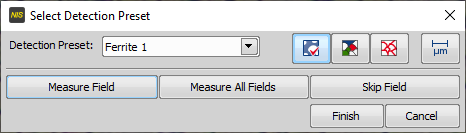
Figure 1412.
Select a detection preset for your sample. Detections presets can be created and modified within the Detection control panel. If you modify detection options and proceed with the wizard by or , the changes are saved automatically to the selected preset.
 Show Original Color Image
 Show Detection
 Displays a binary layer over the sample image which represents the detected grains. This layer changes as you adjust the options within the  Detection
  panel.
 Show Borders
 Displays only colorized borders of the detected grains so that you can see the underlying sample.
Saves the current detection settings to the preset and proceeds to measurement of the current image. Opens the Grain Size Wizard - Select Measurement Preset window.
Saves the current detection settings to the preset and measures all images specified as Image Data Source in the first step of the wizard. The first measurement preset of the selected type (e.g.: Planimetric) is used without prompting the user to modify it. This button shall be used after several images were measured (via the Measure button) and the user is sure the current measurement preset works well.
Finishes measurement of the current sample. The user is expected to export the data to a report or a table before measuring another sample. Otherwise, the current data will be lost upon starting the wizard again. See Data Panel.